Link your Dropbox account, find your projects in Dropbox, let changes sync both ways, force a sync and unlink.
Keep all your projects in sync with a folder in your Dropbox. Changes go both ways in the background, with one exception: what you type in the editor reaches Dropbox a few minutes after you leave the project, or when you click sync this project now.
If you see no Dropbox option in Account settings or in the editor, ask your administrator to turn on Dropbox Synchronisation.
Click Account, then Account settings. Under Project synchronisation, find Dropbox and click Link.
Dropbox in the account settings
2
Authorize on Dropbox
Dropbox opens. Sign in if you are asked to, then authorize the application.
3
Check the link
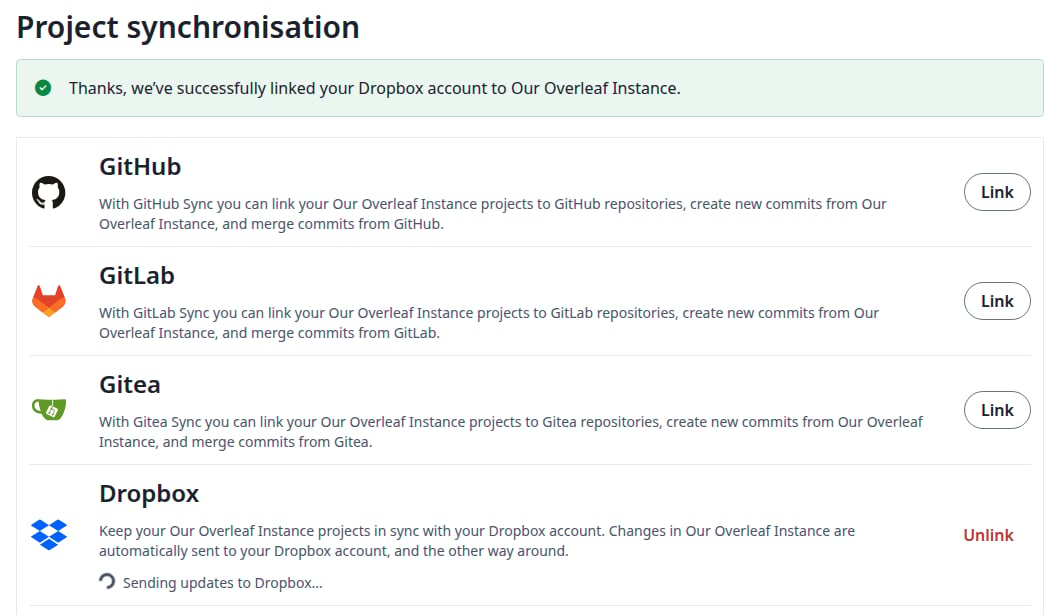
You are back in the account settings. A green message says your Dropbox account is linked, and the button now says Unlink. Under Dropbox, a status shows that your projects are being sent.
Your Dropbox account is linked
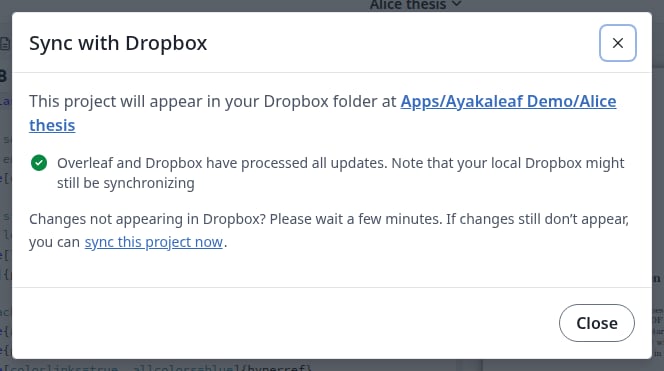
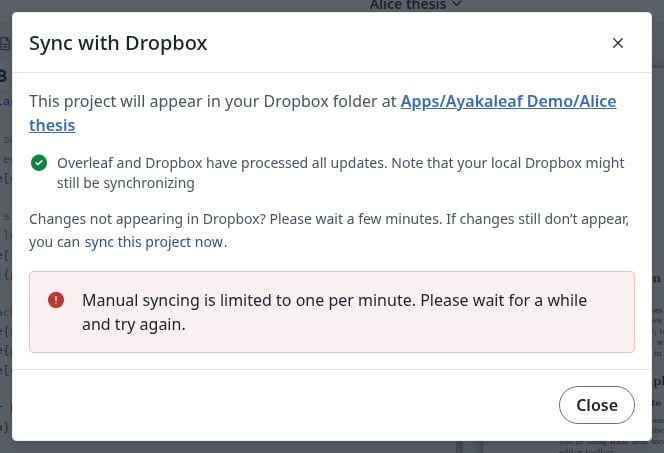
The status changes to Overleaf and Dropbox have processed all updates when they are all there.
Everything is in sync
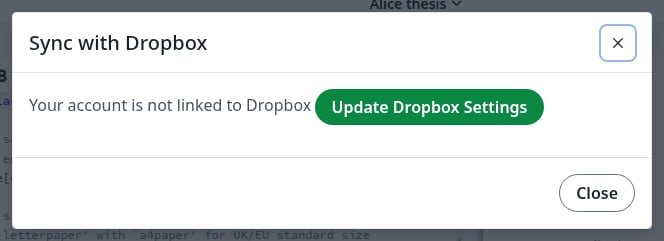
If your account is not linked yet, the Dropbox card in the editor asks you to link it first. Click Update Dropbox Settings: the account settings open in a new tab. Link your account there, then refresh the editor page, as the dialog tells you to.
The prompt when your account is not linked
If you do not allow access on Dropbox, you come back to the account settings without a message, and the button still says Link.
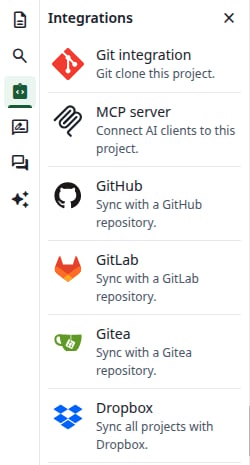
Each of your projects is a folder in Apps/<app name>/ in your Dropbox, with all its files. Your administrator chose the app name. Every project is synced, also the ones you create later: you cannot pick some of them.To see the folder of a project, open the project. In the left bar, click Integrations, then Dropbox.
The Integrations panel
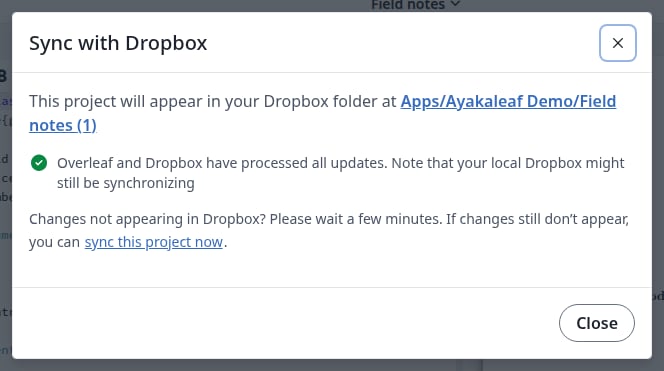
The dialog names the folder, and links to it on Dropbox.
The folder of this project
A new project named like one you already have gets a numbered folder, such as Field notes (1). The dialog shows which one is its folder.
New files, renames, moves and deletions reach Dropbox right away. A new folder appears there with its first file.
Renaming a project renames its folder.
Edits you type in the editor do not reach Dropbox while the project is open, and clicking Recompile does not send them. They go about three minutes after everyone has left the project. To send them earlier, see Force a sync.
Deleting a project leaves its folder in Dropbox. Delete the folder yourself if you no longer need it.
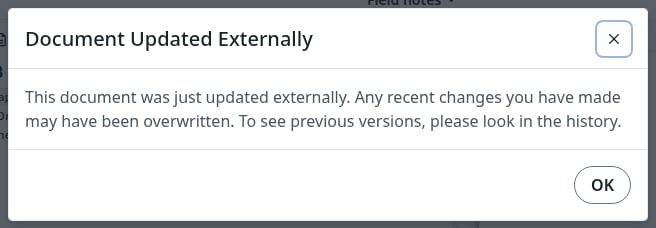
You do not need to click anything here either. Dropbox tells Overleaf about the change, and it usually shows up within seconds, also in an open editor, without reloading.
New files, edits, renames and deletions in a project folder are applied to the project. So are new folders.
A new folder at the top of the app folder becomes a new project.
Files Overleaf does not sync, such as .DS_Store or .aux files, stay in Dropbox only.
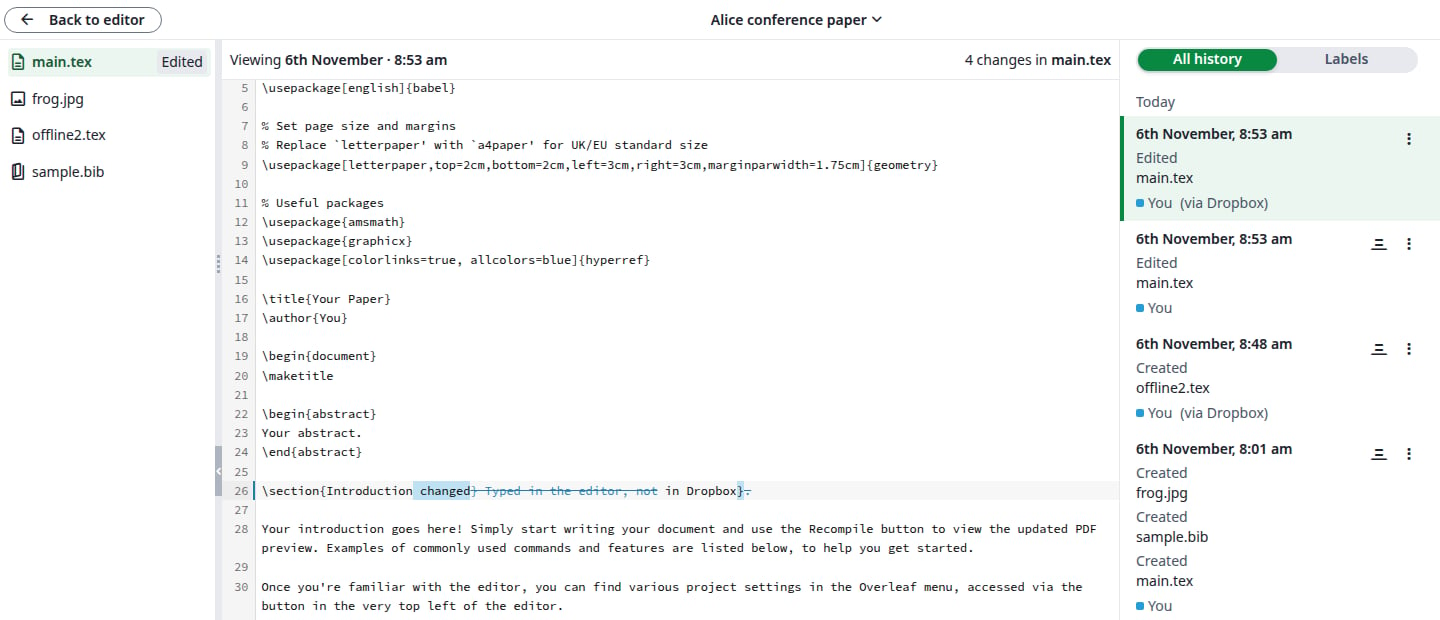
The history of the project marks these changes (via Dropbox).
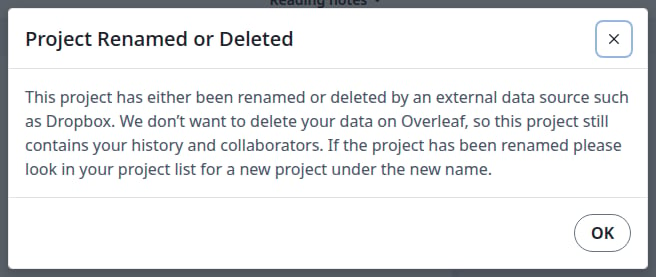
Rename a project in Overleaf, not in Dropbox. To Overleaf, a folder renamed in Dropbox is a deleted folder and a new one: you get a new project with the new name, and the old project stays.When you delete a project folder in Dropbox, the project stays in your project list, with its files and history. The next time you open it, a dialog tells you once. Click OK.
The folder of this project is gone from Dropbox
The project keeps syncing. To put all of it back in Dropbox, click sync this project now.
Changes you make in its folder in Dropbox are not applied, and restoring the project does not bring them in. Overleaf then stops sending the files you changed, so the two sides differ. Save such a file once more in Dropbox: the Dropbox version replaces the one in Overleaf.
Each project has its own link. Use it when you want your edits in Dropbox now, without leaving the project.
1
Open the sync dialog
Open the project. In the left bar, click Integrations, then Dropbox.
2
Click sync this project now
The link is at the end of Changes not appearing in Dropbox?
3
Check the result
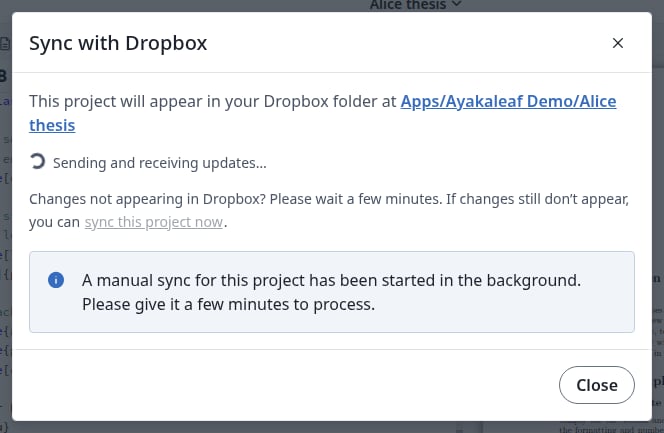
A blue message says a manual sync has started, and the status shows Sending and receiving updates. It changes back to Overleaf and Dropbox have processed all updates when the sync is done.
A manual sync is running
The link sends the whole project to Dropbox, including the edits still in the editor. It also reads the changes waiting in Dropbox, for all your projects. If your site cannot receive notifications from Dropbox, changes from Dropbox only come in this way.You can do this once per minute for each project. Sooner than that, a red message asks you to wait.
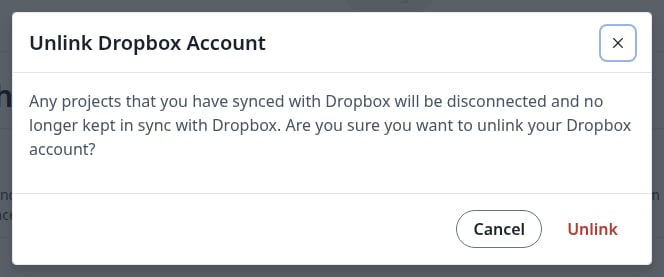
The button says Link again, and the Dropbox card in the editor says your account is not linked. Nothing syncs any more in either direction. Your projects and the folders in Dropbox keep their files.
Click Link. Your projects are sent to Dropbox again:
Each file replaces the one with the same name in Dropbox. What you changed in those files in Dropbox while unlinked is overwritten, so move such changes to the project first.
A file that exists only in Dropbox stays there, and comes into the project when you next change it.
A project you renamed while unlinked gets a new folder. The old folder stays.
For what collaborators get in a shared project, see How syncing works.
Last modified on November 7, 2026
Was this page helpful?
{"docsConfig":{"theme":"mint","$schema":"https://mintlify.com/docs.json","name":"Ayakaleaf Pro","description":"Overleaf Community Edition enhanced with all Pro features: open source, free to use, self-hostable.","colors":{"primary":"#0E0E0E","light":"#D4A27F","dark":"#0E0E0E"},"logo":{"light":"https://mintcdn.com/ayakaleaf-pro/JetHeEeglWIIXNds/logo/light.png?fit=max\u0026auto=format\u0026n=JetHeEeglWIIXNds\u0026q=85\u0026s=7f1abd8dcc74dd3b7cdafac9e6e82092","dark":"https://mintcdn.com/ayakaleaf-pro/JetHeEeglWIIXNds/logo/dark.png?fit=max\u0026auto=format\u0026n=JetHeEeglWIIXNds\u0026q=85\u0026s=4e369d29a8c5a6cd8b4b7697ddb1f7e2","href":"/"},"favicon":"https://mintcdn.com/ayakaleaf-pro/x9kfDjtWlyyhG_mR/favicon.png?fit=max\u0026auto=format\u0026n=x9kfDjtWlyyhG_mR\u0026q=85\u0026s=832c6bfafce5eb69ebc83783083a4a85","background":{"color":{"light":"#FDFDF7","dark":"#09090B"}},"navbar":{"links":[{"href":"https://github.com/ayaka-notes/ayakaleaf-pro-playground","label":"Playground"},{"href":"https://github.com/orgs/ayaka-notes/packages/container/package/overleaf-pro","label":"Docker Image"},{"href":"https://github.com/ayaka-notes/texlive-full","label":"TeXLive Full"}],"primary":{"type":"button","label":"Open GitHub","href":"https://github.com/ayaka-notes/ayakaleaf-pro"}},"footer":{"socials":{"github":"https://github.com/ayaka-notes"}},"styling":{"latex":true},"contextual":{"options":["copy","view","chatgpt","claude","perplexity","mcp","cursor","vscode","assistant","download-pdf","download-spec"],"display":"header"},"metadata":{"timestamp":true},"navigation":{"languages":[{"language":"en","default":true,"href":""},{"language":"zh-CN","href":"zh-CN"},{"language":"zh-TW","href":"zh-TW"},{"language":"ja","href":"ja"},{"language":"de","href":"de"},{"language":"fr","href":"fr"},{"language":"es","href":"es"},{"language":"it","href":"it"},{"language":"ko","href":"ko"},{"language":"ru","href":"ru"},{"language":"nl","href":"nl"},{"language":"pt","href":"pt"},{"language":"tr","href":"tr"},{"language":"uk","href":"uk"},{"language":"pl","href":"pl"},{"language":"cs","href":"cs"},{"language":"sv","href":"sv"},{"language":"fi","href":"fi"},{"language":"ar","href":"ar"},{"language":"vi","href":"vi"},{"language":"no","href":"no"},{"language":"da","href":"da"},{"language":"id","href":"id"},{"language":"zh-Hans","href":"zh-Hans"},{"language":"zh-Hant","href":"zh-Hant"}]}},"deployment":{"deploymentMetadataValue":{"subdomain":"ayakaleaf-pro","hasAudioNarration":false,"actualSubdomain":"ayakaleaf-pro","customDomains":[],"gitSource":{"type":"github","owner":"ayaka-notes","repo":"docs","deployBranch":"main","contentDirectory":"","isPrivate":false,"mountPath":"","label":""},"feedback":{"thumbs":true},"entitlements":{"AI_CHAT":{"status":"ENABLED"},"WEB_MCP":{"status":"ENABLED"},"NARRATION":{"status":"ENABLED"}},"buildId":"6aee957818cb0ff786610e20","clientVersion":"0.0.4076","searchFilterCounts":[{"language":"en","tag":"On-Premises","count":138},{"language":"ar","tag":"الاستضافة المحلية","count":101},{"language":"cs","tag":"On-Premises","count":101},{"language":"da","tag":"On-premises","count":101},{"language":"de","tag":"On-Premises","count":101},{"language":"es","tag":"Local","count":101},{"language":"fi","tag":"Paikallinen asennus","count":101},{"language":"fr","tag":"Sur site","count":101},{"language":"id","tag":"On-Premises","count":101},{"language":"it","tag":"On-premise","count":101},{"language":"ja","tag":"オンプレミス","count":101},{"language":"ko","tag":"온프레미스","count":101},{"language":"nl","tag":"On-premises","count":101},{"language":"no","tag":"Lokal drift","count":101},{"language":"pl","tag":"On-Premises","count":101},{"language":"pt","tag":"On-Premises","count":101},{"language":"ru","tag":"Локальное развертывание","count":101},{"language":"sv","tag":"On-Premises","count":101},{"language":"tr","tag":"Şirket İçi Kurulum","count":101},{"language":"uk","tag":"Локальне розгортання","count":101},{"language":"vi","tag":"Tự triển khai (On-Premises)","count":101},{"language":"zh-CN","tag":"本地部署","count":101},{"language":"zh-Hans","tag":"本地部署","count":101},{"language":"zh-Hant","tag":"本地部署","count":101},{"language":"zh-TW","tag":"本地部署","count":101},{"language":"ar","tag":"الإعداد","count":60},{"language":"en","tag":"Configuration","count":60},{"language":"cs","tag":"Konfigurace","count":60},{"language":"da","tag":"Konfiguration","count":60},{"language":"de","tag":"Konfiguration","count":60},{"language":"es","tag":"Configuración","count":60},{"language":"fi","tag":"Määritys","count":60},{"language":"fr","tag":"Configuration","count":60},{"language":"id","tag":"Konfigurasi","count":60},{"language":"it","tag":"Configurazione","count":60},{"language":"ja","tag":"設定","count":60},{"language":"ko","tag":"구성","count":60},{"language":"nl","tag":"Configuratie","count":60},{"language":"no","tag":"Konfigurasjon","count":60},{"language":"pl","tag":"Konfiguracja","count":60},{"language":"pt","tag":"Configuração","count":60},{"language":"ru","tag":"Настройка","count":60},{"language":"sv","tag":"Konfiguration","count":60},{"language":"tr","tag":"Yapılandırma","count":60},{"language":"uk","tag":"Конфігурація","count":60},{"language":"vi","tag":"Cấu hình","count":60},{"language":"zh-CN","tag":"配置","count":60},{"language":"zh-Hans","tag":"配置","count":60},{"language":"zh-Hant","tag":"設定","count":60},{"language":"zh-TW","tag":"設定","count":60},{"language":"en","tag":"Installation","count":35},{"language":"ar","tag":"Ayakaleaf Toolkit","count":31},{"language":"en","tag":"Docker Compose","count":31},{"language":"cs","tag":"Ayakaleaf Toolkit","count":31},{"language":"da","tag":"Ayakaleaf Toolkit","count":31},{"language":"de","tag":"Ayakaleaf Toolkit","count":31},{"language":"es","tag":"Ayakaleaf Toolkit","count":31},{"language":"fi","tag":"Ayakaleaf Toolkit","count":31},{"language":"fr","tag":"Ayakaleaf Toolkit","count":31},{"language":"id","tag":"Ayakaleaf Toolkit","count":31},{"language":"it","tag":"Ayakaleaf Toolkit","count":31},{"language":"ja","tag":"Ayakaleaf Toolkit","count":31},{"language":"ko","tag":"Ayakaleaf Toolkit","count":31},{"language":"nl","tag":"Ayakaleaf Toolkit","count":31},{"language":"no","tag":"Ayakaleaf Toolkit","count":31},{"language":"pl","tag":"Ayakaleaf Toolkit","count":31},{"language":"pt","tag":"Ayakaleaf Toolkit","count":31},{"language":"ru","tag":"Ayakaleaf Toolkit","count":31},{"language":"sv","tag":"Ayakaleaf Toolkit","count":31},{"language":"tr","tag":"Ayakaleaf Toolkit","count":31},{"language":"uk","tag":"Ayakaleaf Toolkit","count":31},{"language":"vi","tag":"Ayakaleaf Toolkit","count":31},{"language":"zh-CN","tag":"Ayakaleaf Toolkit","count":31},{"language":"zh-Hans","tag":"Ayakaleaf Toolkit","count":31},{"language":"zh-Hant","tag":"Ayakaleaf Toolkit","count":31},{"language":"zh-TW","tag":"Ayakaleaf Toolkit","count":31},{"language":"ar","tag":"Kubernetes","count":29},{"language":"en","tag":"Kubernetes","count":29},{"language":"cs","tag":"Kubernetes","count":29},{"language":"da","tag":"Kubernetes","count":29},{"language":"de","tag":"Kubernetes","count":29},{"language":"es","tag":"Kubernetes","count":29},{"language":"fi","tag":"Kubernetes","count":29},{"language":"fr","tag":"Kubernetes","count":29},{"language":"id","tag":"Kubernetes","count":29},{"language":"it","tag":"Kubernetes","count":29},{"language":"ja","tag":"Kubernetes","count":29},{"language":"ko","tag":"Kubernetes","count":29},{"language":"nl","tag":"Kubernetes","count":29},{"language":"no","tag":"Kubernetes","count":29},{"language":"pl","tag":"Kubernetes","count":29},{"language":"pt","tag":"Kubernetes","count":29},{"language":"ru","tag":"Kubernetes","count":29},{"language":"sv","tag":"Kubernetes","count":29},{"language":"tr","tag":"Kubernetes","count":29},{"language":"uk","tag":"Kubernetes","count":29},{"language":"vi","tag":"Kubernetes","count":29},{"language":"zh-CN","tag":"Kubernetes","count":29},{"language":"zh-Hans","tag":"Kubernetes","count":29},{"language":"zh-Hant","tag":"Kubernetes","count":29},{"language":"zh-TW","tag":"Kubernetes","count":29},{"language":"en","tag":"Using Docker Compose","count":23},{"language":"en","tag":"User guide","count":21},{"language":"ar","tag":"التكاملات","count":20},{"language":"en","tag":"Integrations","count":20},{"language":"cs","tag":"Integrace","count":20},{"language":"da","tag":"Integrationer","count":20},{"language":"de","tag":"Integrationen","count":20},{"language":"es","tag":"Integraciones","count":20},{"language":"fi","tag":"Integraatiot","count":20},{"language":"fr","tag":"Intégrations","count":20},{"language":"id","tag":"Integrasi","count":20},{"language":"it","tag":"Integrazioni","count":20},{"language":"ja","tag":"連携","count":20},{"language":"ko","tag":"통합","count":20},{"language":"nl","tag":"Integraties","count":20},{"language":"no","tag":"Integrasjoner","count":20},{"language":"pl","tag":"Integracje","count":20},{"language":"pt","tag":"Integrações","count":20},{"language":"ru","tag":"Интеграции","count":20},{"language":"sv","tag":"Integrationer","count":20},{"language":"tr","tag":"Entegrasyonlar","count":20},{"language":"uk","tag":"Інтеграції","count":20},{"language":"vi","tag":"Tích hợp","count":20},{"language":"zh-CN","tag":"集成","count":20},{"language":"zh-Hans","tag":"集成","count":20},{"language":"zh-Hant","tag":"整合","count":20},{"language":"zh-TW","tag":"整合","count":20},{"language":"ar","tag":"التثبيت","count":19},{"language":"cs","tag":"Instalace","count":19},{"language":"da","tag":"Installation","count":19},{"language":"de","tag":"Installation","count":19},{"language":"es","tag":"Instalación","count":19},{"language":"fi","tag":"Asennus","count":19},{"language":"fr","tag":"Installation","count":19},{"language":"id","tag":"Instalasi","count":19},{"language":"it","tag":"Installazione","count":19},{"language":"ja","tag":"インストール","count":19},{"language":"ko","tag":"설치","count":19},{"language":"nl","tag":"Installatie","count":19},{"language":"no","tag":"Installasjon","count":19},{"language":"pl","tag":"Instalacja","count":19},{"language":"pt","tag":"Instalação","count":19},{"language":"ru","tag":"Установка","count":19},{"language":"sv","tag":"Installation","count":19},{"language":"tr","tag":"Kurulum","count":19},{"language":"uk","tag":"Встановлення","count":19},{"language":"vi","tag":"Cài đặt","count":19},{"language":"zh-CN","tag":"安装","count":19},{"language":"zh-Hans","tag":"安装","count":19},{"language":"zh-Hant","tag":"安裝","count":19},{"language":"zh-TW","tag":"安裝","count":19},{"language":"en","tag":"For users","count":16},{"language":"ar","tag":"المصادقة","count":12},{"language":"en","tag":"Authentication","count":12},{"language":"cs","tag":"Ověřování","count":12},{"language":"da","tag":"Godkendelse","count":12},{"language":"de","tag":"Authentifizierung","count":12},{"language":"es","tag":"Autenticación","count":12},{"language":"fi","tag":"Todennus","count":12},{"language":"fr","tag":"Authentification","count":12},{"language":"id","tag":"Autentikasi","count":12},{"language":"it","tag":"Autenticazione","count":12},{"language":"ja","tag":"認証","count":12},{"language":"ko","tag":"인증","count":12},{"language":"nl","tag":"Authenticatie","count":12},{"language":"no","tag":"Autentisering","count":12},{"language":"pl","tag":"Uwierzytelnianie","count":12},{"language":"pt","tag":"Autenticação","count":12},{"language":"ru","tag":"Аутентификация","count":12},{"language":"sv","tag":"Autentisering","count":12},{"language":"tr","tag":"Kimlik Doğrulama","count":12},{"language":"uk","tag":"Автентифікація","count":12},{"language":"vi","tag":"Xác thực","count":12},{"language":"zh-CN","tag":"身份验证","count":12},{"language":"zh-Hans","tag":"身份验证","count":12},{"language":"zh-Hant","tag":"身分驗證","count":12},{"language":"zh-TW","tag":"身分驗證","count":12},{"language":"ar","tag":"المطوّرون","count":11},{"language":"cs","tag":"Vývojáři","count":11},{"language":"da","tag":"Udvikler","count":11},{"language":"de","tag":"Entwickler","count":11},{"language":"es","tag":"Desarrollador","count":11},{"language":"fi","tag":"Kehittäjä","count":11},{"language":"fr","tag":"Développeur","count":11},{"language":"id","tag":"Pengembang","count":11},{"language":"it","tag":"Sviluppatore","count":11},{"language":"ja","tag":"開発者","count":11},{"language":"ko","tag":"개발자","count":11},{"language":"nl","tag":"Ontwikkelaar","count":11},{"language":"no","tag":"Utvikler","count":11},{"language":"pl","tag":"Dla deweloperów","count":11},{"language":"pt","tag":"Desenvolvedor","count":11},{"language":"ru","tag":"Разработчикам","count":11},{"language":"sv","tag":"Utvecklare","count":11},{"language":"tr","tag":"Geliştirici","count":11},{"language":"uk","tag":"Розробникам","count":11},{"language":"vi","tag":"Nhà phát triển","count":11},{"language":"zh-CN","tag":"开发者","count":11},{"language":"zh-Hans","tag":"开发者","count":11},{"language":"zh-Hant","tag":"開發者","count":11},{"language":"zh-TW","tag":"開發者","count":11},{"language":"ar","tag":"نظرة عامة","count":9},{"language":"ar","tag":"الصيانة","count":9},{"language":"cs","tag":"Přehled","count":9},{"language":"cs","tag":"Údržba","count":9},{"language":"da","tag":"Oversigt","count":9},{"language":"da","tag":"Vedligeholdelse","count":9},{"language":"de","tag":"Überblick","count":9},{"language":"de","tag":"Wartung","count":9},{"language":"es","tag":"Descripción general","count":9},{"language":"es","tag":"Mantenimiento","count":9},{"language":"fi","tag":"Yleiskatsaus","count":9},{"language":"fi","tag":"Ylläpito","count":9},{"language":"fr","tag":"Aperçu","count":9},{"language":"fr","tag":"Maintenance","count":9},{"language":"id","tag":"Ikhtisar","count":9},{"language":"id","tag":"Pemeliharaan","count":9},{"language":"it","tag":"Panoramica","count":9},{"language":"it","tag":"Manutenzione","count":9},{"language":"ja","tag":"概要","count":9},{"language":"ja","tag":"メンテナンス","count":9},{"language":"ko","tag":"개요","count":9},{"language":"ko","tag":"유지 관리","count":9},{"language":"nl","tag":"Overzicht","count":9},{"language":"nl","tag":"Onderhoud","count":9},{"language":"no","tag":"Oversikt","count":9},{"language":"no","tag":"Vedlikehold","count":9},{"language":"pl","tag":"Przegląd","count":9},{"language":"pl","tag":"Utrzymanie","count":9},{"language":"pt","tag":"Visão geral","count":9},{"language":"pt","tag":"Manutenção","count":9},{"language":"ru","tag":"Обзор","count":9},{"language":"ru","tag":"Обслуживание","count":9},{"language":"sv","tag":"Översikt","count":9},{"language":"sv","tag":"Underhåll","count":9},{"language":"tr","tag":"Genel Bakış","count":9},{"language":"tr","tag":"Bakım","count":9},{"language":"uk","tag":"Огляд","count":9},{"language":"uk","tag":"Обслуговування","count":9},{"language":"vi","tag":"Tổng quan","count":9},{"language":"vi","tag":"Bảo trì","count":9},{"language":"zh-CN","tag":"概览","count":9},{"language":"zh-CN","tag":"维护","count":9},{"language":"zh-Hans","tag":"概览","count":9},{"language":"zh-Hans","tag":"维护","count":9},{"language":"zh-Hant","tag":"概覽","count":9},{"language":"zh-Hant","tag":"維護","count":9},{"language":"zh-TW","tag":"概覽","count":9},{"language":"zh-TW","tag":"維護","count":9}],"searchSettings":{"maxResults":6}},"assistantConfig":{"enableAskAiButton":false,"enableStarterQuestions":false,"enableContextualStarterQuestions":false,"enableAskAiSearchBar":true},"basePath":"","hasChatPermissions":true,"hasWebMcpPermissions":true,"toggles":[{"name":"kill-isr","enabled":true,"variant":{"name":"disabled","enabled":false,"feature_enabled":true},"impressionData":false},{"name":"agent-mintlify-slack","enabled":true,"variant":{"name":"disabled","enabled":false,"feature_enabled":true},"impressionData":false},{"name":"agent-integrations-settings","enabled":true,"variant":{"name":"disabled","enabled":false,"feature_enabled":true},"impressionData":false},{"name":"rbac-expansion","enabled":true,"variant":{"name":"disabled","enabled":false,"feature_enabled":true},"impressionData":false},{"name":"automations-pr-grouping","enabled":true,"variant":{"name":"disabled","enabled":false,"feature_enabled":true},"impressionData":false},{"name":"custom-prefix","enabled":true,"variant":{"name":"disabled","enabled":false,"feature_enabled":true},"impressionData":false},{"name":"analytics-v7","enabled":true,"variant":{"name":"disabled","enabled":false,"feature_enabled":true},"impressionData":false},{"name":"user-flows-analytics","enabled":true,"variant":{"name":"disabled","enabled":false,"feature_enabled":true},"impressionData":false},{"name":"no-publish-flow","enabled":true,"variant":{"name":"disabled","enabled":false,"feature_enabled":true},"impressionData":false},{"name":"workos-onboarding","enabled":true,"variant":{"name":"disabled","enabled":false,"feature_enabled":true},"impressionData":false},{"name":"llms-txt-v2","enabled":true,"variant":{"name":"disabled","enabled":false,"feature_enabled":true},"impressionData":false},{"name":"snapshot-serving-live","enabled":true,"variant":{"name":"disabled","enabled":false,"feature_enabled":true},"impressionData":false},{"name":"stripTemperatureMiddleware","enabled":true,"variant":{"name":"disabled","enabled":false,"feature_enabled":true},"impressionData":false},{"name":"support-platform-pylon-zendesk","enabled":true,"variant":{"name":"disabled","enabled":false,"feature_enabled":true},"impressionData":false},{"name":"snapshot-serving","enabled":true,"variant":{"name":"disabled","enabled":false,"feature_enabled":true},"impressionData":false},{"name":"instant-rollback","enabled":true,"variant":{"name":"disabled","enabled":false,"feature_enabled":true},"impressionData":false},{"name":"granular-notifications-server","enabled":true,"variant":{"name":"disabled","enabled":false,"feature_enabled":true},"impressionData":false},{"name":"granular-notifications","enabled":true,"variant":{"name":"disabled","enabled":false,"feature_enabled":true},"impressionData":false},{"name":"automations-fable","enabled":true,"variant":{"name":"disabled","enabled":false,"feature_enabled":true},"impressionData":false},{"name":"fixed-ai-action-pricing","enabled":true,"variant":{"name":"disabled","enabled":false,"feature_enabled":true},"impressionData":false},{"name":"automation-resolve-merge-conflict","enabled":true,"variant":{"name":"disabled","enabled":false,"feature_enabled":true},"impressionData":false},{"name":"scoped-publishing","enabled":true,"variant":{"name":"disabled","enabled":false,"feature_enabled":true},"impressionData":false},{"name":"mintql","enabled":true,"variant":{"name":"disabled","enabled":false,"feature_enabled":true},"impressionData":false},{"name":"page-level-analytics","enabled":true,"variant":{"name":"disabled","enabled":false,"feature_enabled":true},"impressionData":false},{"name":"editor-version-history-v2","enabled":true,"variant":{"name":"disabled","enabled":false,"feature_enabled":true},"impressionData":false},{"name":"billing-page-v2","enabled":true,"variant":{"name":"disabled","enabled":false,"feature_enabled":true},"impressionData":false},{"name":"full-page-search","enabled":true,"variant":{"name":"disabled","enabled":false,"feature_enabled":true},"impressionData":false},{"name":"workspace-projects","enabled":true,"variant":{"name":"disabled","enabled":false,"feature_enabled":true},"impressionData":false},{"name":"assistant-v5","enabled":true,"variant":{"name":"disabled","enabled":false,"feature_enabled":true},"impressionData":false},{"name":"fork-pr-previews","enabled":true,"variant":{"name":"disabled","enabled":false,"feature_enabled":true},"impressionData":false},{"name":"revalidation-jwt","enabled":true,"variant":{"name":"disabled","enabled":false,"feature_enabled":true},"impressionData":false},{"name":"workos-sso-scim","enabled":true,"variant":{"name":"disabled","enabled":false,"feature_enabled":true},"impressionData":false},{"name":"hobby-abuse-scan","enabled":true,"variant":{"name":"disabled","enabled":false,"feature_enabled":true},"impressionData":false},{"name":"dashboard-inbox","enabled":true,"variant":{"name":"disabled","enabled":false,"feature_enabled":true},"impressionData":false},{"name":"workos-signup","enabled":true,"variant":{"name":"disabled","enabled":false,"feature_enabled":true},"impressionData":false},{"name":"turbopuffer-dual-write","enabled":true,"variant":{"name":"disabled","enabled":false,"feature_enabled":true},"impressionData":false},{"name":"workos-enabled","enabled":true,"variant":{"name":"disabled","enabled":false,"feature_enabled":true},"impressionData":false},{"name":"approve-review-flow","enabled":true,"variant":{"name":"disabled","enabled":false,"feature_enabled":true},"impressionData":false},{"name":"editor-metadata","enabled":true,"variant":{"name":"disabled","enabled":false,"feature_enabled":true},"impressionData":false},{"name":"sso-setup-deadline-banner","enabled":true,"variant":{"name":"disabled","enabled":false,"feature_enabled":true},"impressionData":false},{"name":"turbopuffer-serve","enabled":true,"variant":{"name":"disabled","enabled":false,"feature_enabled":true},"impressionData":false},{"name":"live-agents","enabled":true,"variant":{"name":"disabled","enabled":false,"feature_enabled":true},"impressionData":false},{"name":"comment-mode","enabled":true,"variant":{"name":"disabled","enabled":false,"feature_enabled":true},"impressionData":false}],"googleFontsInlined":false},"customCss":[{"filePath":"style.css","content":"@font-face{font-family:\"Site Sans\";src:url(\"/fonts/SiteSans-Text-Regular-Static.otf\") format(\"opentype\");font-weight:400;font-style:normal;font-display:swap}@font-face{font-family:\"Site Sans\";src:url(\"/fonts/SiteSans-Text-RegularItalic-Static.otf\") format(\"opentype\");font-weight:400;font-style:italic;font-display:swap}@font-face{font-family:\"Site Sans\";src:url(\"/fonts/SiteSans-Text-Medium-Static.otf\") format(\"opentype\");font-weight:500;font-style:normal;font-display:swap}@font-face{font-family:\"Site Sans\";src:url(\"/fonts/SiteSans-Text-MediumItalic-Static.otf\") format(\"opentype\");font-weight:500;font-style:italic;font-display:swap}@font-face{font-family:\"Site Sans\";src:url(\"/fonts/SiteSans-Text-Semibold-Static.otf\") format(\"opentype\");font-weight:600;font-style:normal;font-display:swap}@font-face{font-family:\"Site Sans\";src:url(\"/fonts/SiteSans-Text-SemiboldItalic-Static.otf\") format(\"opentype\");font-weight:600;font-style:italic;font-display:swap}@font-face{font-family:\"Site Sans\";src:url(\"/fonts/SiteSans-Text-Bold-Static.otf\") format(\"opentype\");font-weight:700;font-style:normal;font-display:swap}@font-face{font-family:\"Site Sans\";src:url(\"/fonts/SiteSans-Text-BoldItalic-Static.otf\") format(\"opentype\");font-weight:700;font-style:italic;font-display:swap}@font-face{font-family:\"Site Serif Display\";src:url(\"/fonts/SiteSerif-Display-Regular-Static.otf\") format(\"opentype\");font-weight:400;font-style:normal;font-display:swap}@font-face{font-family:\"Site Serif Display\";src:url(\"/fonts/SiteSerif-Display-RegularItalic-Static.otf\") format(\"opentype\");font-weight:400;font-style:italic;font-display:swap}@font-face{font-family:\"Site Serif Display\";src:url(\"/fonts/SiteSerif-Display-Medium-Static.otf\") format(\"opentype\");font-weight:500;font-style:normal;font-display:swap}@font-face{font-family:\"Site Serif Display\";src:url(\"/fonts/SiteSerif-Display-Semibold-Static.otf\") format(\"opentype\");font-weight:600;font-style:normal;font-display:swap}@font-face{font-family:\"Site Serif Display\";src:url(\"/fonts/SiteSerif-Display-Bold-Static.otf\") format(\"opentype\");font-weight:700;font-style:normal;font-display:swap}@font-face{font-family:\"Site Serif\";src:url(\"/fonts/SiteSerif-Text-Regular-Static.otf\") format(\"opentype\");font-weight:400;font-style:normal;font-display:swap}@font-face{font-family:\"Site Serif\";src:url(\"/fonts/SiteSerif-Text-RegularItalic-Static.otf\") format(\"opentype\");font-weight:400;font-style:italic;font-display:swap}@font-face{font-family:\"Site Serif\";src:url(\"/fonts/SiteSerif-Text-Medium-Static.otf\") format(\"opentype\");font-weight:500;font-style:normal;font-display:swap}@font-face{font-family:\"Site Serif\";src:url(\"/fonts/SiteSerif-Text-MediumItalic-Static.otf\") format(\"opentype\");font-weight:500;font-style:italic;font-display:swap}@font-face{font-family:\"Site Serif\";src:url(\"/fonts/SiteSerif-Text-Semibold-Static.otf\") format(\"opentype\");font-weight:600;font-style:normal;font-display:swap}@font-face{font-family:\"Site Serif\";src:url(\"/fonts/SiteSerif-Text-SemiboldItalic-Static.otf\") format(\"opentype\");font-weight:600;font-style:italic;font-display:swap}@font-face{font-family:\"Site Serif\";src:url(\"/fonts/SiteSerif-Text-Bold-Static.otf\") format(\"opentype\");font-weight:700;font-style:normal;font-display:swap}@font-face{font-family:\"Site Serif\";src:url(\"/fonts/SiteSerif-Text-BoldItalic-Static.otf\") format(\"opentype\");font-weight:700;font-style:italic;font-display:swap}:root{--always-white: 0 0% 100%;--always-black: 0 0% 0%;--constant-book-cloth: 15 55% 80%;--constant-clay: 15 60% 85%;--constant-kraft: 25 40% 83%;--constant-manilla: 40 20% 92%;--constant-slate-000: 0 0% 100%;--constant-slate-050: 48 33.3% 97.1%;--constant-slate-100: 53 28.6% 94.5%;--constant-slate-150: 48 25% 92.2%;--constant-slate-200: 50 20.7% 88.6%;--constant-slate-250: 51 16.5% 84.5%;--constant-slate-300: 50 11.5% 79.6%;--constant-slate-350: 50 9% 73.7%;--constant-slate-400: 49 6.5% 66.9%;--constant-slate-450: 48 4.8% 59.2%;--constant-slate-500: 53 3.2% 51.4%;--constant-slate-550: 51 3.1% 43.7%;--constant-slate-600: 48 2.7% 35.9%;--constant-slate-650: 48 3.4% 29.2%;--constant-slate-700: 60 2.5% 23.3%;--constant-slate-750: 60 2.1% 18.4%;--constant-slate-800: 60 2.7% 14.5%;--constant-slate-850: 30 3.3% 11.8%;--constant-slate-900: 30 4% 9.8%;--constant-slate-950: 60 2.6% 7.6%;--constant-slate-1000: 60 3.4% 5.7%}:root:not(.dark){--accent-brand: 15 63.1% 59.6%;--accent-main-000: 15 55.6% 52.4%;--accent-main-100: 15 55.6% 52.4%;--accent-main-200: 15 63.1% 59.6%;--accent-main-900: 0 0% 0%;--accent-pro-000: 251 34.2% 33.3%;--accent-pro-100: 251 40% 45.1%;--accent-pro-200: 251 61% 72.2%;--accent-pro-900: 253 33.3% 91.8%;--accent-secondary-000: 210 73.7% 40.2%;--accent-secondary-100: 210 70.9% 51.6%;--accent-secondary-200: 210 70.9% 51.6%;--accent-secondary-900: 211 72% 90%;--bg-000: 0 0% 100%;--bg-100: 48 33.3% 97.1%;--bg-200: 53 28.6% 94.5%;--bg-300: 48 25% 92.2%;--bg-400: 50 20.7% 88.6%;--bg-500: 50 20.7% 88.6%;--border-100: 30 3.3% 11.8%;--border-200: 30 3.3% 11.8%;--border-300: 30 3.3% 11.8%;--border-400: 30 3.3% 11.8%;--danger-000: 0 61.4% 22.4%;--danger-100: 0 58.6% 34.1%;--danger-200: 0 58.6% 34.1%;--danger-900: 0 50% 95%;--oncolor-100: 0 0% 100%;--oncolor-200: 60 6.7% 97.1%;--oncolor-300: 60 6.7% 97.1%;--text-000: 60 2.6% 7.6%;--text-100: 60 2.6% 7.6%;--text-200: 60 2.5% 23.3%;--text-300: 60 2.5% 23.3%;--text-400: 51 3.1% 43.7%;--text-500: 51 3.1% 43.7%}:root.dark{--accent-brand: 15 63.1% 59.6%;--accent-main-000: 15 55.6% 52.4%;--accent-main-100: 15 63.1% 59.6%;--accent-main-200: 15 63.1% 59.6%;--accent-main-900: 0 0% 0%;--accent-pro-000: 251 84.6% 74.5%;--accent-pro-100: 251 40.2% 54.1%;--accent-pro-200: 251 40% 45.1%;--accent-pro-900: 250 25.3% 19.4%;--accent-secondary-000: 210 71.1% 62%;--accent-secondary-100: 210 70.9% 51.6%;--accent-secondary-200: 210 70.9% 51.6%;--accent-secondary-900: 210 55.9% 24.6%;--bg-000: 60 2.1% 18.4%;--bg-100: 60 2.7% 14.5%;--bg-200: 30 3.3% 11.8%;--bg-300: 60 2.6% 7.6%;--bg-400: 60 3.4% 5.7%;--bg-500: 60 3.4% 5.7%;--border-100: 51 16.5% 84.5%;--border-200: 51 16.5% 84.5%;--border-300: 51 16.5% 84.5%;--border-400: 51 16.5% 84.5%;--danger-000: 0 73.1% 66.5%;--danger-100: 0 58.6% 34.1%;--danger-200: 0 58.6% 34.1%;--danger-900: 0 23% 15.6%;--oncolor-100: 0 0% 100%;--oncolor-200: 60 6.7% 97.1%;--oncolor-300: 60 6.7% 97.1%;--text-000: 48 33.3% 97.1%;--text-100: 48 33.3% 97.1%;--text-200: 50 9% 73.7%;--text-300: 50 9% 73.7%;--text-400: 48 4.8% 59.2%;--text-500: 48 4.8% 59.2%}#home-header{font-family:\"Site Sans\", system-ui, \"Segoe UI\", Roboto, Helvetica, Arial, sans-serif;font-weight:400!important;font-size:50px;line-height:1.2;margin-bottom:1rem;color:--text-000;display:flex;align-items:baseline;justify-content:center;flex-wrap:nowrap}#localization-select-trigger>:has(img[src*=\"flags\"]){display:none}div[id^=\"localization-select-item\"]>:has(img[src*=\"flags\"]){display:none}@media (min-width: 768px){#home-header{justify-content:center}}.build-with{font-family:\"Site Sans\", system-ui, \"Segoe UI\", Roboto, Helvetica, Arial, sans-serif;letter-spacing:-0.02em}.claude-wordmark-wrapper{display:inline-flex;align-items:baseline;margin-left:10px}.claude-wordmark{height:40px;width:auto;position:relative}.dark #home-header{color:white}.description-text{color:black}.dark .description-text{color:white}.dark .claude-wordmark{filter:invert(1)}:root{--bg-color: #f0efea}.dark{--bg-color: #2b2b2b}body,input,#category-select,.dropdown-item,#table-of-contents{font-family:\"Site Sans\", system-ui, \"Segoe UI\", Roboto, Helvetica, Arial, sans-serif}.eyebrow{font-family:\"Site Sans\", system-ui, \"Segoe UI\", Roboto, Helvetica, Arial, sans-serif;text-transform:uppercase;letter-spacing:0.02rem}#content-container{font-family:\"Site Sans\", system-ui, \"Segoe UI\", Roboto, Helvetica, Arial, sans-serif}#content-container h1,#content-container h2,#content-container h3,#content-container h4,#content-container h5,#content-container h6{font-family:\"Site Serif Display\", Georgia, \"Times New Roman\", Times, serif;font-weight:400;letter-spacing:0;word-spacing:0.1em}#content-container p{font-size:1rem;line-height:1.65rem}.font-extrabold{font-weight:600!important}.wide-table{width:100%;overflow-x:auto}.wide-table table{width:175%;margin-bottom:0}#prompt-library-container{margin:4rem auto;max-width:48rem;padding-left:1.25rem;padding-right:1.25rem}.prompt-library-title{font-size:24px;text-align:center;font-weight:700;color:#1f2937}.dark .prompt-library-title{color:#e5e7eb}.prompt-library-description{margin-top:1rem;text-align:center}.main-content{margin-bottom:10rem;max-width:64rem;margin-left:auto;margin-right:auto;padding-left:1.25rem;padding-right:1.25rem}.prompt-controllers{display:flex;gap:0.5rem}.prompt-search-container{position:relative;flex:1 1 0%}.prompt-search-icon-container{display:flex;position:absolute;top:0;bottom:0;left:0;align-items:center;padding-left:0.75rem}.prompt-search-icon{margin-left:0.25rem;margin-right:0.75rem;flex:none;width:1rem;height:1rem;background-color:#6b7280;mask-image:url(https://mintlify.b-cdn.net/v6.5.1/solid/magnifying-glass.svg);mask-repeat:no-repeat;mask-position:center center}input.prompt-search-bar{display:block;height:2.5rem;padding-left:2.5rem;border-radius:0.75rem;border-width:1px;background-color:#ffffff;width:100%;color:#111827;box-shadow:0 1px 2px 0 rgba(0, 0, 0, 0.05)}.dark input.prompt-search-bar{color:#ffffff;background-color:rgb(var(--background-dark));border-color:#d1d5db1a}input.prompt-search-bar:focus{outline-color:rgb(var(--primary))}.dark input.prompt-search-bar:focus{outline-color:rgb(var(--primary-light))}.dark .prompt-search-icon{background-color:#ffffff80}#category-select{padding-left:1rem;padding-right:2.5rem;height:2.5rem;display:flex;align-items:center;border-radius:0.75rem;border-width:1px;color:#111827;background-color:#ffffff;cursor:pointer;box-shadow:0 1px 2px 0 rgba(0, 0, 0, 0.05);white-space:nowrap}.dark #category-select{background-color:rgb(var(--background-dark));border-color:#d1d5db1a;color:#ffffff}#category-select:hover{background-color:#f9fafb}.dark #category-select:hover{background-color:#ffffff0d}#category-select:focus{outline-color:rgb(var(--primary))}.dark #category-select:focus{outline-color:rgb(var(--primary-light))}#categories-dropdown{top:calc(100% + 4px);padding:0.5rem 0.5rem;display:none;position:absolute;z-index:10;border-radius:0.75rem;border-width:1px;width:100%;color:#111827;background-color:#ffffff;box-shadow:0 1px 2px 0 rgba(0, 0, 0, 0.05)}.dark #categories-dropdown{background-color:rgb(var(--background-dark));border-color:#d1d5db1a;color:#ffffff}#categories-dropdown-clickout{position:fixed;top:0;right:0;bottom:0;left:0;z-index:0}.dropdown-icon-container{display:flex;position:absolute;top:0;bottom:0;right:0;align-items:center;padding-right:0.25rem}.dropdown-icon{margin-left:0.25rem;margin-right:0.75rem;flex:none;width:0.75rem;height:0.75rem;background-color:#6b7280;mask-image:url(https://mintlify.b-cdn.net/v6.5.1/solid/caret-down.svg);mask-repeat:no-repeat;mask-position:center center}.dark .dropdown-icon{background-color:#ffffff80}#prompts-container{grid-template-columns:repeat(1, minmax(0, 1fr));gap:2rem}.dropdown-item{padding:0.25rem 0.5rem;border-radius:0.375rem;display:flex;align-items:center;cursor:pointer}.dropdown-item:hover{background-color:#f9fafb}.dark .dropdown-item:hover{background-color:#ffffff0d}.check-icon{mask-image:url(https://mintlify.b-cdn.net/v6.5.1/solid/check.svg);height:0.875rem;width:1rem;background-color:rgb(var(--primary-light));mask-repeat:no-repeat;mask-position:center center}.prompt-card{margin:-0.75rem;padding:0.75rem;display:flex;border-radius:1rem}.prompt-card:hover{background-color:#03071208}.dark .prompt-card:hover{background-color:#ffffff08}.prompt-icon-container{display:flex;flex:none;align-items:center;justify-content:center;margin-right:1.5rem;border-radius:0.75rem;height:4rem;width:4rem;background-color:#cb785c1a}.prompt-icon{height:1.5rem;width:1.5rem;background-color:rgb(var(--primary-light));mask-repeat:no-repeat;mask-position:center center}.prompt-title{color:rgb(31 41 55);font-weight:600}.dark .prompt-title{color:rgb(229 231 235)}.prompt-description{margin-top:0.25rem}#prompts-container{display:grid;margin-top:2.5rem}@media (min-width: 640px){#category-select{width:16rem}}@media (min-width: 1024px){#prompts-container{grid-template-columns:repeat(2, minmax(0, 1fr))}}.home-cards-custom{display:grid;grid-template-columns:repeat(3, 1fr);grid-template-rows:repeat(2, auto);gap:1.5rem}.home-cards-custom .card{background:transparent;border:0.5px solid hsl(var(--border-300));border-radius:12px;padding:0.25rem}@media (max-width: 1024px){.home-cards-custom{grid-template-columns:repeat(2, 1fr);grid-template-rows:repeat(3, auto)}}@media (max-width: 768px){.home-cards-custom{grid-template-columns:1fr;grid-template-rows:repeat(6, auto)}}.relative{position:relative}.flex-1{flex:1 1 0%}.mermaid{position:relative;background-color:#FDFDFB;background-image:linear-gradient(rgba(235, 219, 188, .25) 1px, transparent 1px), /* Secondary color #EBDBBC with low opacity */\n linear-gradient(90deg, rgba(235, 219, 188, .25) 1px, transparent 1px),\n linear-gradient(rgba(235, 219, 188, .1) 1px, transparent 1px),\n linear-gradient(90deg, rgba(235, 219, 188, .1) 1px, transparent 1px);background-size:20px 20px,\n 20px 20px,\n 4px 4px,\n 4px 4px;background-position:-1px -1px,\n -1px -1px,\n -1px -1px,\n -1px -1px;padding:20px;border-radius:8px;border:1px solid rgba(235, 219, 188, .4);box-shadow:0 2px 4px rgba(64, 64, 62, 0.08)}.dark .mermaid{background-color:#1a1918;background-image:linear-gradient(rgba(212, 162, 127, .15) 1px, transparent 1px), /* Tertiary color #D4A27F with low opacity */\n linear-gradient(90deg, rgba(212, 162, 127, .15) 1px, transparent 1px),\n linear-gradient(rgba(212, 162, 127, .08) 1px, transparent 1px),\n linear-gradient(90deg, rgba(212, 162, 127, .08) 1px, transparent 1px);border:1px solid rgba(102, 102, 99, .5);box-shadow:0 2px 4px rgba(0, 0, 0, 0.2)}.digest-meta{display:flex;align-items:center;justify-content:space-between;flex-wrap:wrap;gap:0.5rem 1rem;padding:0.75rem 1rem;margin:1.5rem 0 2.5rem;border:1px solid hsl(var(--border-300) / 0.15);background:hsl(var(--bg-200));font-variant-numeric:tabular-nums;font-size:0.875rem;color:hsl(var(--text-400))}#content-container .digest-meta a{color:hsl(var(--accent-main-100));font-weight:500;text-decoration:none;border-bottom:none}#content-container .digest-meta a:hover{text-decoration:underline}.digest-feature{position:relative;margin:2.5rem 0;padding:1.875rem 1.875rem 1.625rem;background:radial-gradient(circle, hsl(var(--text-000) / 0.025) 1px, transparent 1px) 0 0 / 18px 18px,\n linear-gradient(180deg, hsl(var(--constant-manilla) / 0.55), hsl(var(--constant-manilla) / 0.38));border:1px solid hsl(var(--border-300) / 0.12);box-shadow:inset 0 1px 0 hsl(var(--text-000) / 0.04),\n 0 1px 2px hsl(var(--always-black) / 0.04)}.digest-feature::before{content:\"\";position:absolute;inset:0 auto 0 0;width:4px;background:hsl(var(--accent-brand))}.dark .digest-feature{background:radial-gradient(circle, hsl(var(--text-000) / 0.02) 1px, transparent 1px) 0 0 / 18px 18px,\n linear-gradient(180deg, hsl(var(--bg-000) / 0.75), hsl(var(--bg-000) / 0.5));border-color:hsl(var(--border-300) / 0.1);box-shadow:inset 0 1px 0 hsl(var(--text-000) / 0.03),\n 0 1px 2px hsl(var(--always-black) / 0.25)}.digest-feature>:first-child{margin-top:0}.digest-feature>:last-child{margin-bottom:0}.digest-feature-header{display:flex;align-items:center;flex-wrap:wrap;gap:0.625rem;margin:0 0 0.75rem}#content-container .digest-feature-title{font-family:\"Site Serif Display\", Georgia, serif;font-size:1.75rem;line-height:1.15;font-weight:500;letter-spacing:-0.015em;color:hsl(var(--text-000));margin:0}#content-container .digest-feature-pill{font-family:ui-monospace, \"SF Mono\", Menlo, Consolas, monospace;font-size:0.75rem;line-height:1;letter-spacing:0.01em;padding:0.3rem 0.6rem;border-radius:999px;background:hsl(var(--accent-brand) / 0.12);color:hsl(var(--accent-main-000));border:1px solid hsl(var(--accent-brand) / 0.25);white-space:nowrap;transform:translateY(1px)}#content-container .digest-feature-lede{font-size:1.0625rem;line-height:1.65;color:hsl(var(--text-100));margin:0 0 1.25rem;max-width:none}#content-container .digest-feature-lede code{font-size:0.875em;padding:0.1em 0.35em}#content-container .digest-feature-try{font-size:0.875rem;color:hsl(var(--text-400));margin:1.25rem 0 0.5rem}#content-container .digest-feature .frame{margin:1rem 0;border-radius:0;padding:0}#content-container .digest-feature .frame>*{border-radius:0}#content-container .digest-feature pre,#content-container .digest-feature [class*=\"CodeBlock\"]{border-radius:0}#content-container .digest-feature-link{display:inline-flex;align-items:center;gap:0.35rem;font-size:0.875rem;font-weight:500;color:hsl(var(--accent-main-100));text-decoration:none;border-bottom:none;margin-top:0.75rem}#content-container .digest-feature-link::after{content:\"→\";transition:transform 120ms ease-out}#content-container .digest-feature-link:hover::after{transform:translateX(3px)}.digest-wins{margin:2.5rem 0;padding:1.5rem 1.75rem 1.25rem;background:hsl(var(--bg-200));border:1px solid hsl(var(--border-300) / 0.1)}.dark .digest-wins{background:hsl(var(--bg-200) / 0.6)}#content-container .digest-wins-title{font-family:\"Site Serif Display\", Georgia, serif;font-size:1.25rem;font-weight:500;color:hsl(var(--text-000));margin:0 0 0.75rem}.digest-wins-grid{display:grid;grid-template-columns:repeat(auto-fit, minmax(16rem, 1fr));column-gap:2rem}#content-container .digest-wins-grid>div{position:relative;font-size:0.875rem;line-height:1.5;color:hsl(var(--text-300));padding:0.5rem 0 0.5rem 1.125rem;border-top:1px solid hsl(var(--border-300) / 0.06);margin:0}#content-container .digest-wins-grid>div::before{content:\"+\";position:absolute;left:0;top:0.5rem;font-family:ui-monospace, \"SF Mono\", Menlo, Consolas, monospace;font-size:0.8125rem;font-weight:600;color:hsl(var(--accent-brand))}#content-container .digest-wins-grid>div:first-child,#content-container .digest-wins-grid>div:nth-child(2){border-top:none;padding-top:0}#content-container .digest-wins-grid>div:first-child::before,#content-container .digest-wins-grid>div:nth-child(2)::before{top:0}#content-container .digest-wins-grid code{font-size:0.8125rem;padding:0.1em 0.3em}:root{--toc-wrapper-max: 92rem;--toc-wrapper-pad: 2rem;--toc-col: 19rem;--toc-side: 28rem;--toc-btn-size: 1.75rem}#toc-collapse-toggle{display:none;align-items:center;justify-content:center;position:fixed;top:10rem;right:calc(\n max((100% - var(--toc-wrapper-max)) / 2, 0px) + var(--toc-wrapper-pad) +\n var(--toc-col) - var(--toc-btn-size) - 0.35rem\n );transition:right 200ms ease-out;z-index:30;width:var(--toc-btn-size);height:var(--toc-btn-size);border-radius:9999px;border:1px solid hsl(var(--border-300) / 0.15);background:hsl(var(--bg-100));color:hsl(var(--text-400));cursor:pointer}#toc-collapse-toggle:hover{background:hsl(var(--bg-300));color:hsl(var(--text-100))}#toc-collapse-toggle svg{width:14px;height:14px;fill:none;stroke:currentColor;stroke-width:2.5;stroke-linecap:round;stroke-linejoin:round}#toc-collapse-toggle .toc-glyph{display:none;stroke-width:2}@media print{#toc-collapse-toggle{display:none!important}}@media (prefers-reduced-motion: reduce){#toc-collapse-toggle{transition:none}}@media (min-width: 1280px){html:has(#table-of-contents-layout) #toc-collapse-toggle{display:flex}html.toc-collapsed #toc-collapse-toggle .toc-chevron{transform:rotate(180deg)}html.toc-collapsed #toc-collapse-toggle{right:0.5rem;width:auto;padding:0 0.5rem;gap:0.25rem}html.toc-collapsed #toc-collapse-toggle .toc-glyph{display:block}html.toc-collapsed #table-of-contents-layout{display:none!important}html.toc-collapsed #content-side-layout:has(#table-of-contents-layout){display:none!important}html.toc-collapsed #content-container:has(#table-of-contents-layout) #content-area{width:100%!important}html.toc-collapsed #content-container:has(#table-of-contents-layout) #content-area>*{max-width:calc(var(--toc-wrapper-max) - var(--toc-side))}}@media (max-width: 640px){.digest-feature{padding:1.25rem 1rem 1rem;margin:1.5rem 0}#content-container .digest-feature-title{font-size:1.375rem}.digest-wins{padding:1.25rem 1rem 1rem}.digest-wins-grid{grid-template-columns:1fr}#content-container .digest-wins-grid>div:nth-child(2){border-top:1px solid hsl(var(--border-300) / 0.06);padding-top:0.5rem}#content-container .digest-wins-grid>div:nth-child(2)::before{top:0.5rem}}img[data-component-part=\"card-image\"]{aspect-ratio:16 / 9;height:auto;object-fit:cover;object-position:top center}"},{"filePath":"button.css","content":".btn{position:relative;display:inline-flex;gap:0.5rem;align-items:center;justify-content:center;flex-shrink:0;min-width:5rem;height:2.25rem;padding:0.5rem 1rem;white-space:nowrap;font-family:Styrene;font-weight:600;border-radius:0.5rem;\u0026:active{transform:scale(0.985)}\u0026.size-xs{height:1.75rem;min-width:3.5rem;padding:0 0.5rem;border-radius:0.25rem;font-size:0.75rem;gap:0.25rem}\u0026.size-sm{height:2rem;min-width:4rem;padding:0 0.75rem;border-radius:0.375rem;font-size:0.75rem}\u0026.size-lg{height:2.75rem;min-width:6rem;padding:0 1.25rem;border-radius:0.6rem}\u0026:disabled{pointer-events:none;opacity:0.5;box-shadow:none}\u0026:focus-visible{outline:none;--tw-ring-offset-shadow: var(--tw-ring-inset) 0 0 0 var(--tw-ring-offset-width) var(--tw-ring-offset-color);--tw-ring-shadow: var(--tw-ring-inset) 0 0 0 calc(1px + var(--tw-ring-offset-width)) var(--tw-ring-color);box-shadow:var(--tw-ring-offset-shadow), var(--tw-ring-shadow)}\u0026.primary{font-weight:600;color:hsl(var(--oncolor-100));background-color:hsl(var(--accent-main-100));background-image:linear-gradient(\n to right,\n hsl(var(--accent-main-100)) 0%,\n hsl(var(--accent-main-200) / 0.5) 50%,\n hsl(var(--accent-main-200)) 100%\n );background-size:200% 100%;background-position:0% 0%;border:0.5px solid hsl(var(--border-300) / 0.25);box-shadow:inset 0 0.5px 0px rgba(255, 255, 0, 0.15),\n 0 1px 1px rgba(0, 0, 0, 0.05);text-shadow:0 1px 2px rgb(0 0 0 / 10%);transition:all 150ms cubic-bezier(0.4, 0, 0.2, 1);\u0026:hover{background-position:100% 0%;background-image:linear-gradient(\n to right,\n hsl(var(--accent-main-200)) 0%,\n hsl(var(--accent-main-200)) 100%\n )}\u0026:active{background-color:hsl(var(--accent-main-000));box-shadow:inset 0 1px 6px rgba(0, 0, 0, 0.2);transform:scale(0.985)}}\u0026.flat{font-weight:500;color:hsl(var(--oncolor-100));background-color:hsl(var(--accent-main-100));transition:background-color 150ms;\u0026:hover{background-color:hsl(var(--accent-main-200))}}\u0026.secondary{font-weight:600;color:hsl(var(--text-100) / 0.9);background-image:radial-gradient(\n ellipse at center,\n hsl(var(--bg-500) / 0.1) 50%,\n hsl(var(--bg-500) / 0.3) 100%\n );border:0.5px solid hsl(var(--border-400));transition:color 150ms, background-color 150ms;\u0026:hover{color:hsl(var(--text-000));background-color:hsl(var(--bg-500) / 0.6)}\u0026:active{background-color:hsl(var(--bg-500) / 0.5)}}\u0026.outline{font-weight:600;color:hsl(var(--text-200));background-color:transparent;border:1.5px solid currentColor;transition:color 150ms, background-color 150ms;\u0026:hover{color:hsl(var(--text-100));background-color:hsl(var(--bg-400));border-color:hsl(var(--bg-400))}}\u0026.ghost{color:hsl(var(--text-200));border-color:transparent;transition:color 150ms, background-color 150ms;\u0026:hover{color:hsl(var(--text-100));background-color:hsl(var(--bg-500) / 0.4)}\u0026:active{background-color:hsl(var(--bg-400))}}\u0026.underline{opacity:0.8;text-decoration-line:none;text-underline-offset:3px;transition:all 150ms;\u0026:hover{opacity:1;text-decoration-line:underline}\u0026:active{transform:scale(0.985)}}\u0026.danger{font-weight:600;color:hsl(var(--oncolor-100));background-color:hsl(var(--danger-100));transition:background-color 150ms;\u0026:hover{background-color:hsl(var(--danger-200))}}}"}],"page":{"pagePath":"on-premises/user-guide/users/dropbox-synchronisation","slug":"/on-premises/user-guide/users/dropbox-synchronisation","pageMetadata":{"title":"Dropbox Synchronisation","description":"Link your Dropbox account, find your projects in Dropbox, let changes sync both ways, force a sync and unlink.","icon":"https://d3gk2c5xim1je2.cloudfront.net/fontawesome/v7.2.0/brands/dropbox.svg","href":"/on-premises/user-guide/users/dropbox-synchronisation"},"description":{"compiledSource":"\"use strict\";\nconst {jsx: _jsx} = arguments[0];\nconst {useMDXComponents: _provideComponents} = arguments[0];\nfunction _createMdxContent(props) {\n const _components = {\n p: \"p\",\n ..._provideComponents(),\n ...props.components\n };\n return _jsx(_components.p, {\n children: \"Link your Dropbox account, find your projects in Dropbox, let changes sync both ways, force a sync and unlink.\"\n });\n}\nfunction MDXContent(props = {}) {\n const {wrapper: MDXLayout} = {\n ..._provideComponents(),\n ...props.components\n };\n return MDXLayout ? _jsx(MDXLayout, {\n ...props,\n children: _jsx(_createMdxContent, {\n ...props\n })\n }) : _createMdxContent(props);\n}\nreturn {\n default: MDXContent\n};\n","frontmatter":{},"scope":{}},"pageType":"default","mdx":{"mdxSource":{"compiledSource":"\"use strict\";const{Fragment:_Fragment,jsx:_jsx,jsxs:_jsxs}=arguments[0];const{useMDXComponents:_provideComponents}=arguments[0];function _createMdxContent(props){const _components={a:`a`,code:`code`,li:`li`,p:`p`,strong:`strong`,ul:`ul`,..._provideComponents(),...props.components},{Frame,Heading,Info,OptimizedImage,Step,Steps}=_components;if(!Frame)_missingMdxReference(`Frame`,true);if(!Heading)_missingMdxReference(`Heading`,true);if(!Info)_missingMdxReference(`Info`,true);if(!OptimizedImage)_missingMdxReference(`OptimizedImage`,true);if(!Step)_missingMdxReference(`Step`,true);if(!Steps)_missingMdxReference(`Steps`,true);return _jsxs(_Fragment,{children:[_jsxs(_components.p,{children:[`Keep all your projects in sync with a folder in your Dropbox. Changes go both ways in the background, with one exception: what you type in the editor reaches Dropbox a few minutes after you leave the project, or when you click `,_jsx(_components.strong,{children:`sync this project now`}),`.`]}),`\n`,_jsx(Info,{children:_jsxs(_components.p,{children:[`If you see no Dropbox option in `,_jsx(_components.strong,{children:`Account settings`}),` or in the editor, ask your administrator to turn on `,_jsx(_components.a,{href:`/on-premises/configuration/overleaf-toolkit/integrations/dropbox-synchronisation`,children:`Dropbox Synchronisation`}),`.`]})}),`\n`,_jsx(Heading,{level:`2`,id:`link-your-dropbox-account`,children:`Link your Dropbox account`}),`\n`,_jsx(_components.p,{children:`You do this once.`}),`\n`,_jsxs(Steps,{children:[_jsxs(Step,{title:`Open your account settings`,children:[_jsxs(_components.p,{children:[`Click `,_jsx(_components.strong,{children:`Account`}),`, then `,_jsx(_components.strong,{children:`Account settings`}),`. Under `,_jsx(_components.strong,{children:`Project synchronisation`}),`, find `,_jsx(_components.strong,{children:`Dropbox`}),` and click `,_jsx(_components.strong,{children:`Link`}),`.`]}),_jsx(Frame,{caption:`Dropbox in the account settings`,children:_jsx(OptimizedImage,{src:`https://mintcdn.com/ayakaleaf-pro/IsGnx0wnzqtV4hI8/images/on-premises/dropbox-sync-link.png?fit=max\u0026auto=format\u0026n=IsGnx0wnzqtV4hI8\u0026q=85\u0026s=13d0619bf0bdd02346df085b72a29e3a`,alt:`The Dropbox section of the account settings with a Link button`,\"data-og-width\":`1042`,width:`1042`,\"data-og-height\":`124`,height:`124`,\"data-path\":`images/on-premises/dropbox-sync-link.png`,\"data-optimize\":`true`,\"data-opv\":`3`,srcset:`https://mintcdn.com/ayakaleaf-pro/IsGnx0wnzqtV4hI8/images/on-premises/dropbox-sync-link.png?w=280\u0026fit=max\u0026auto=format\u0026n=IsGnx0wnzqtV4hI8\u0026q=85\u0026s=9417f235daa8b957c1f2e196fbce47a2 280w, https://mintcdn.com/ayakaleaf-pro/IsGnx0wnzqtV4hI8/images/on-premises/dropbox-sync-link.png?w=560\u0026fit=max\u0026auto=format\u0026n=IsGnx0wnzqtV4hI8\u0026q=85\u0026s=c201abef406ba737a23eb04ba203647e 560w, https://mintcdn.com/ayakaleaf-pro/IsGnx0wnzqtV4hI8/images/on-premises/dropbox-sync-link.png?w=840\u0026fit=max\u0026auto=format\u0026n=IsGnx0wnzqtV4hI8\u0026q=85\u0026s=d0d4af8e629efe15dbb79f6d9287cb13 840w, https://mintcdn.com/ayakaleaf-pro/IsGnx0wnzqtV4hI8/images/on-premises/dropbox-sync-link.png?w=1100\u0026fit=max\u0026auto=format\u0026n=IsGnx0wnzqtV4hI8\u0026q=85\u0026s=02a100ad3489c068f2ae7db8231bfe39 1100w, https://mintcdn.com/ayakaleaf-pro/IsGnx0wnzqtV4hI8/images/on-premises/dropbox-sync-link.png?w=1650\u0026fit=max\u0026auto=format\u0026n=IsGnx0wnzqtV4hI8\u0026q=85\u0026s=8eb13e68da53a4350b7a04fe96127412 1650w, https://mintcdn.com/ayakaleaf-pro/IsGnx0wnzqtV4hI8/images/on-premises/dropbox-sync-link.png?w=2500\u0026fit=max\u0026auto=format\u0026n=IsGnx0wnzqtV4hI8\u0026q=85\u0026s=afd9d2a7bafe40fb91105555a037afe2 2500w`})})]}),_jsx(Step,{title:`Authorize on Dropbox`,children:_jsx(_components.p,{children:`Dropbox opens. Sign in if you are asked to, then authorize the application.`})}),_jsxs(Step,{title:`Check the link`,children:[_jsxs(_components.p,{children:[`You are back in the account settings. A green message says your Dropbox account is linked, and the button now says `,_jsx(_components.strong,{children:`Unlink`}),`. Under Dropbox, a status shows that your projects are being sent.`]}),_jsx(Frame,{caption:`Your Dropbox account is linked`,children:_jsx(OptimizedImage,{src:`https://mintcdn.com/ayakaleaf-pro/IsGnx0wnzqtV4hI8/images/on-premises/dropbox-sync-linked.png?fit=max\u0026auto=format\u0026n=IsGnx0wnzqtV4hI8\u0026q=85\u0026s=0e0a67e0c8c486b2cd48b3450ff6fe18`,alt:`The account settings with a green message and the Dropbox status Sending updates to Dropbox`,\"data-og-width\":`1060`,width:`1060`,\"data-og-height\":`615`,height:`615`,\"data-path\":`images/on-premises/dropbox-sync-linked.png`,\"data-optimize\":`true`,\"data-opv\":`3`,srcset:`https://mintcdn.com/ayakaleaf-pro/IsGnx0wnzqtV4hI8/images/on-premises/dropbox-sync-linked.png?w=280\u0026fit=max\u0026auto=format\u0026n=IsGnx0wnzqtV4hI8\u0026q=85\u0026s=bf7f241f7a0ff2d770b585213f28fe06 280w, https://mintcdn.com/ayakaleaf-pro/IsGnx0wnzqtV4hI8/images/on-premises/dropbox-sync-linked.png?w=560\u0026fit=max\u0026auto=format\u0026n=IsGnx0wnzqtV4hI8\u0026q=85\u0026s=dce9e9fe336bd34ae53bb1fb725835a0 560w, https://mintcdn.com/ayakaleaf-pro/IsGnx0wnzqtV4hI8/images/on-premises/dropbox-sync-linked.png?w=840\u0026fit=max\u0026auto=format\u0026n=IsGnx0wnzqtV4hI8\u0026q=85\u0026s=b357918e1e2805a6ed36b0cd9ca5b22a 840w, https://mintcdn.com/ayakaleaf-pro/IsGnx0wnzqtV4hI8/images/on-premises/dropbox-sync-linked.png?w=1100\u0026fit=max\u0026auto=format\u0026n=IsGnx0wnzqtV4hI8\u0026q=85\u0026s=274bf0d5c9cdddeb9ccd2c0c2d8c8f6a 1100w, https://mintcdn.com/ayakaleaf-pro/IsGnx0wnzqtV4hI8/images/on-premises/dropbox-sync-linked.png?w=1650\u0026fit=max\u0026auto=format\u0026n=IsGnx0wnzqtV4hI8\u0026q=85\u0026s=3dc9a9c24f8dfc1e888cf4a77ffaea40 1650w, https://mintcdn.com/ayakaleaf-pro/IsGnx0wnzqtV4hI8/images/on-premises/dropbox-sync-linked.png?w=2500\u0026fit=max\u0026auto=format\u0026n=IsGnx0wnzqtV4hI8\u0026q=85\u0026s=42bc075251dfaab615045ab226b87005 2500w`})}),_jsxs(_components.p,{children:[`The status changes to `,_jsx(_components.strong,{children:`Overleaf and Dropbox have processed all updates`}),` when they are all there.`]}),_jsx(Frame,{caption:`Everything is in sync`,children:_jsx(OptimizedImage,{src:`https://mintcdn.com/ayakaleaf-pro/IsGnx0wnzqtV4hI8/images/on-premises/dropbox-sync-status.png?fit=max\u0026auto=format\u0026n=IsGnx0wnzqtV4hI8\u0026q=85\u0026s=d6743b0ef7b01a4a45cbd1d40c39760e`,alt:`The Dropbox section with the status Overleaf and Dropbox have processed all updates`,\"data-og-width\":`1042`,width:`1042`,\"data-og-height\":`156`,height:`156`,\"data-path\":`images/on-premises/dropbox-sync-status.png`,\"data-optimize\":`true`,\"data-opv\":`3`,srcset:`https://mintcdn.com/ayakaleaf-pro/IsGnx0wnzqtV4hI8/images/on-premises/dropbox-sync-status.png?w=280\u0026fit=max\u0026auto=format\u0026n=IsGnx0wnzqtV4hI8\u0026q=85\u0026s=5b77dc5b283138115c1478caa722ef54 280w, https://mintcdn.com/ayakaleaf-pro/IsGnx0wnzqtV4hI8/images/on-premises/dropbox-sync-status.png?w=560\u0026fit=max\u0026auto=format\u0026n=IsGnx0wnzqtV4hI8\u0026q=85\u0026s=c7cebffa2eefe453d2c7760a9e49b2ac 560w, https://mintcdn.com/ayakaleaf-pro/IsGnx0wnzqtV4hI8/images/on-premises/dropbox-sync-status.png?w=840\u0026fit=max\u0026auto=format\u0026n=IsGnx0wnzqtV4hI8\u0026q=85\u0026s=6ed117ac8e936a6b2bdf5dd95780f1d6 840w, https://mintcdn.com/ayakaleaf-pro/IsGnx0wnzqtV4hI8/images/on-premises/dropbox-sync-status.png?w=1100\u0026fit=max\u0026auto=format\u0026n=IsGnx0wnzqtV4hI8\u0026q=85\u0026s=345bba9360dbe1d1594e0453733fe8c1 1100w, https://mintcdn.com/ayakaleaf-pro/IsGnx0wnzqtV4hI8/images/on-premises/dropbox-sync-status.png?w=1650\u0026fit=max\u0026auto=format\u0026n=IsGnx0wnzqtV4hI8\u0026q=85\u0026s=f248cd152f5d31af56d6341799e96777 1650w, https://mintcdn.com/ayakaleaf-pro/IsGnx0wnzqtV4hI8/images/on-premises/dropbox-sync-status.png?w=2500\u0026fit=max\u0026auto=format\u0026n=IsGnx0wnzqtV4hI8\u0026q=85\u0026s=30f5fb8167e34c66aa15be13d9afce4b 2500w`})})]})]}),`\n`,_jsxs(_components.p,{children:[`If your account is not linked yet, the `,_jsx(_components.strong,{children:`Dropbox`}),` card in the editor asks you to link it first. Click `,_jsx(_components.strong,{children:`Update Dropbox Settings`}),`: the account settings open in a new tab. Link your account there, then refresh the editor page, as the dialog tells you to.`]}),`\n`,_jsx(Frame,{caption:`The prompt when your account is not linked`,children:_jsx(OptimizedImage,{src:`https://mintcdn.com/ayakaleaf-pro/IsGnx0wnzqtV4hI8/images/on-premises/dropbox-sync-not-linked.png?fit=max\u0026auto=format\u0026n=IsGnx0wnzqtV4hI8\u0026q=85\u0026s=fee46374f5a9cb2eedb41ecbf1d87869`,alt:`The Sync with Dropbox dialog with an Update Dropbox Settings button`,\"data-og-width\":`664`,width:`664`,\"data-og-height\":`241`,height:`241`,\"data-path\":`images/on-premises/dropbox-sync-not-linked.png`,\"data-optimize\":`true`,\"data-opv\":`3`,srcset:`https://mintcdn.com/ayakaleaf-pro/IsGnx0wnzqtV4hI8/images/on-premises/dropbox-sync-not-linked.png?w=280\u0026fit=max\u0026auto=format\u0026n=IsGnx0wnzqtV4hI8\u0026q=85\u0026s=b6ae29599968d0ddd227e721bf974840 280w, https://mintcdn.com/ayakaleaf-pro/IsGnx0wnzqtV4hI8/images/on-premises/dropbox-sync-not-linked.png?w=560\u0026fit=max\u0026auto=format\u0026n=IsGnx0wnzqtV4hI8\u0026q=85\u0026s=3eccfb1d692c71ddadc8c5d4174c5854 560w, https://mintcdn.com/ayakaleaf-pro/IsGnx0wnzqtV4hI8/images/on-premises/dropbox-sync-not-linked.png?w=840\u0026fit=max\u0026auto=format\u0026n=IsGnx0wnzqtV4hI8\u0026q=85\u0026s=435a197accbf7ecef2865d780ae21f5d 840w, https://mintcdn.com/ayakaleaf-pro/IsGnx0wnzqtV4hI8/images/on-premises/dropbox-sync-not-linked.png?w=1100\u0026fit=max\u0026auto=format\u0026n=IsGnx0wnzqtV4hI8\u0026q=85\u0026s=2caa8ca5264601515797c40a304e9941 1100w, https://mintcdn.com/ayakaleaf-pro/IsGnx0wnzqtV4hI8/images/on-premises/dropbox-sync-not-linked.png?w=1650\u0026fit=max\u0026auto=format\u0026n=IsGnx0wnzqtV4hI8\u0026q=85\u0026s=d7c48c1005e4a77a445fefa08494e087 1650w, https://mintcdn.com/ayakaleaf-pro/IsGnx0wnzqtV4hI8/images/on-premises/dropbox-sync-not-linked.png?w=2500\u0026fit=max\u0026auto=format\u0026n=IsGnx0wnzqtV4hI8\u0026q=85\u0026s=051cdb4b6ca1331a61508b1c151ea097 2500w`})}),`\n`,_jsxs(_components.p,{children:[`If you do not allow access on Dropbox, you come back to the account settings without a message, and the button still says `,_jsx(_components.strong,{children:`Link`}),`.`]}),`\n`,_jsx(Heading,{level:`3`,id:`if-you-have-projects-with-the-same-name`,children:`If you have projects with the same name`}),`\n`,_jsx(_components.p,{children:`You cannot link while two of your projects share a name. The message names them. Archived and trashed projects count too.`}),`\n`,_jsx(Frame,{caption:`Two projects with the same name`,children:_jsx(OptimizedImage,{src:`https://mintcdn.com/ayakaleaf-pro/IsGnx0wnzqtV4hI8/images/on-premises/dropbox-sync-duplicate-names.png?fit=max\u0026auto=format\u0026n=IsGnx0wnzqtV4hI8\u0026q=85\u0026s=62762c86c50151b3daf919e78161ec60`,alt:`An error message saying the account can not be linked because of two projects named Field notes`,\"data-og-width\":`1060`,width:`1060`,\"data-og-height\":`121`,height:`121`,\"data-path\":`images/on-premises/dropbox-sync-duplicate-names.png`,\"data-optimize\":`true`,\"data-opv\":`3`,srcset:`https://mintcdn.com/ayakaleaf-pro/IsGnx0wnzqtV4hI8/images/on-premises/dropbox-sync-duplicate-names.png?w=280\u0026fit=max\u0026auto=format\u0026n=IsGnx0wnzqtV4hI8\u0026q=85\u0026s=d1a8eed5f73e123ad11361f1ae8a0bd8 280w, https://mintcdn.com/ayakaleaf-pro/IsGnx0wnzqtV4hI8/images/on-premises/dropbox-sync-duplicate-names.png?w=560\u0026fit=max\u0026auto=format\u0026n=IsGnx0wnzqtV4hI8\u0026q=85\u0026s=d666b4f4a8a2542136138d1e12101d8e 560w, https://mintcdn.com/ayakaleaf-pro/IsGnx0wnzqtV4hI8/images/on-premises/dropbox-sync-duplicate-names.png?w=840\u0026fit=max\u0026auto=format\u0026n=IsGnx0wnzqtV4hI8\u0026q=85\u0026s=626b9034d0a42ef469d0409f0cc7f67b 840w, https://mintcdn.com/ayakaleaf-pro/IsGnx0wnzqtV4hI8/images/on-premises/dropbox-sync-duplicate-names.png?w=1100\u0026fit=max\u0026auto=format\u0026n=IsGnx0wnzqtV4hI8\u0026q=85\u0026s=5b6dabacffb2152254eb58d76f7edbb2 1100w, https://mintcdn.com/ayakaleaf-pro/IsGnx0wnzqtV4hI8/images/on-premises/dropbox-sync-duplicate-names.png?w=1650\u0026fit=max\u0026auto=format\u0026n=IsGnx0wnzqtV4hI8\u0026q=85\u0026s=fd3de085e667e30ea6aae6496742f962 1650w, https://mintcdn.com/ayakaleaf-pro/IsGnx0wnzqtV4hI8/images/on-premises/dropbox-sync-duplicate-names.png?w=2500\u0026fit=max\u0026auto=format\u0026n=IsGnx0wnzqtV4hI8\u0026q=85\u0026s=10137b6af96602aca0710a9289b14a25 2500w`})}),`\n`,_jsxs(_components.p,{children:[`Rename one of them and click `,_jsx(_components.strong,{children:`Link`}),` again.`]}),`\n`,_jsx(Heading,{level:`2`,id:`find-your-projects-in-dropbox`,children:`Find your projects in Dropbox`}),`\n`,_jsxs(_components.p,{children:[`Each of your projects is a folder in `,_jsx(_components.code,{children:`Apps/\u003capp name>/`}),` in your Dropbox, with all its files. Your administrator chose the app name. Every project is synced, also the ones you create later: you cannot pick some of them.`]}),`\n`,_jsxs(_components.p,{children:[`To see the folder of a project, open the project. In the left bar, click `,_jsx(_components.strong,{children:`Integrations`}),`, then `,_jsx(_components.strong,{children:`Dropbox`}),`.`]}),`\n`,_jsx(Frame,{caption:`The Integrations panel`,children:_jsx(OptimizedImage,{src:`https://mintcdn.com/ayakaleaf-pro/IsGnx0wnzqtV4hI8/images/on-premises/dropbox-sync-integrations.png?fit=max\u0026auto=format\u0026n=IsGnx0wnzqtV4hI8\u0026q=85\u0026s=fc6d5af69166507bc4c3408411e92479`,alt:`The Integrations panel with the Dropbox card`,\"data-og-width\":`250`,width:`250`,\"data-og-height\":`465`,height:`465`,\"data-path\":`images/on-premises/dropbox-sync-integrations.png`,\"data-optimize\":`true`,\"data-opv\":`3`,srcset:`https://mintcdn.com/ayakaleaf-pro/IsGnx0wnzqtV4hI8/images/on-premises/dropbox-sync-integrations.png?w=280\u0026fit=max\u0026auto=format\u0026n=IsGnx0wnzqtV4hI8\u0026q=85\u0026s=d04001bc5a578bb0db4f655297d54fb1 280w, https://mintcdn.com/ayakaleaf-pro/IsGnx0wnzqtV4hI8/images/on-premises/dropbox-sync-integrations.png?w=560\u0026fit=max\u0026auto=format\u0026n=IsGnx0wnzqtV4hI8\u0026q=85\u0026s=19589636bcb7471b7a75efe851758b25 560w, https://mintcdn.com/ayakaleaf-pro/IsGnx0wnzqtV4hI8/images/on-premises/dropbox-sync-integrations.png?w=840\u0026fit=max\u0026auto=format\u0026n=IsGnx0wnzqtV4hI8\u0026q=85\u0026s=ce89e42d598543fd7a558e6a91eacbe4 840w, https://mintcdn.com/ayakaleaf-pro/IsGnx0wnzqtV4hI8/images/on-premises/dropbox-sync-integrations.png?w=1100\u0026fit=max\u0026auto=format\u0026n=IsGnx0wnzqtV4hI8\u0026q=85\u0026s=4a1f106f614f6693d68e0f30190156cd 1100w, https://mintcdn.com/ayakaleaf-pro/IsGnx0wnzqtV4hI8/images/on-premises/dropbox-sync-integrations.png?w=1650\u0026fit=max\u0026auto=format\u0026n=IsGnx0wnzqtV4hI8\u0026q=85\u0026s=6c3c5b5f57cc8d3e5977497ce53af6a1 1650w, https://mintcdn.com/ayakaleaf-pro/IsGnx0wnzqtV4hI8/images/on-premises/dropbox-sync-integrations.png?w=2500\u0026fit=max\u0026auto=format\u0026n=IsGnx0wnzqtV4hI8\u0026q=85\u0026s=d8fd713aae83e35e3a8802bf30dc6847 2500w`})}),`\n`,_jsx(_components.p,{children:`The dialog names the folder, and links to it on Dropbox.`}),`\n`,_jsx(Frame,{caption:`The folder of this project`,children:_jsx(OptimizedImage,{src:`https://mintcdn.com/ayakaleaf-pro/IsGnx0wnzqtV4hI8/images/on-premises/dropbox-sync-dialog.png?fit=max\u0026auto=format\u0026n=IsGnx0wnzqtV4hI8\u0026q=85\u0026s=bc8c876a12fc764a3b6a456434c68157`,alt:`The Sync with Dropbox dialog naming the folder Apps/Ayakaleaf Demo/Alice thesis`,\"data-og-width\":`664`,width:`664`,\"data-og-height\":`371`,height:`371`,\"data-path\":`images/on-premises/dropbox-sync-dialog.png`,\"data-optimize\":`true`,\"data-opv\":`3`,srcset:`https://mintcdn.com/ayakaleaf-pro/IsGnx0wnzqtV4hI8/images/on-premises/dropbox-sync-dialog.png?w=280\u0026fit=max\u0026auto=format\u0026n=IsGnx0wnzqtV4hI8\u0026q=85\u0026s=9d891f2967dc54ac0bb7c8053d09b55a 280w, https://mintcdn.com/ayakaleaf-pro/IsGnx0wnzqtV4hI8/images/on-premises/dropbox-sync-dialog.png?w=560\u0026fit=max\u0026auto=format\u0026n=IsGnx0wnzqtV4hI8\u0026q=85\u0026s=3f20ff7ca92963d4cd102b28910b9b84 560w, https://mintcdn.com/ayakaleaf-pro/IsGnx0wnzqtV4hI8/images/on-premises/dropbox-sync-dialog.png?w=840\u0026fit=max\u0026auto=format\u0026n=IsGnx0wnzqtV4hI8\u0026q=85\u0026s=b9676a6c7ee8c6af4c99c8f82dfe89f7 840w, https://mintcdn.com/ayakaleaf-pro/IsGnx0wnzqtV4hI8/images/on-premises/dropbox-sync-dialog.png?w=1100\u0026fit=max\u0026auto=format\u0026n=IsGnx0wnzqtV4hI8\u0026q=85\u0026s=60446dc9b87bd34ceba4a9a553d2ed7c 1100w, https://mintcdn.com/ayakaleaf-pro/IsGnx0wnzqtV4hI8/images/on-premises/dropbox-sync-dialog.png?w=1650\u0026fit=max\u0026auto=format\u0026n=IsGnx0wnzqtV4hI8\u0026q=85\u0026s=ed8ae7e92516a00f6a7ebdf2e01798fd 1650w, https://mintcdn.com/ayakaleaf-pro/IsGnx0wnzqtV4hI8/images/on-premises/dropbox-sync-dialog.png?w=2500\u0026fit=max\u0026auto=format\u0026n=IsGnx0wnzqtV4hI8\u0026q=85\u0026s=5d72ca893ed8eb9a8cdca311233ee14d 2500w`})}),`\n`,_jsxs(_components.p,{children:[`A new project named like one you already have gets a numbered folder, such as `,_jsx(_components.code,{children:`Field notes (1)`}),`. The dialog shows which one is its folder.`]}),`\n`,_jsx(Frame,{caption:`A numbered folder`,children:_jsx(OptimizedImage,{src:`https://mintcdn.com/ayakaleaf-pro/IsGnx0wnzqtV4hI8/images/on-premises/dropbox-sync-numbered.png?fit=max\u0026auto=format\u0026n=IsGnx0wnzqtV4hI8\u0026q=85\u0026s=ada890a2a6b8d737d819db4c7a12bf73`,alt:`The Sync with Dropbox dialog naming the folder Apps/Ayakaleaf Demo/Field notes (1)`,\"data-og-width\":`664`,width:`664`,\"data-og-height\":`371`,height:`371`,\"data-path\":`images/on-premises/dropbox-sync-numbered.png`,\"data-optimize\":`true`,\"data-opv\":`3`,srcset:`https://mintcdn.com/ayakaleaf-pro/IsGnx0wnzqtV4hI8/images/on-premises/dropbox-sync-numbered.png?w=280\u0026fit=max\u0026auto=format\u0026n=IsGnx0wnzqtV4hI8\u0026q=85\u0026s=837d98fd819ea78946a6d6702de134b6 280w, https://mintcdn.com/ayakaleaf-pro/IsGnx0wnzqtV4hI8/images/on-premises/dropbox-sync-numbered.png?w=560\u0026fit=max\u0026auto=format\u0026n=IsGnx0wnzqtV4hI8\u0026q=85\u0026s=f4941718309c2af821f003c977a4b6a7 560w, https://mintcdn.com/ayakaleaf-pro/IsGnx0wnzqtV4hI8/images/on-premises/dropbox-sync-numbered.png?w=840\u0026fit=max\u0026auto=format\u0026n=IsGnx0wnzqtV4hI8\u0026q=85\u0026s=29690796a5df3b39df0812c5272c0ab9 840w, https://mintcdn.com/ayakaleaf-pro/IsGnx0wnzqtV4hI8/images/on-premises/dropbox-sync-numbered.png?w=1100\u0026fit=max\u0026auto=format\u0026n=IsGnx0wnzqtV4hI8\u0026q=85\u0026s=70cbb549bfdd6fbb9d0ce783f0b17353 1100w, https://mintcdn.com/ayakaleaf-pro/IsGnx0wnzqtV4hI8/images/on-premises/dropbox-sync-numbered.png?w=1650\u0026fit=max\u0026auto=format\u0026n=IsGnx0wnzqtV4hI8\u0026q=85\u0026s=8ba644116c66742139abde721be0f166 1650w, https://mintcdn.com/ayakaleaf-pro/IsGnx0wnzqtV4hI8/images/on-premises/dropbox-sync-numbered.png?w=2500\u0026fit=max\u0026auto=format\u0026n=IsGnx0wnzqtV4hI8\u0026q=85\u0026s=19ee1380fa741d06a1a22ef45c645cb3 2500w`})}),`\n`,_jsx(Heading,{level:`2`,id:`changes-you-make-in-overleaf`,children:`Changes you make in Overleaf`}),`\n`,_jsx(_components.p,{children:`You do not need to click anything.`}),`\n`,_jsxs(_components.ul,{children:[`\n`,_jsxs(_components.li,{children:[_jsx(_components.strong,{children:`New files, renames, moves and deletions`}),` reach Dropbox right away. A new folder appears there with its first file.`]}),`\n`,_jsxs(_components.li,{children:[_jsx(_components.strong,{children:`Renaming a project`}),` renames its folder.`]}),`\n`,_jsxs(_components.li,{children:[_jsx(_components.strong,{children:`Edits you type in the editor`}),` do not reach Dropbox while the project is open, and clicking `,_jsx(_components.strong,{children:`Recompile`}),` does not send them. They go about three minutes after everyone has left the project. To send them earlier, see `,_jsx(_components.a,{href:`#force-a-sync`,children:`Force a sync`}),`.`]}),`\n`,_jsxs(_components.li,{children:[_jsx(_components.strong,{children:`Deleting a project`}),` leaves its folder in Dropbox. Delete the folder yourself if you no longer need it.`]}),`\n`]}),`\n`,_jsx(Heading,{level:`2`,id:`changes-you-make-in-dropbox`,children:`Changes you make in Dropbox`}),`\n`,_jsx(_components.p,{children:`You do not need to click anything here either. Dropbox tells Overleaf about the change, and it usually shows up within seconds, also in an open editor, without reloading.`}),`\n`,_jsxs(_components.ul,{children:[`\n`,_jsxs(_components.li,{children:[_jsx(_components.strong,{children:`New files, edits, renames and deletions`}),` in a project folder are applied to the project. So are new folders.`]}),`\n`,_jsxs(_components.li,{children:[_jsx(_components.strong,{children:`A new folder at the top of the app folder`}),` becomes a new project.`]}),`\n`,_jsxs(_components.li,{children:[_jsx(_components.strong,{children:`Files Overleaf does not sync`}),`, such as `,_jsx(_components.code,{children:`.DS_Store`}),` or `,_jsx(_components.code,{children:`.aux`}),` files, stay in Dropbox only.`]}),`\n`]}),`\n`,_jsxs(_components.p,{children:[`The history of the project marks these changes `,_jsx(`strong`,{children:`(via Dropbox)`}),`.`]}),`\n`,_jsx(Heading,{level:`3`,id:`if-the-file-is-open-in-the-editor`,children:`If the file is open in the editor`}),`\n`,_jsxs(_components.p,{children:[`The file changes in front of you, and a dialog tells you so. Click `,_jsx(_components.strong,{children:`OK`}),`.`]}),`\n`,_jsx(Frame,{caption:`A file you have open changed in Dropbox`,children:_jsx(OptimizedImage,{src:`https://mintcdn.com/ayakaleaf-pro/IsGnx0wnzqtV4hI8/images/on-premises/dropbox-sync-updated-externally.png?fit=max\u0026auto=format\u0026n=IsGnx0wnzqtV4hI8\u0026q=85\u0026s=b8d1b4c238d3cc21b57e67c40190e93d`,alt:`The Document Updated Externally dialog`,\"data-og-width\":`656`,width:`656`,\"data-og-height\":`228`,height:`228`,\"data-path\":`images/on-premises/dropbox-sync-updated-externally.png`,\"data-optimize\":`true`,\"data-opv\":`3`,srcset:`https://mintcdn.com/ayakaleaf-pro/IsGnx0wnzqtV4hI8/images/on-premises/dropbox-sync-updated-externally.png?w=280\u0026fit=max\u0026auto=format\u0026n=IsGnx0wnzqtV4hI8\u0026q=85\u0026s=a2d860a87dd8e5c20d871e32eb3e99e7 280w, https://mintcdn.com/ayakaleaf-pro/IsGnx0wnzqtV4hI8/images/on-premises/dropbox-sync-updated-externally.png?w=560\u0026fit=max\u0026auto=format\u0026n=IsGnx0wnzqtV4hI8\u0026q=85\u0026s=c32a9750795351e30096496154d4af4a 560w, https://mintcdn.com/ayakaleaf-pro/IsGnx0wnzqtV4hI8/images/on-premises/dropbox-sync-updated-externally.png?w=840\u0026fit=max\u0026auto=format\u0026n=IsGnx0wnzqtV4hI8\u0026q=85\u0026s=7b38ca38acf1c87b17b065bcb6d1e5f4 840w, https://mintcdn.com/ayakaleaf-pro/IsGnx0wnzqtV4hI8/images/on-premises/dropbox-sync-updated-externally.png?w=1100\u0026fit=max\u0026auto=format\u0026n=IsGnx0wnzqtV4hI8\u0026q=85\u0026s=0c81b7f5edae8cc2dab69fe47a57001f 1100w, https://mintcdn.com/ayakaleaf-pro/IsGnx0wnzqtV4hI8/images/on-premises/dropbox-sync-updated-externally.png?w=1650\u0026fit=max\u0026auto=format\u0026n=IsGnx0wnzqtV4hI8\u0026q=85\u0026s=eb491ffb9931f959f5dcca26dc60dd5a 1650w, https://mintcdn.com/ayakaleaf-pro/IsGnx0wnzqtV4hI8/images/on-premises/dropbox-sync-updated-externally.png?w=2500\u0026fit=max\u0026auto=format\u0026n=IsGnx0wnzqtV4hI8\u0026q=85\u0026s=d8dfaa889c6fe0b3cc941ab5fb115278 2500w`})}),`\n`,_jsx(_components.p,{children:`The Dropbox version replaces what you typed and had not sent yet. Your text is not lost: it stays in the project’s history.`}),`\n`,_jsx(Frame,{caption:`The replaced text in the history`,children:_jsx(OptimizedImage,{src:`https://mintcdn.com/ayakaleaf-pro/IsGnx0wnzqtV4hI8/images/on-premises/dropbox-sync-history.png?fit=max\u0026auto=format\u0026n=IsGnx0wnzqtV4hI8\u0026q=85\u0026s=293ee9d1cf95661f19b29d422d594dfd`,alt:`The project history with an edit marked via Dropbox and the replaced text struck through`,\"data-og-width\":`1440`,width:`1440`,\"data-og-height\":`620`,height:`620`,\"data-path\":`images/on-premises/dropbox-sync-history.png`,\"data-optimize\":`true`,\"data-opv\":`3`,srcset:`https://mintcdn.com/ayakaleaf-pro/IsGnx0wnzqtV4hI8/images/on-premises/dropbox-sync-history.png?w=280\u0026fit=max\u0026auto=format\u0026n=IsGnx0wnzqtV4hI8\u0026q=85\u0026s=845d0ecd9b77cdb97d0916dc03d79675 280w, https://mintcdn.com/ayakaleaf-pro/IsGnx0wnzqtV4hI8/images/on-premises/dropbox-sync-history.png?w=560\u0026fit=max\u0026auto=format\u0026n=IsGnx0wnzqtV4hI8\u0026q=85\u0026s=4ec3c1c88b5595cbe660f3a052e5027a 560w, https://mintcdn.com/ayakaleaf-pro/IsGnx0wnzqtV4hI8/images/on-premises/dropbox-sync-history.png?w=840\u0026fit=max\u0026auto=format\u0026n=IsGnx0wnzqtV4hI8\u0026q=85\u0026s=3c23011f5e7a22abd56da9dc69c99b46 840w, https://mintcdn.com/ayakaleaf-pro/IsGnx0wnzqtV4hI8/images/on-premises/dropbox-sync-history.png?w=1100\u0026fit=max\u0026auto=format\u0026n=IsGnx0wnzqtV4hI8\u0026q=85\u0026s=659b873aa57b95e7f06635b3518f5658 1100w, https://mintcdn.com/ayakaleaf-pro/IsGnx0wnzqtV4hI8/images/on-premises/dropbox-sync-history.png?w=1650\u0026fit=max\u0026auto=format\u0026n=IsGnx0wnzqtV4hI8\u0026q=85\u0026s=11ed8ce82147f2e5dcf87c293c6766ea 1650w, https://mintcdn.com/ayakaleaf-pro/IsGnx0wnzqtV4hI8/images/on-premises/dropbox-sync-history.png?w=2500\u0026fit=max\u0026auto=format\u0026n=IsGnx0wnzqtV4hI8\u0026q=85\u0026s=2fc8ff981e848f225f89219c2ff88460 2500w`})}),`\n`,_jsx(Heading,{level:`3`,id:`rename-or-delete-a-project-folder`,children:`Rename or delete a project folder`}),`\n`,_jsx(_components.p,{children:`Rename a project in Overleaf, not in Dropbox. To Overleaf, a folder renamed in Dropbox is a deleted folder and a new one: you get a new project with the new name, and the old project stays.`}),`\n`,_jsxs(_components.p,{children:[`When you delete a project folder in Dropbox, the project stays in your project list, with its files and history. The next time you open it, a dialog tells you once. Click `,_jsx(_components.strong,{children:`OK`}),`.`]}),`\n`,_jsx(Frame,{caption:`The folder of this project is gone from Dropbox`,children:_jsx(OptimizedImage,{src:`https://mintcdn.com/ayakaleaf-pro/IsGnx0wnzqtV4hI8/images/on-premises/dropbox-sync-project-deleted.png?fit=max\u0026auto=format\u0026n=IsGnx0wnzqtV4hI8\u0026q=85\u0026s=e7d9adb460f8595d426d0693e2d26eb2`,alt:`The Project Renamed or Deleted dialog`,\"data-og-width\":`656`,width:`656`,\"data-og-height\":`277`,height:`277`,\"data-path\":`images/on-premises/dropbox-sync-project-deleted.png`,\"data-optimize\":`true`,\"data-opv\":`3`,srcset:`https://mintcdn.com/ayakaleaf-pro/IsGnx0wnzqtV4hI8/images/on-premises/dropbox-sync-project-deleted.png?w=280\u0026fit=max\u0026auto=format\u0026n=IsGnx0wnzqtV4hI8\u0026q=85\u0026s=0736152f0ebb15bd677a546b3571301b 280w, https://mintcdn.com/ayakaleaf-pro/IsGnx0wnzqtV4hI8/images/on-premises/dropbox-sync-project-deleted.png?w=560\u0026fit=max\u0026auto=format\u0026n=IsGnx0wnzqtV4hI8\u0026q=85\u0026s=60a541b600db5d92ff60decd616adfbc 560w, https://mintcdn.com/ayakaleaf-pro/IsGnx0wnzqtV4hI8/images/on-premises/dropbox-sync-project-deleted.png?w=840\u0026fit=max\u0026auto=format\u0026n=IsGnx0wnzqtV4hI8\u0026q=85\u0026s=a664db2131ae6ff90a1534b2770bdc66 840w, https://mintcdn.com/ayakaleaf-pro/IsGnx0wnzqtV4hI8/images/on-premises/dropbox-sync-project-deleted.png?w=1100\u0026fit=max\u0026auto=format\u0026n=IsGnx0wnzqtV4hI8\u0026q=85\u0026s=3ebebdc09af5ac84d383593c23561063 1100w, https://mintcdn.com/ayakaleaf-pro/IsGnx0wnzqtV4hI8/images/on-premises/dropbox-sync-project-deleted.png?w=1650\u0026fit=max\u0026auto=format\u0026n=IsGnx0wnzqtV4hI8\u0026q=85\u0026s=f9781d862030339dad15167033ab722d 1650w, https://mintcdn.com/ayakaleaf-pro/IsGnx0wnzqtV4hI8/images/on-premises/dropbox-sync-project-deleted.png?w=2500\u0026fit=max\u0026auto=format\u0026n=IsGnx0wnzqtV4hI8\u0026q=85\u0026s=db477ba3a16696e6a1e1ec4360090e18 2500w`})}),`\n`,_jsxs(_components.p,{children:[`The project keeps syncing. To put all of it back in Dropbox, click `,_jsx(_components.strong,{children:`sync this project now`}),`.`]}),`\n`,_jsx(Heading,{level:`3`,id:`while-a-project-is-archived-or-in-the-trash`,children:`While a project is archived or in the trash`}),`\n`,_jsx(_components.p,{children:`Changes you make in its folder in Dropbox are not applied, and restoring the project does not bring them in. Overleaf then stops sending the files you changed, so the two sides differ. Save such a file once more in Dropbox: the Dropbox version replaces the one in Overleaf.`}),`\n`,_jsx(Heading,{level:`2`,id:`force-a-sync`,children:`Force a sync`}),`\n`,_jsx(_components.p,{children:`Each project has its own link. Use it when you want your edits in Dropbox now, without leaving the project.`}),`\n`,_jsxs(Steps,{children:[_jsx(Step,{title:`Open the sync dialog`,children:_jsxs(_components.p,{children:[`Open the project. In the left bar, click `,_jsx(_components.strong,{children:`Integrations`}),`, then `,_jsx(_components.strong,{children:`Dropbox`}),`.`]})}),_jsx(Step,{title:`Click sync this project now`,children:_jsxs(_components.p,{children:[`The link is at the end of `,_jsx(`strong`,{children:`Changes not appearing in Dropbox?`})]})}),_jsxs(Step,{title:`Check the result`,children:[_jsxs(_components.p,{children:[`A blue message says a manual sync has started, and the status shows `,_jsx(_components.strong,{children:`Sending and receiving updates`}),`. It changes back to `,_jsx(_components.strong,{children:`Overleaf and Dropbox have processed all updates`}),` when the sync is done.`]}),_jsx(Frame,{caption:`A manual sync is running`,children:_jsx(OptimizedImage,{src:`https://mintcdn.com/ayakaleaf-pro/IsGnx0wnzqtV4hI8/images/on-premises/dropbox-sync-now-started.png?fit=max\u0026auto=format\u0026n=IsGnx0wnzqtV4hI8\u0026q=85\u0026s=aae5cff75f55719a06935dd648cf5b1a`,alt:`The Sync with Dropbox dialog with a manual sync running`,\"data-og-width\":`664`,width:`664`,\"data-og-height\":`433`,height:`433`,\"data-path\":`images/on-premises/dropbox-sync-now-started.png`,\"data-optimize\":`true`,\"data-opv\":`3`,srcset:`https://mintcdn.com/ayakaleaf-pro/IsGnx0wnzqtV4hI8/images/on-premises/dropbox-sync-now-started.png?w=280\u0026fit=max\u0026auto=format\u0026n=IsGnx0wnzqtV4hI8\u0026q=85\u0026s=39d56d7a721f608f1830ccf230a26493 280w, https://mintcdn.com/ayakaleaf-pro/IsGnx0wnzqtV4hI8/images/on-premises/dropbox-sync-now-started.png?w=560\u0026fit=max\u0026auto=format\u0026n=IsGnx0wnzqtV4hI8\u0026q=85\u0026s=3fc98b6c608346faea3d628414c31beb 560w, https://mintcdn.com/ayakaleaf-pro/IsGnx0wnzqtV4hI8/images/on-premises/dropbox-sync-now-started.png?w=840\u0026fit=max\u0026auto=format\u0026n=IsGnx0wnzqtV4hI8\u0026q=85\u0026s=29b7d3b8f4e2f26f9caab72cf0cb12c3 840w, https://mintcdn.com/ayakaleaf-pro/IsGnx0wnzqtV4hI8/images/on-premises/dropbox-sync-now-started.png?w=1100\u0026fit=max\u0026auto=format\u0026n=IsGnx0wnzqtV4hI8\u0026q=85\u0026s=62c78821152f4dbe089bd2fc6693acbb 1100w, https://mintcdn.com/ayakaleaf-pro/IsGnx0wnzqtV4hI8/images/on-premises/dropbox-sync-now-started.png?w=1650\u0026fit=max\u0026auto=format\u0026n=IsGnx0wnzqtV4hI8\u0026q=85\u0026s=9ffa07c9f8d4525c263c99db280f2252 1650w, https://mintcdn.com/ayakaleaf-pro/IsGnx0wnzqtV4hI8/images/on-premises/dropbox-sync-now-started.png?w=2500\u0026fit=max\u0026auto=format\u0026n=IsGnx0wnzqtV4hI8\u0026q=85\u0026s=0bb584f64a463272ba85f1fd3a8221ec 2500w`})})]})]}),`\n`,_jsxs(_components.p,{children:[`The link sends the whole project to Dropbox, including the edits still in the editor. It also reads the changes waiting in Dropbox, for all your projects. If your site cannot receive `,_jsx(_components.a,{href:`/on-premises/configuration/overleaf-toolkit/integrations/dropbox-synchronisation#webhook`,children:`notifications from Dropbox`}),`, changes from Dropbox only come in this way.`]}),`\n`,_jsx(_components.p,{children:`You can do this once per minute for each project. Sooner than that, a red message asks you to wait.`}),`\n`,_jsx(Frame,{caption:`Wait a minute before the next one`,children:_jsx(OptimizedImage,{src:`https://mintcdn.com/ayakaleaf-pro/IsGnx0wnzqtV4hI8/images/on-premises/dropbox-sync-now-limited.png?fit=max\u0026auto=format\u0026n=IsGnx0wnzqtV4hI8\u0026q=85\u0026s=388b35893e223306a0a945f92056ea59`,alt:`The Sync with Dropbox dialog saying manual syncing is limited to one per minute`,\"data-og-width\":`664`,width:`664`,\"data-og-height\":`453`,height:`453`,\"data-path\":`images/on-premises/dropbox-sync-now-limited.png`,\"data-optimize\":`true`,\"data-opv\":`3`,srcset:`https://mintcdn.com/ayakaleaf-pro/IsGnx0wnzqtV4hI8/images/on-premises/dropbox-sync-now-limited.png?w=280\u0026fit=max\u0026auto=format\u0026n=IsGnx0wnzqtV4hI8\u0026q=85\u0026s=6a74bc566d54de12d50e8bc9b214ea52 280w, https://mintcdn.com/ayakaleaf-pro/IsGnx0wnzqtV4hI8/images/on-premises/dropbox-sync-now-limited.png?w=560\u0026fit=max\u0026auto=format\u0026n=IsGnx0wnzqtV4hI8\u0026q=85\u0026s=206554e31d703c34ea663cb8686670cb 560w, https://mintcdn.com/ayakaleaf-pro/IsGnx0wnzqtV4hI8/images/on-premises/dropbox-sync-now-limited.png?w=840\u0026fit=max\u0026auto=format\u0026n=IsGnx0wnzqtV4hI8\u0026q=85\u0026s=ed67e2dbb5cebfc9bae67c89ab0ff275 840w, https://mintcdn.com/ayakaleaf-pro/IsGnx0wnzqtV4hI8/images/on-premises/dropbox-sync-now-limited.png?w=1100\u0026fit=max\u0026auto=format\u0026n=IsGnx0wnzqtV4hI8\u0026q=85\u0026s=4ee62ee0afa83871627e688b19f534df 1100w, https://mintcdn.com/ayakaleaf-pro/IsGnx0wnzqtV4hI8/images/on-premises/dropbox-sync-now-limited.png?w=1650\u0026fit=max\u0026auto=format\u0026n=IsGnx0wnzqtV4hI8\u0026q=85\u0026s=2621735a8db5bf660678773baf640555 1650w, https://mintcdn.com/ayakaleaf-pro/IsGnx0wnzqtV4hI8/images/on-premises/dropbox-sync-now-limited.png?w=2500\u0026fit=max\u0026auto=format\u0026n=IsGnx0wnzqtV4hI8\u0026q=85\u0026s=16a8a71ec73e90bffce103b21ceb3e50 2500w`})}),`\n`,_jsx(Heading,{level:`2`,id:`unlink-your-dropbox-account`,children:`Unlink your Dropbox account`}),`\n`,_jsxs(Steps,{children:[_jsx(Step,{title:`Click Unlink`,children:_jsxs(_components.p,{children:[`In `,_jsx(_components.strong,{children:`Account settings`}),`, under `,_jsx(_components.strong,{children:`Dropbox`}),`, click `,_jsx(_components.strong,{children:`Unlink`}),`.`]})}),_jsxs(Step,{title:`Confirm`,children:[_jsxs(_components.p,{children:[`Click `,_jsx(_components.strong,{children:`Unlink`}),` in the dialog.`]}),_jsx(Frame,{caption:`Unlink your account`,children:_jsx(OptimizedImage,{src:`https://mintcdn.com/ayakaleaf-pro/IsGnx0wnzqtV4hI8/images/on-premises/dropbox-sync-unlink.png?fit=max\u0026auto=format\u0026n=IsGnx0wnzqtV4hI8\u0026q=85\u0026s=ba7ae444001d8b5253572c4cdede5aa7`,alt:`The Unlink Dropbox Account dialog`,\"data-og-width\":`664`,width:`664`,\"data-og-height\":`277`,height:`277`,\"data-path\":`images/on-premises/dropbox-sync-unlink.png`,\"data-optimize\":`true`,\"data-opv\":`3`,srcset:`https://mintcdn.com/ayakaleaf-pro/IsGnx0wnzqtV4hI8/images/on-premises/dropbox-sync-unlink.png?w=280\u0026fit=max\u0026auto=format\u0026n=IsGnx0wnzqtV4hI8\u0026q=85\u0026s=76d4a6f1e1edae341357e4693229f0d1 280w, https://mintcdn.com/ayakaleaf-pro/IsGnx0wnzqtV4hI8/images/on-premises/dropbox-sync-unlink.png?w=560\u0026fit=max\u0026auto=format\u0026n=IsGnx0wnzqtV4hI8\u0026q=85\u0026s=f5f2574727c670cf2287a8a91fdea0bc 560w, https://mintcdn.com/ayakaleaf-pro/IsGnx0wnzqtV4hI8/images/on-premises/dropbox-sync-unlink.png?w=840\u0026fit=max\u0026auto=format\u0026n=IsGnx0wnzqtV4hI8\u0026q=85\u0026s=195b245eb43a67bad02a6bbb492364e2 840w, https://mintcdn.com/ayakaleaf-pro/IsGnx0wnzqtV4hI8/images/on-premises/dropbox-sync-unlink.png?w=1100\u0026fit=max\u0026auto=format\u0026n=IsGnx0wnzqtV4hI8\u0026q=85\u0026s=2fcc2b7ea222985fe7ba884b6255b29b 1100w, https://mintcdn.com/ayakaleaf-pro/IsGnx0wnzqtV4hI8/images/on-premises/dropbox-sync-unlink.png?w=1650\u0026fit=max\u0026auto=format\u0026n=IsGnx0wnzqtV4hI8\u0026q=85\u0026s=45c541a216a882c6f4ba9926785ed67e 1650w, https://mintcdn.com/ayakaleaf-pro/IsGnx0wnzqtV4hI8/images/on-premises/dropbox-sync-unlink.png?w=2500\u0026fit=max\u0026auto=format\u0026n=IsGnx0wnzqtV4hI8\u0026q=85\u0026s=98ffa2dc00734d6af5eb935ffa5038f2 2500w`})})]}),_jsx(Step,{title:`Check the result`,children:_jsxs(_components.p,{children:[`The button says `,_jsx(_components.strong,{children:`Link`}),` again, and the `,_jsx(_components.strong,{children:`Dropbox`}),` card in the editor says your account is not linked. Nothing syncs any more in either direction. Your projects and the folders in Dropbox keep their files.`]})})]}),`\n`,_jsx(Heading,{level:`3`,id:`link-again-later`,children:`Link again later`}),`\n`,_jsxs(_components.p,{children:[`Click `,_jsx(_components.strong,{children:`Link`}),`. Your projects are sent to Dropbox again:`]}),`\n`,_jsxs(_components.ul,{children:[`\n`,_jsx(_components.li,{children:`Each file replaces the one with the same name in Dropbox. What you changed in those files in Dropbox while unlinked is overwritten, so move such changes to the project first.`}),`\n`,_jsx(_components.li,{children:`A file that exists only in Dropbox stays there, and comes into the project when you next change it.`}),`\n`,_jsx(_components.li,{children:`A project you renamed while unlinked gets a new folder. The old folder stays.`}),`\n`]}),`\n`,_jsx(Heading,{level:`3`,id:`if-overleaf-unlinks-your-account`,children:`If Overleaf unlinks your account`}),`\n`,_jsx(_components.p,{children:`Overleaf unlinks your account when Dropbox no longer accepts the link. The project list says why, until you link again.`}),`\n`,_jsx(Frame,{caption:`Your account was unlinked`,children:_jsx(OptimizedImage,{src:`https://mintcdn.com/ayakaleaf-pro/IsGnx0wnzqtV4hI8/images/on-premises/dropbox-sync-unlinked-notice.png?fit=max\u0026auto=format\u0026n=IsGnx0wnzqtV4hI8\u0026q=85\u0026s=f55b7675ee0a355c4c4d866440962854`,alt:`A message in the project list saying the Dropbox account has been unlinked`,\"data-og-width\":`1191`,width:`1191`,\"data-og-height\":`98`,height:`98`,\"data-path\":`images/on-premises/dropbox-sync-unlinked-notice.png`,\"data-optimize\":`true`,\"data-opv\":`3`,srcset:`https://mintcdn.com/ayakaleaf-pro/IsGnx0wnzqtV4hI8/images/on-premises/dropbox-sync-unlinked-notice.png?w=280\u0026fit=max\u0026auto=format\u0026n=IsGnx0wnzqtV4hI8\u0026q=85\u0026s=5d46569ec2d586c9c1954d9ec7a1e0d0 280w, https://mintcdn.com/ayakaleaf-pro/IsGnx0wnzqtV4hI8/images/on-premises/dropbox-sync-unlinked-notice.png?w=560\u0026fit=max\u0026auto=format\u0026n=IsGnx0wnzqtV4hI8\u0026q=85\u0026s=bc1813b31b45ae4e18a3a7289f0e6f6a 560w, https://mintcdn.com/ayakaleaf-pro/IsGnx0wnzqtV4hI8/images/on-premises/dropbox-sync-unlinked-notice.png?w=840\u0026fit=max\u0026auto=format\u0026n=IsGnx0wnzqtV4hI8\u0026q=85\u0026s=6a498aee7334afcd98320fa798043dc7 840w, https://mintcdn.com/ayakaleaf-pro/IsGnx0wnzqtV4hI8/images/on-premises/dropbox-sync-unlinked-notice.png?w=1100\u0026fit=max\u0026auto=format\u0026n=IsGnx0wnzqtV4hI8\u0026q=85\u0026s=b8b127e304b38416e4d886b79d7e432c 1100w, https://mintcdn.com/ayakaleaf-pro/IsGnx0wnzqtV4hI8/images/on-premises/dropbox-sync-unlinked-notice.png?w=1650\u0026fit=max\u0026auto=format\u0026n=IsGnx0wnzqtV4hI8\u0026q=85\u0026s=ecff0c60c012865cf3409292b5aac525 1650w, https://mintcdn.com/ayakaleaf-pro/IsGnx0wnzqtV4hI8/images/on-premises/dropbox-sync-unlinked-notice.png?w=2500\u0026fit=max\u0026auto=format\u0026n=IsGnx0wnzqtV4hI8\u0026q=85\u0026s=af5c84089433717875e5865fa5295cb9 2500w`})}),`\n`,_jsxs(_components.p,{children:[`For the reasons, see the Q\u0026A of `,_jsx(_components.a,{href:`/on-premises/configuration/overleaf-toolkit/integrations/dropbox-synchronisation`,children:`Dropbox Synchronisation`}),`.`]}),`\n`,_jsx(Info,{children:_jsxs(_components.p,{children:[`For what collaborators get in a shared project, see `,_jsx(_components.a,{href:`/on-premises/configuration/overleaf-toolkit/integrations/dropbox-synchronisation#how-syncing-works`,children:`How syncing works`}),`.`]})})]})}function MDXContent(props={}){const{wrapper:MDXLayout}={..._provideComponents(),...props.components};return MDXLayout?_jsx(MDXLayout,{...props,children:_jsx(_createMdxContent,{...props})}):_createMdxContent(props)}return{default:MDXContent};function _missingMdxReference(id,component){throw new Error(`Expected `+(component?`component`:`object`)+\" `\"+id+\"` to be defined: you likely forgot to import, pass, or provide it.\")}","frontmatter":{},"scope":{"config":{},"pageMetadata":{"title":"Dropbox Synchronisation","description":"Link your Dropbox account, find your projects in Dropbox, let changes sync both ways, force a sync and unlink.","icon":"https://d3gk2c5xim1je2.cloudfront.net/fontawesome/v7.2.0/brands/dropbox.svg","href":"/on-premises/user-guide/users/dropbox-synchronisation"}}},"mdxSourceWithNoJs":null},"mdxExtracts":{"tableOfContents":[{"title":"Link your Dropbox account","slug":"link-your-dropbox-account","depth":2,"children":[{"title":"If you have projects with the same name","slug":"if-you-have-projects-with-the-same-name","depth":3,"children":[]}]},{"title":"Find your projects in Dropbox","slug":"find-your-projects-in-dropbox","depth":2,"children":[]},{"title":"Changes you make in Overleaf","slug":"changes-you-make-in-overleaf","depth":2,"children":[]},{"title":"Changes you make in Dropbox","slug":"changes-you-make-in-dropbox","depth":2,"children":[{"title":"If the file is open in the editor","slug":"if-the-file-is-open-in-the-editor","depth":3,"children":[]},{"title":"Rename or delete a project folder","slug":"rename-or-delete-a-project-folder","depth":3,"children":[]},{"title":"While a project is archived or in the trash","slug":"while-a-project-is-archived-or-in-the-trash","depth":3,"children":[]}]},{"title":"Force a sync","slug":"force-a-sync","depth":2,"children":[]},{"title":"Unlink your Dropbox account","slug":"unlink-your-dropbox-account","depth":2,"children":[{"title":"Link again later","slug":"link-again-later","depth":3,"children":[]},{"title":"If Overleaf unlinks your account","slug":"if-overleaf-unlinks-your-account","depth":3,"children":[]}]}],"codeExamples":{}},"jsLinks":[],"subdomain":"ayakaleaf-pro","siteName":"Ayakaleaf Pro","title":"Dropbox Synchronisation - Ayakaleaf Pro","navMaps":{"firstHrefInVersion":{},"firstHrefInLanguage":{"en":{"href":"/on-premises/user-guide/users/dropbox-synchronisation","matchLevel":0},"zh-CN":{"href":"/zh-CN","matchLevel":4},"zh-TW":{"href":"/zh-TW","matchLevel":4},"ja":{"href":"/ja","matchLevel":4},"de":{"href":"/de","matchLevel":4},"fr":{"href":"/fr","matchLevel":4},"es":{"href":"/es","matchLevel":4},"it":{"href":"/it","matchLevel":4},"ko":{"href":"/ko","matchLevel":4},"ru":{"href":"/ru","matchLevel":4},"nl":{"href":"/nl","matchLevel":4},"pt":{"href":"/pt","matchLevel":4},"tr":{"href":"/tr","matchLevel":4},"uk":{"href":"/uk","matchLevel":4},"pl":{"href":"/pl","matchLevel":4},"cs":{"href":"/cs","matchLevel":4},"sv":{"href":"/sv","matchLevel":4},"fi":{"href":"/fi","matchLevel":4},"ar":{"href":"/ar","matchLevel":4},"vi":{"href":"/vi","matchLevel":4},"no":{"href":"/no","matchLevel":4},"da":{"href":"/da","matchLevel":4},"id":{"href":"/id","matchLevel":4},"zh-Hans":{"href":"/zh-Hans","matchLevel":4},"zh-Hant":{"href":"/zh-Hant","matchLevel":4}}},"lastModified":"2026-11-07T03:05:41.665Z","gitLastModified":"2026-11-07T03:05:24.000Z","originalFileLocation":"on-premises/user-guide/users/dropbox-synchronisation.mdx","locale":"en"},"headHtml":"\u003cscript data-mint-head>(function(){var d=document.documentElement,p=null;if(!p){try{p=localStorage.getItem(\"isDarkMode\")}catch(e){}if(p==='true')p='dark';else if(p==='false')p='light';if(p!=='light'\u0026\u0026p!=='dark'\u0026\u0026p!=='system')p=\"system\"}var r=p==='system'?(matchMedia(\"(prefers-color-scheme: dark)\").matches?'dark':'light'):p;d.classList.remove(r==='dark'?'light':'dark');d.classList.add(r);d.setAttribute(\"data-theme-preference\",p)})();\u003c/script>\u003cmeta data-mint-head name=\"description\" content=\"Link your Dropbox account, find your projects in Dropbox, let changes sync both ways, force a sync and unlink.\">\u003cmeta data-mint-head name=\"application-name\" content=\"Ayakaleaf Pro\">\u003cmeta data-mint-head name=\"generator\" content=\"Mintlify\">\u003clink data-mint-head rel=\"icon\" type=\"image/png\" sizes=\"192x192\" href=\"/mintlify-assets/_mintlify/favicons/ayakaleaf-pro/o_LAbiVNKQm96Y75/_generated/favicon/android-chrome-192x192.png\" media=\"(prefers-color-scheme: light)\">\u003clink data-mint-head rel=\"apple-touch-icon\" type=\"image/png\" sizes=\"180x180\" href=\"/mintlify-assets/_mintlify/favicons/ayakaleaf-pro/o_LAbiVNKQm96Y75/_generated/favicon/apple-touch-icon.png\">\u003clink data-mint-head rel=\"icon\" type=\"image/png\" sizes=\"16x16\" href=\"/mintlify-assets/_mintlify/favicons/ayakaleaf-pro/o_LAbiVNKQm96Y75/_generated/favicon/favicon-16x16.png\" media=\"(prefers-color-scheme: light)\">\u003clink data-mint-head rel=\"icon\" type=\"image/png\" sizes=\"32x32\" href=\"/mintlify-assets/_mintlify/favicons/ayakaleaf-pro/o_LAbiVNKQm96Y75/_generated/favicon/favicon-32x32.png\" media=\"(prefers-color-scheme: light)\">\u003clink data-mint-head rel=\"shortcut icon\" type=\"image/x-icon\" href=\"/mintlify-assets/_mintlify/favicons/ayakaleaf-pro/o_LAbiVNKQm96Y75/_generated/favicon/favicon.ico\" media=\"(prefers-color-scheme: light)\">\u003clink data-mint-head rel=\"icon\" type=\"image/png\" sizes=\"192x192\" href=\"/mintlify-assets/_mintlify/favicons/ayakaleaf-pro/o_LAbiVNKQm96Y75/_generated/favicon-dark/android-chrome-192x192.png\" media=\"(prefers-color-scheme: dark)\">\u003clink data-mint-head rel=\"icon\" type=\"image/png\" sizes=\"16x16\" href=\"/mintlify-assets/_mintlify/favicons/ayakaleaf-pro/o_LAbiVNKQm96Y75/_generated/favicon-dark/favicon-16x16.png\" media=\"(prefers-color-scheme: dark)\">\u003clink data-mint-head rel=\"icon\" type=\"image/png\" sizes=\"32x32\" href=\"/mintlify-assets/_mintlify/favicons/ayakaleaf-pro/o_LAbiVNKQm96Y75/_generated/favicon-dark/favicon-32x32.png\" media=\"(prefers-color-scheme: dark)\">\u003clink data-mint-head rel=\"shortcut icon\" type=\"image/x-icon\" href=\"/mintlify-assets/_mintlify/favicons/ayakaleaf-pro/o_LAbiVNKQm96Y75/_generated/favicon-dark/favicon.ico\" media=\"(prefers-color-scheme: dark)\">\u003cmeta data-mint-head property=\"og:title\" content=\"Dropbox Synchronisation - Ayakaleaf Pro\">\u003cmeta data-mint-head property=\"og:description\" content=\"Link your Dropbox account, find your projects in Dropbox, let changes sync both ways, force a sync and unlink.\">\u003cmeta data-mint-head property=\"og:site_name\" content=\"Ayakaleaf Pro\">\u003cmeta data-mint-head property=\"og:url\" content=\"https://ayakaleaf-pro.mintlify.app/on-premises/user-guide/users/dropbox-synchronisation\">\u003cmeta data-mint-head property=\"og:type\" content=\"website\">\u003cmeta data-mint-head property=\"og:image\" content=\"https://ayakaleaf-pro.mintlify.site/_mintlify/api/og/v2?division=For+users\u0026amp;title=Dropbox+Synchronisation\u0026amp;description=Link+your+Dropbox+account%2C+find+your+projects+in+Dropbox%2C+let+changes+sync+both+ways%2C+force+a+sync+and+unlink.\u0026amp;theme=a852d976fde0e13c2ab73efd\u0026amp;signature=7d4c9d8929a5138a6397d3a9582bbb53074018244962186b16ef69e719927c85\">\u003cmeta data-mint-head property=\"og:image:width\" content=\"1200\">\u003cmeta data-mint-head property=\"og:image:height\" content=\"630\">\u003cmeta data-mint-head name=\"twitter:card\" content=\"summary_large_image\">\u003cmeta data-mint-head name=\"twitter:title\" content=\"Dropbox Synchronisation - Ayakaleaf Pro\">\u003cmeta data-mint-head name=\"twitter:description\" content=\"Link your Dropbox account, find your projects in Dropbox, let changes sync both ways, force a sync and unlink.\">\u003cmeta data-mint-head name=\"twitter:image\" content=\"https://ayakaleaf-pro.mintlify.site/_mintlify/api/og/v2?division=For+users\u0026amp;title=Dropbox+Synchronisation\u0026amp;description=Link+your+Dropbox+account%2C+find+your+projects+in+Dropbox%2C+let+changes+sync+both+ways%2C+force+a+sync+and+unlink.\u0026amp;theme=a852d976fde0e13c2ab73efd\u0026amp;signature=7d4c9d8929a5138a6397d3a9582bbb53074018244962186b16ef69e719927c85\">\u003cmeta data-mint-head name=\"twitter:image:width\" content=\"1200\">\u003cmeta data-mint-head name=\"twitter:image:height\" content=\"630\">\u003cmeta data-mint-head name=\"msapplication-config\" content=\"/mintlify-assets/_mintlify/favicons/ayakaleaf-pro/o_LAbiVNKQm96Y75/_generated/favicon/browserconfig.xml\">\u003cmeta data-mint-head name=\"apple-mobile-web-app-title\" content=\"Ayakaleaf Pro\">\u003cmeta data-mint-head name=\"msapplication-TileColor\" content=\"#0E0E0E\">\u003clink data-mint-head rel=\"canonical\" href=\"https://ayakaleaf-pro.mintlify.app/on-premises/user-guide/users/dropbox-synchronisation\">\u003clink data-mint-head rel=\"alternate\" type=\"application/xml\" href=\"/sitemap.xml\">\u003clink data-mint-head rel=\"alternate\" type=\"text/markdown\" href=\"/on-premises/user-guide/users/dropbox-synchronisation.md\">\u003cscript data-mint-head type=\"application/ld+json\">{\"@context\":\"https://schema.org\",\"@graph\":[{\"@type\":\"Organization\",\"@id\":\"https://ayakaleaf-pro.mintlify.app/#organization\",\"name\":\"Ayakaleaf Pro\",\"url\":\"https://ayakaleaf-pro.mintlify.app\",\"logo\":{\"@type\":\"ImageObject\",\"url\":\"https://mintcdn.com/ayakaleaf-pro/JetHeEeglWIIXNds/logo/light.png?fit=max\u0026auto=format\u0026n=JetHeEeglWIIXNds\u0026q=85\u0026s=7f1abd8dcc74dd3b7cdafac9e6e82092\"}},{\"@type\":\"WebSite\",\"@id\":\"https://ayakaleaf-pro.mintlify.app#website\",\"name\":\"Ayakaleaf Pro\",\"url\":\"https://ayakaleaf-pro.mintlify.app\",\"publisher\":{\"@id\":\"https://ayakaleaf-pro.mintlify.app/#organization\"}},{\"@type\":\"WebPage\",\"@id\":\"https://ayakaleaf-pro.mintlify.app/on-premises/user-guide/users/dropbox-synchronisation#webpage\",\"url\":\"https://ayakaleaf-pro.mintlify.app/on-premises/user-guide/users/dropbox-synchronisation\",\"name\":\"Dropbox Synchronisation\",\"description\":\"Link your Dropbox account, find your projects in Dropbox, let changes sync both ways, force a sync and unlink.\",\"dateModified\":\"2026-11-07T03:05:24.000Z\",\"isPartOf\":{\"@id\":\"https://ayakaleaf-pro.mintlify.app#website\"},\"breadcrumb\":{\"@id\":\"https://ayakaleaf-pro.mintlify.app/on-premises/user-guide/users/dropbox-synchronisation#breadcrumb\"}},{\"@type\":\"BreadcrumbList\",\"@id\":\"https://ayakaleaf-pro.mintlify.app/on-premises/user-guide/users/dropbox-synchronisation#breadcrumb\",\"itemListElement\":[{\"@type\":\"ListItem\",\"position\":1,\"name\":\"User guide\",\"item\":\"https://ayakaleaf-pro.mintlify.app/on-premises/user-guide/administrators/onboarding\"},{\"@type\":\"ListItem\",\"position\":2,\"name\":\"For users\",\"item\":\"https://ayakaleaf-pro.mintlify.app/on-premises/user-guide/users/index\"},{\"@type\":\"ListItem\",\"position\":3,\"name\":\"Dropbox Synchronisation\",\"item\":\"https://ayakaleaf-pro.mintlify.app/on-premises/user-guide/users/dropbox-synchronisation\"}]},{\"@type\":[\"Article\",\"TechArticle\"],\"@id\":\"https://ayakaleaf-pro.mintlify.app/on-premises/user-guide/users/dropbox-synchronisation#article\",\"headline\":\"Dropbox Synchronisation\",\"name\":\"Dropbox Synchronisation\",\"description\":\"Link your Dropbox account, find your projects in Dropbox, let changes sync both ways, force a sync and unlink.\",\"url\":\"https://ayakaleaf-pro.mintlify.app/on-premises/user-guide/users/dropbox-synchronisation\",\"mainEntityOfPage\":{\"@id\":\"https://ayakaleaf-pro.mintlify.app/on-premises/user-guide/users/dropbox-synchronisation#webpage\"},\"dateModified\":\"2026-11-07T03:05:24.000Z\",\"publisher\":{\"@id\":\"https://ayakaleaf-pro.mintlify.app/#organization\"},\"isPartOf\":{\"@id\":\"https://ayakaleaf-pro.mintlify.app#website\"}}]}\u003c/script>\u003cscript data-mint-head type=\"application/ld+json\">{\"@context\":\"https://schema.org\",\"@type\":\"WebSite\",\"name\":\"Ayakaleaf Pro\",\"creator\":{\"@type\":\"Organization\",\"name\":\"Mintlify\",\"url\":\"https://mintlify.com\"}}\u003c/script>","siteName":"Ayakaleaf Pro","nav":{"global":null,"languages":[{"language":"en","default":true,"tabs":[{"tab":"Home","icon":"house-chimney","pages":[{"title":"Home","href":""}]},{"tab":"On-Premises","icon":"server","groups":[{"group":"Overview","pages":[{"group":"Welcome","icon":"hand-wave","root":{"title":"Welcome","icon":"hand-wave","href":"/on-premises"},"pages":[{"title":"Features and Copyright","icon":"layer-plus","href":"/on-premises/readme/features-and-copyright"},{"title":"Trust and Security","icon":"https://d3gk2c5xim1je2.cloudfront.net/fontawesome/v7.2.0/brands/expeditedssl.svg","href":"/on-premises/readme/trust-and-security"},{"title":"Overleaf Server Pro vs. Ayakaleaf Pro","icon":"scale-balanced","href":"/on-premises/readme/ayakaleaf-pro-vs-server-pro"},{"title":"Question and Answer","icon":"comment-question","href":"/on-premises/readme/question-and-answer"}]},{"group":"Release notes","icon":"code-branch","root":{"title":"Release notes","icon":"code-branch","href":"/on-premises/release-notes/index"},"pages":[{"title":"Release notes 6.x.x","href":"/on-premises/release-notes/release-notes-6.x.x"}]}]},{"group":"Installation","pages":[{"title":"Introduction","icon":"map-location","href":"/on-premises/installation/introduction"},{"group":"Using Docker Compose","icon":"https://d3gk2c5xim1je2.cloudfront.net/fontawesome/v7.2.0/brands/docker.svg","root":{"title":"Using Docker Compose","icon":"https://d3gk2c5xim1je2.cloudfront.net/fontawesome/v7.2.0/brands/docker.svg","href":"/on-premises/installation/using-docker-compose/index"},"pages":[{"group":"Linux","icon":"https://d3gk2c5xim1je2.cloudfront.net/fontawesome/v7.2.0/brands/linux.svg","root":{"title":"Linux","icon":"https://d3gk2c5xim1je2.cloudfront.net/fontawesome/v7.2.0/brands/linux.svg","href":"/on-premises/installation/using-docker-compose/linux/index"},"pages":[{"title":"0. Setup Docker","icon":"https://d3gk2c5xim1je2.cloudfront.net/fontawesome/v7.2.0/brands/docker.svg","href":"/on-premises/installation/using-docker-compose/linux/0.-setup-docker"},{"title":"1. Download the Toolkit","icon":"arrow-down-to-bracket","href":"/on-premises/installation/using-docker-compose/linux/1.-download-the-toolkit"},{"title":"2. Familiarize yourself with the Toolkit","icon":"magnifying-glass","href":"/on-premises/installation/using-docker-compose/linux/2.-familiarize-yourself-with-the-toolkit"},{"title":"3. Initialize the configuration","icon":"circle-play","href":"/on-premises/installation/using-docker-compose/linux/3.-initialize-the-configuration"},{"title":"4. Get Ayakaleaf Pro Images","icon":"split","href":"/on-premises/installation/using-docker-compose/linux/4.-get-overleaf-pro-images"},{"title":"5. Personalizing your instance","icon":"square-sliders","href":"/on-premises/installation/using-docker-compose/linux/5.-personalizing-your-instance"},{"title":"6. Post-installation tasks","icon":"ballot-check","href":"/on-premises/installation/using-docker-compose/linux/6.-post-installation-tasks"}]},{"group":"macOS","icon":"https://d3gk2c5xim1je2.cloudfront.net/fontawesome/v7.2.0/brands/apple.svg","root":{"title":"macOS","icon":"https://d3gk2c5xim1je2.cloudfront.net/fontawesome/v7.2.0/brands/apple.svg","href":"/on-premises/installation/using-docker-compose/macos/index"},"pages":[{"title":"0. Setup Docker Desktop","icon":"https://d3gk2c5xim1je2.cloudfront.net/fontawesome/v7.2.0/brands/docker.svg","href":"/on-premises/installation/using-docker-compose/macos/0.-setup-docker-desktop"},{"title":"1. Download the Toolkit","icon":"arrow-down-to-bracket","href":"/on-premises/installation/using-docker-compose/macos/1.-download-the-toolkit"},{"title":"2. Familiarize yourself with the Toolkit","icon":"magnifying-glass","href":"/on-premises/installation/using-docker-compose/macos/2.-familiarize-yourself-with-the-toolkit"},{"title":"3. Initialize the configuration","icon":"circle-play","href":"/on-premises/installation/using-docker-compose/macos/3.-initialize-the-configuration"},{"title":"4. Get Ayakaleaf Pro Images","icon":"split","href":"/on-premises/installation/using-docker-compose/macos/4.-get-ayakaleaf-pro-images"},{"title":"5. Personalizing your instance","icon":"square-sliders","href":"/on-premises/installation/using-docker-compose/macos/5.-personalizing-your-instance"},{"title":"6. Post-installation tasks","icon":"ballot-check","href":"/on-premises/installation/using-docker-compose/macos/6.-post-installation-tasks"},{"title":"Troubleshooting","icon":"screwdriver-wrench","href":"/on-premises/installation/using-docker-compose/macos/troubleshooting"}]},{"group":"Windows","icon":"https://d3gk2c5xim1je2.cloudfront.net/fontawesome/v7.2.0/brands/windows.svg","root":{"title":"Windows","icon":"https://d3gk2c5xim1je2.cloudfront.net/fontawesome/v7.2.0/brands/windows.svg","href":"/on-premises/installation/using-docker-compose/windows/index"},"pages":[{"title":"0. Setup WSL 2 and Docker Desktop","icon":"https://d3gk2c5xim1je2.cloudfront.net/fontawesome/v7.2.0/brands/docker.svg","href":"/on-premises/installation/using-docker-compose/windows/0.-setup-wsl-and-docker-desktop"},{"title":"1. Download the Toolkit","icon":"arrow-down-to-bracket","href":"/on-premises/installation/using-docker-compose/windows/1.-download-the-toolkit"},{"title":"2. Familiarize yourself with the Toolkit","icon":"magnifying-glass","href":"/on-premises/installation/using-docker-compose/windows/2.-familiarize-yourself-with-the-toolkit"},{"title":"3. Initialize the configuration","icon":"circle-play","href":"/on-premises/installation/using-docker-compose/windows/3.-initialize-the-configuration"},{"title":"4. Get Ayakaleaf Pro Images","icon":"split","href":"/on-premises/installation/using-docker-compose/windows/4.-get-ayakaleaf-pro-images"},{"title":"5. Personalizing your instance","icon":"square-sliders","href":"/on-premises/installation/using-docker-compose/windows/5.-personalizing-your-instance"},{"title":"6. Post-installation tasks","icon":"ballot-check","href":"/on-premises/installation/using-docker-compose/windows/6.-post-installation-tasks"},{"title":"Troubleshooting","icon":"wrench","href":"/on-premises/installation/using-docker-compose/windows/troubleshooting"}]}]},{"group":"Using Kubernetes","icon":"dharmachakra","root":{"title":"Using Kubernetes","icon":"dharmachakra","href":"/on-premises/installation/using-kubernetes/index"},"pages":[{"title":"0. Prepare the nodes","icon":"server","href":"/on-premises/installation/using-kubernetes/0.-prepare-the-nodes"},{"title":"1. Get Ayakaleaf Pro Images","icon":"split","href":"/on-premises/installation/using-kubernetes/1.-get-ayakaleaf-pro-images"},{"title":"2. Create the namespace and secrets","icon":"key","href":"/on-premises/installation/using-kubernetes/2.-create-the-namespace-and-secrets"},{"title":"3. Deploy MongoDB and Redis","icon":"database","href":"/on-premises/installation/using-kubernetes/3.-deploy-mongodb-and-redis"},{"title":"4. Personalizing your instance","icon":"square-sliders","href":"/on-premises/installation/using-kubernetes/4.-personalizing-your-instance"},{"title":"5. Deploy Ayakaleaf Pro","icon":"rocket-launch","href":"/on-premises/installation/using-kubernetes/5.-deploy-ayakaleaf-pro"},{"title":"6. Post-installation tasks","icon":"ballot-check","href":"/on-premises/installation/using-kubernetes/6.-post-installation-tasks"}]},{"title":"Using Claude or Codex","icon":"https://d3gk2c5xim1je2.cloudfront.net/fontawesome/v7.2.0/brands/claude.svg","href":"/on-premises/installation/using-claude-or-codex"},{"title":"Using GitHub Codespace","icon":"https://d3gk2c5xim1je2.cloudfront.net/fontawesome/v7.2.0/brands/github.svg","href":"/on-premises/installation/using-the-github-codespace"},{"title":"Air-gapped/offline deployments","icon":"block-brick","href":"/on-premises/installation/air-gapped-offline-deployments"},{"title":"Migrate from Existing","icon":"u-turn-up-right","href":"/on-premises/installation/migrate-from-existing"}]},{"group":"Configuration","pages":[{"group":"Docker Compose","icon":"https://d3gk2c5xim1je2.cloudfront.net/fontawesome/v7.2.0/brands/docker.svg","root":{"title":"Docker Compose","icon":"https://d3gk2c5xim1je2.cloudfront.net/fontawesome/v7.2.0/brands/docker.svg","href":"/on-premises/configuration/overleaf-toolkit/index"},"pages":[{"title":"Files and locations","icon":"folder-open","href":"/on-premises/configuration/overleaf-toolkit/files-and-locations"},{"title":"Toolkit settings","icon":"gear-complex","href":"/on-premises/configuration/overleaf-toolkit/toolkit-settings"},{"title":"Environment variables","icon":"seedling","href":"/on-premises/configuration/overleaf-toolkit/environment-variables"},{"group":"Authentication","icon":"address-card","root":{"title":"Authentication","icon":"address-card","href":"/on-premises/configuration/overleaf-toolkit/authentication/index"},"pages":[{"title":"OIDC Authentication","icon":"id-card-clip","href":"/on-premises/configuration/overleaf-toolkit/authentication/oidc-authentication"},{"title":"SAML Authentication","icon":"key","href":"/on-premises/configuration/overleaf-toolkit/authentication/saml-authentication"},{"title":"LDAP Authentication","icon":"lock","href":"/on-premises/configuration/overleaf-toolkit/authentication/ldap-authentication"},{"title":"Public Access","icon":"lock-open","href":"/on-premises/configuration/overleaf-toolkit/authentication/public-access"},{"title":"reCAPTCHA","icon":"robot","href":"/on-premises/configuration/overleaf-toolkit/authentication/recaptcha"},{"title":"Password restrictions","icon":"key","href":"/on-premises/configuration/overleaf-toolkit/authentication/password-restrictions"}]},{"title":"Sandboxed Compiles","icon":"gear-code","href":"/on-premises/configuration/overleaf-toolkit/sandboxed-compiles"},{"title":"Pandoc Import and Export","icon":"file-lines","href":"/on-premises/configuration/overleaf-toolkit/pandoc-import-and-export"},{"group":"Integrations","icon":"puzzle-piece","root":{"title":"Integrations","icon":"puzzle-piece","href":"/on-premises/configuration/overleaf-toolkit/integrations/index"},"pages":[{"title":"Git integration","icon":"https://d3gk2c5xim1je2.cloudfront.net/fontawesome/v7.2.0/brands/git-alt.svg","href":"/on-premises/configuration/overleaf-toolkit/integrations/git-integration"},{"title":"GitHub Synchronisation","icon":"https://d3gk2c5xim1je2.cloudfront.net/fontawesome/v7.2.0/brands/github.svg","href":"/on-premises/configuration/overleaf-toolkit/integrations/github-synchronisation"},{"title":"GitLab Synchronisation","icon":"https://d3gk2c5xim1je2.cloudfront.net/fontawesome/v7.2.0/brands/gitlab.svg","href":"/on-premises/configuration/overleaf-toolkit/integrations/gitlab-synchronisation"},{"title":"Gitea Synchronisation","icon":"mug-hot","href":"/on-premises/configuration/overleaf-toolkit/integrations/gitea-synchronisation"},{"title":"Dropbox Synchronisation","icon":"https://d3gk2c5xim1je2.cloudfront.net/fontawesome/v7.2.0/brands/dropbox.svg","href":"/on-premises/configuration/overleaf-toolkit/integrations/dropbox-synchronisation"},{"title":"Zotero Integration","icon":"z","href":"/on-premises/configuration/overleaf-toolkit/integrations/zotero-integration"},{"title":"Mendeley Integration","icon":"https://d3gk2c5xim1je2.cloudfront.net/fontawesome/v7.2.0/brands/mendeley.svg","href":"/on-premises/configuration/overleaf-toolkit/integrations/mendeley-integration"},{"title":"MCP Server","icon":"plug","href":"/on-premises/configuration/overleaf-toolkit/integrations/mcp-server"},{"title":"AI Integration","icon":"https://d3gk2c5xim1je2.cloudfront.net/fontawesome/v7.2.0/brands/openai.svg","href":"/on-premises/configuration/overleaf-toolkit/integrations/ai-integration"},{"title":"Overleaf Import API","icon":"rectangle-api","href":"/on-premises/configuration/overleaf-toolkit/integrations/overleaf-import-api"}]},{"title":"Templates","icon":"paste","href":"/on-premises/configuration/overleaf-toolkit/templates"},{"title":"External URL","icon":"link","href":"/on-premises/configuration/overleaf-toolkit/external-url"},{"title":"Logging","icon":"memo-circle-info","href":"/on-premises/configuration/overleaf-toolkit/logging"},{"title":"TLS proxy","icon":"lock","href":"/on-premises/configuration/overleaf-toolkit/tls-proxy"},{"title":"Branding","icon":"copyright","href":"/on-premises/configuration/overleaf-toolkit/branding"},{"title":"Localization","icon":"globe-pointer","href":"/on-premises/configuration/overleaf-toolkit/localization"},{"title":"Email delivery","icon":"paper-plane-top","href":"/on-premises/configuration/overleaf-toolkit/email-delivery"},{"title":"Redis","icon":"memory","href":"/on-premises/configuration/overleaf-toolkit/redis"},{"title":"S3","icon":"https://d3gk2c5xim1je2.cloudfront.net/fontawesome/v7.2.0/brands/aws.svg","href":"/on-premises/configuration/overleaf-toolkit/s3"},{"title":"Adding LaTeX user help","icon":"graduation-cap","href":"/on-premises/configuration/overleaf-toolkit/adding-latex-user-help"}]},{"group":"Kubernetes","icon":"dharmachakra","root":{"title":"Kubernetes","icon":"dharmachakra","href":"/on-premises/configuration/kubernetes/index"},"pages":[{"group":"Authentication","icon":"address-card","root":{"title":"Authentication","icon":"address-card","href":"/on-premises/configuration/kubernetes/authentication/index"},"pages":[{"title":"OIDC Authentication","icon":"id-card-clip","href":"/on-premises/configuration/kubernetes/authentication/oidc-authentication"},{"title":"SAML Authentication","icon":"building-columns","href":"/on-premises/configuration/kubernetes/authentication/saml-authentication"},{"title":"LDAP Authentication","icon":"address-book","href":"/on-premises/configuration/kubernetes/authentication/ldap-authentication"},{"title":"Public Access","icon":"lock-open","href":"/on-premises/configuration/kubernetes/authentication/public-access"},{"title":"reCAPTCHA","icon":"robot","href":"/on-premises/configuration/kubernetes/authentication/recaptcha"},{"title":"Password restrictions","icon":"key","href":"/on-premises/configuration/kubernetes/authentication/password-restrictions"}]},{"title":"Sandboxed Compiles","icon":"gear-code","href":"/on-premises/configuration/kubernetes/sandboxed-compiles"},{"title":"Pandoc Import and Export","icon":"file-lines","href":"/on-premises/configuration/kubernetes/pandoc-import-and-export"},{"group":"Integrations","icon":"puzzle-piece","root":{"title":"Integrations","icon":"puzzle-piece","href":"/on-premises/configuration/kubernetes/integrations/index"},"pages":[{"title":"Git integration","icon":"code-branch","href":"/on-premises/configuration/kubernetes/integrations/git-integration"},{"title":"GitHub Synchronisation","icon":"https://d3gk2c5xim1je2.cloudfront.net/fontawesome/v7.2.0/brands/github.svg","href":"/on-premises/configuration/kubernetes/integrations/github-synchronisation"},{"title":"GitLab Synchronisation","icon":"https://d3gk2c5xim1je2.cloudfront.net/fontawesome/v7.2.0/brands/gitlab.svg","href":"/on-premises/configuration/kubernetes/integrations/gitlab-synchronisation"},{"title":"Gitea Synchronisation","icon":"mug-hot","href":"/on-premises/configuration/kubernetes/integrations/gitea-synchronisation"},{"title":"Dropbox Synchronisation","icon":"https://d3gk2c5xim1je2.cloudfront.net/fontawesome/v7.2.0/brands/dropbox.svg","href":"/on-premises/configuration/kubernetes/integrations/dropbox-synchronisation"},{"title":"Zotero Integration","icon":"z","href":"/on-premises/configuration/kubernetes/integrations/zotero-integration"},{"title":"Mendeley Integration","icon":"https://d3gk2c5xim1je2.cloudfront.net/fontawesome/v7.2.0/brands/mendeley.svg","href":"/on-premises/configuration/kubernetes/integrations/mendeley-integration"},{"title":"MCP Server","icon":"plug","href":"/on-premises/configuration/kubernetes/integrations/mcp-server"},{"title":"AI Integration","icon":"https://d3gk2c5xim1je2.cloudfront.net/fontawesome/v7.2.0/brands/openai.svg","href":"/on-premises/configuration/kubernetes/integrations/ai-integration"},{"title":"Overleaf Import API","icon":"rectangle-api","href":"/on-premises/configuration/kubernetes/integrations/overleaf-import-api"}]},{"title":"Templates","icon":"paste","href":"/on-premises/configuration/kubernetes/templates"},{"title":"External URL","icon":"link","href":"/on-premises/configuration/kubernetes/external-url"},{"title":"Logging","icon":"memo-circle-info","href":"/on-premises/configuration/kubernetes/logging"},{"title":"TLS proxy","icon":"lock","href":"/on-premises/configuration/kubernetes/tls-proxy"},{"title":"Branding","icon":"copyright","href":"/on-premises/configuration/kubernetes/branding"},{"title":"Localization","icon":"globe-pointer","href":"/on-premises/configuration/kubernetes/localization"},{"title":"Email delivery","icon":"paper-plane-top","href":"/on-premises/configuration/kubernetes/email-delivery"},{"title":"Redis","icon":"memory","href":"/on-premises/configuration/kubernetes/redis"},{"title":"S3","icon":"https://d3gk2c5xim1je2.cloudfront.net/fontawesome/v7.2.0/brands/aws.svg","href":"/on-premises/configuration/kubernetes/s3"},{"title":"Adding LaTeX user help","icon":"graduation-cap","href":"/on-premises/configuration/kubernetes/adding-latex-user-help"},{"title":"Horizontal scaling","icon":"layer-group","href":"/on-premises/configuration/kubernetes/horizontal-scaling"}]}]},{"group":"User guide","pages":[{"group":"For administrators","icon":"user-gear","root":{"title":"For administrators","icon":"user-gear","href":"/on-premises/user-guide/administrators/index"},"pages":[{"title":"Onboarding","icon":"user-plus","href":"/on-premises/user-guide/administrators/onboarding"},{"title":"Basic management","icon":"sliders","href":"/on-premises/user-guide/administrators/basic-management"},{"title":"User management","icon":"users-gear","href":"/on-premises/user-guide/administrators/user-management"},{"title":"Project management","icon":"folder-gear","href":"/on-premises/user-guide/administrators/project-management"},{"title":"Template management","icon":"paste","href":"/on-premises/user-guide/administrators/template-management"}]},{"group":"For users","icon":"users","root":{"title":"For users","icon":"users","href":"/on-premises/user-guide/users/index"},"pages":[{"title":"Git integration","icon":"https://d3gk2c5xim1je2.cloudfront.net/fontawesome/v7.2.0/brands/git-alt.svg","href":"/on-premises/user-guide/users/git-integration"},{"title":"GitHub Synchronisation","icon":"https://d3gk2c5xim1je2.cloudfront.net/fontawesome/v7.2.0/brands/github.svg","href":"/on-premises/user-guide/users/github-synchronisation"},{"title":"GitLab Synchronisation","icon":"https://d3gk2c5xim1je2.cloudfront.net/fontawesome/v7.2.0/brands/gitlab.svg","href":"/on-premises/user-guide/users/gitlab-synchronisation"},{"title":"Gitea Synchronisation","description":"Link your Gitea account, import or export a project, sync changes both ways and unlink.","icon":"mug-hot","href":"/on-premises/user-guide/users/gitea-synchronisation"},{"title":"Dropbox Synchronisation","icon":"https://d3gk2c5xim1je2.cloudfront.net/fontawesome/v7.2.0/brands/dropbox.svg","href":"/on-premises/user-guide/users/dropbox-synchronisation"},{"title":"Zotero Integration","description":"Link your Zotero account, import a library into a .bib file, cite from it, refresh it and unlink.","icon":"z","href":"/on-premises/user-guide/users/zotero-integration"},{"title":"Mendeley Integration","icon":"https://d3gk2c5xim1je2.cloudfront.net/fontawesome/v7.2.0/brands/mendeley.svg","href":"/on-premises/user-guide/users/mendeley-integration"},{"title":"Templates","icon":"paste","href":"/on-premises/user-guide/users/templates"},{"title":"Symbol Palette","icon":"omega","href":"/on-premises/user-guide/users/symbol-palette"},{"title":"Advanced Reference Search","icon":"magnifying-glass","href":"/on-premises/user-guide/users/advanced-reference-search"},{"title":"AI Assistant","icon":"sparkles","href":"/on-premises/user-guide/users/ai-assistant"},{"title":"Error Assistant","icon":"wand-magic-sparkles","href":"/on-premises/user-guide/users/error-assistant"},{"title":"MCP Server","icon":"plug","href":"/on-premises/user-guide/users/mcp-server"},{"title":"Python Runner","icon":"https://d3gk2c5xim1je2.cloudfront.net/fontawesome/v7.2.0/brands/python.svg","href":"/on-premises/user-guide/users/python-runner"},{"title":"Word import and export","icon":"file-word","href":"/on-premises/user-guide/users/word-import-export"},{"title":"Open in Overleaf","icon":"arrow-up-right-from-square","href":"/on-premises/user-guide/users/open-in-overleaf"}]}]},{"group":"Maintenance","pages":[{"title":"docker-compose.yml to Toolkit migration","icon":"right-left","href":"/on-premises/maintenance/docker-compose.yml-to-toolkit-migration"},{"title":"Upgrading your deployment","icon":"arrow-up-from-square","href":"/on-premises/maintenance/upgrading-your-deployment"},{"title":"Upgrading on Kubernetes","icon":"arrow-up-from-square","href":"/on-premises/maintenance/upgrading-on-kubernetes"},{"group":"Data and backups","icon":"database","root":{"title":"Data and backups","icon":"database","href":"/on-premises/maintenance/data-and-backups/index"},"pages":[{"title":"Exporting projects","icon":"file-export","href":"/on-premises/maintenance/data-and-backups/exporting-projects"}]},{"title":"Extending TeX Live","icon":"rectangle-pro","href":"/on-premises/maintenance/extending-tex-live"},{"title":"Updating TeX Live Full Images Automatically","icon":"arrows-rotate","href":"/on-premises/maintenance/updating-tex-live-full-images-automatically"},{"title":"Horizontal scaling","icon":"distribute-spacing-horizontal","href":"/on-premises/maintenance/horizontal-scaling"},{"title":"S3 migration","icon":"https://d3gk2c5xim1je2.cloudfront.net/fontawesome/v7.2.0/brands/aws.svg","href":"/on-premises/maintenance/s3-migration"},{"title":"Updating MongoDB","icon":"database","href":"/on-premises/maintenance/updating-mongodb"}]},{"group":"User and project management","pages":[{"title":"Roles and permissions","icon":"list-check","href":"/on-premises/user-and-project-management/roles-and-permissions"},{"group":"User management","icon":"users-between-lines","root":{"title":"User management","icon":"users-between-lines","href":"/on-premises/user-and-project-management/user-management/index"},"pages":[{"title":"Username migration","icon":"lock","href":"/on-premises/user-and-project-management/user-management/username-migration"},{"title":"Migrating to LDAP or SAML","icon":"rectangle-pro","href":"/on-premises/user-and-project-management/user-management/migrating-to-ldap-or-saml"}]},{"group":"Project management","icon":"rectangle-history","root":{"title":"Project management","icon":"rectangle-history","href":"/on-premises/user-and-project-management/project-management/index"},"pages":[{"title":"Bulk transfer of project ownership","icon":"lock","href":"/on-premises/user-and-project-management/project-management/bulk-transfer-of-project-ownership"}]}]},{"group":"Support","pages":[{"title":"Project limits","icon":"list-check","href":"/on-premises/support/project-limits"},{"title":"Troubleshooting","icon":"comments-question-check","href":"/on-premises/support/troubleshooting"},{"title":"Getting help","icon":"truck-medical","href":"/on-premises/support/getting-help"},{"group":"Support guides","icon":"message-question","root":{"title":"Support guides","icon":"message-question","href":"/on-premises/support/support-guides/index"},"pages":[{"title":"Using templates as an individual","icon":"rectangle-vertical-history","href":"/on-premises/support/support-guides/using-templates-as-an-individual"}]}]}]},{"tab":"Blog","icon":"rss","pages":[{"title":"Blog","href":"/blog"}]},{"tab":"TeXLive","icon":"compact-disc","pages":[{"title":"TeXLive","href":"/texlive"}]},{"tab":"Developer","icon":"rectangle-terminal","pages":[{"title":"Developer","href":"/dev"}]}]},{"language":"zh-CN","pages":[{"title":"zh-CN","href":"/zh-CN"}]},{"language":"zh-TW","pages":[{"title":"zh-TW","href":"/zh-TW"}]},{"language":"ja","pages":[{"title":"ja","href":"/ja"}]},{"language":"de","pages":[{"title":"de","href":"/de"}]},{"language":"fr","pages":[{"title":"fr","href":"/fr"}]},{"language":"es","pages":[{"title":"es","href":"/es"}]},{"language":"it","pages":[{"title":"it","href":"/it"}]},{"language":"ko","pages":[{"title":"ko","href":"/ko"}]},{"language":"ru","pages":[{"title":"ru","href":"/ru"}]},{"language":"nl","pages":[{"title":"nl","href":"/nl"}]},{"language":"pt","pages":[{"title":"pt","href":"/pt"}]},{"language":"tr","pages":[{"title":"tr","href":"/tr"}]},{"language":"uk","pages":[{"title":"uk","href":"/uk"}]},{"language":"pl","pages":[{"title":"pl","href":"/pl"}]},{"language":"cs","pages":[{"title":"cs","href":"/cs"}]},{"language":"sv","pages":[{"title":"sv","href":"/sv"}]},{"language":"fi","pages":[{"title":"fi","href":"/fi"}]},{"language":"ar","pages":[{"title":"ar","href":"/ar"}]},{"language":"vi","pages":[{"title":"vi","href":"/vi"}]},{"language":"no","pages":[{"title":"no","href":"/no"}]},{"language":"da","pages":[{"title":"da","href":"/da"}]},{"language":"id","pages":[{"title":"id","href":"/id"}]},{"language":"zh-Hans","pages":[{"title":"zh-Hans","href":"/zh-Hans"}]},{"language":"zh-Hant","pages":[{"title":"zh-Hant","href":"/zh-Hant"}]}]},"basePath":"","title":"Dropbox Synchronisation - Ayakaleaf Pro","buildId":"dpl_8LJbrAiZvr1K98WQNZXCyY5AvT34","deploymentId":"dpl_8LJbrAiZvr1K98WQNZXCyY5AvT34","dynamics":["07c022d89b","a74be98ba7"],"chunks":["Frame-NdetNziF.js","DynamicMarkdown-CD8713Yy.js","zoom-image-lightbox-DMoL6lHz.js","lightbox-handle-r17bVUz3.js"]}