Find a reference by its author, title, journal or year, and insert it into a citation.
The reference search looks through all the .bib files in your project, so you can find a reference without remembering its citation key. Nothing needs to be set up.Your project needs at least one .bib file. You can upload one, or import your library from Zotero or Mendeley.
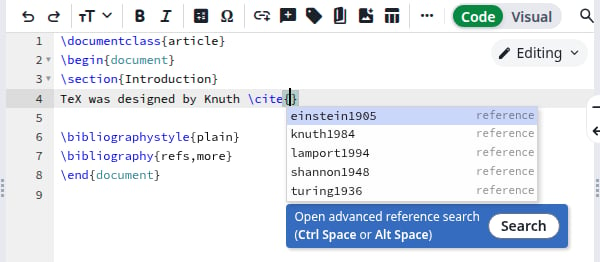
In a .tex file, type \cite{. The editor adds the closing brace. Below the cursor you see the citation keys and a blue box, Open advanced reference search.
The blue box under a citation
The Insert citation button in the toolbar and Insert, then Citation, also start a \cite{} for you. The box appears for other citation commands too, such as \citep, \autocite, \parencite and \textcite.
2
Open the search
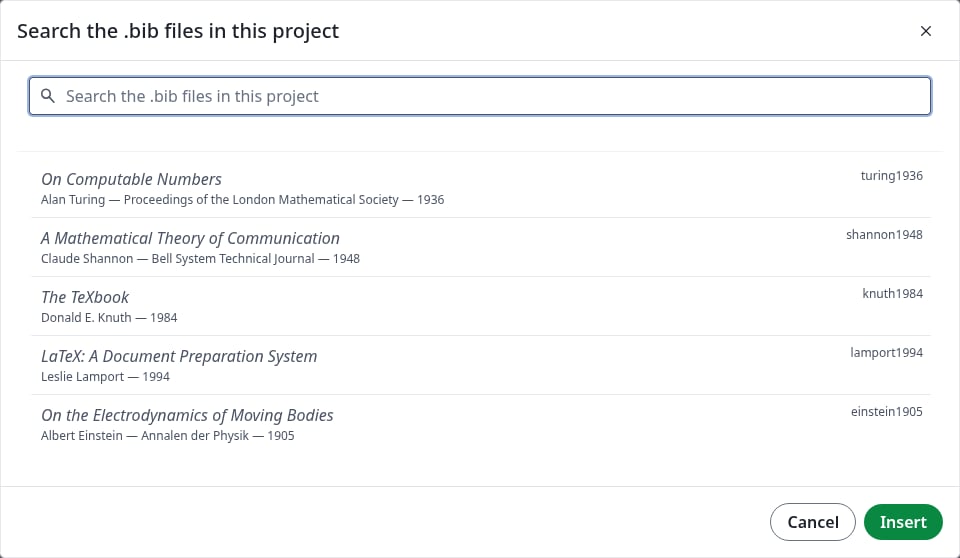
Click Search in the blue box, or press Ctrl+Space between the braces. The dialog lists every entry, with its title, citation key, author, journal and year.
All the entries of the project
3
Find the entry
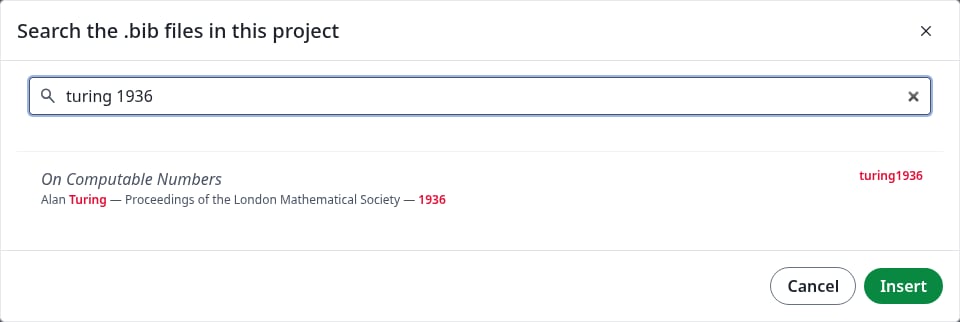
Type in the search box. It looks in the citation key, author, title, journal and year, and highlights what it found. Every word must match, so turing 1936 finds Turing’s paper from 1936. Other fields, such as the publisher, are not searched.
Searching by author and year
4
Choose one or more entries
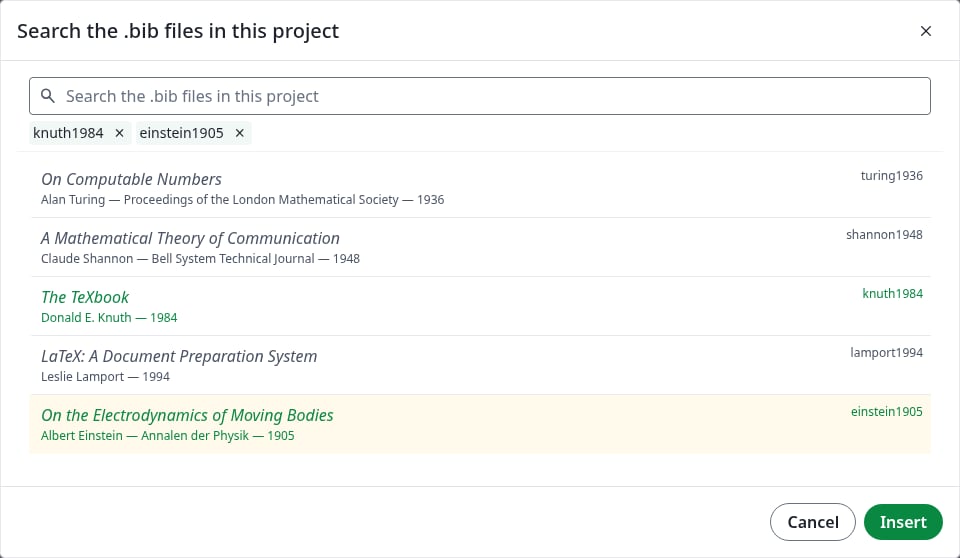
Click an entry. It turns green and its key appears above the list. To add another, click it, or search again: what you chose stays. To remove one, click it again or click the × next to its key.
Two chosen entries
5
Click Insert
The keys appear between the braces, separated by commas. If your document has no bibliography yet, add these lines before \end{document}, using the names of your .bib files without the extension:
\bibliographystyle{plain}\bibliography{refs,more}
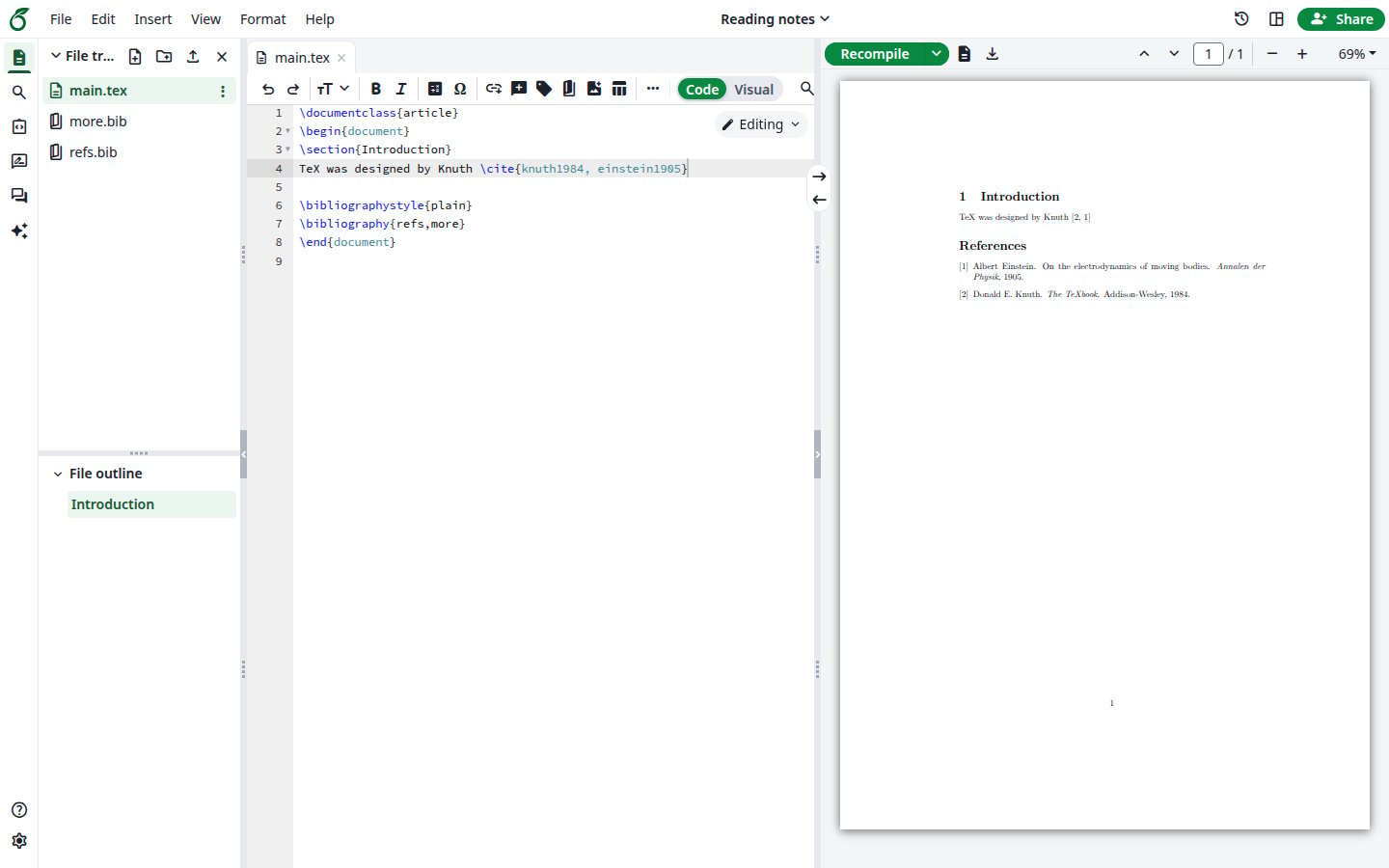
Click Recompile. The references appear in the PDF.
The compiled citation
The search works the same way in the Visual editor.
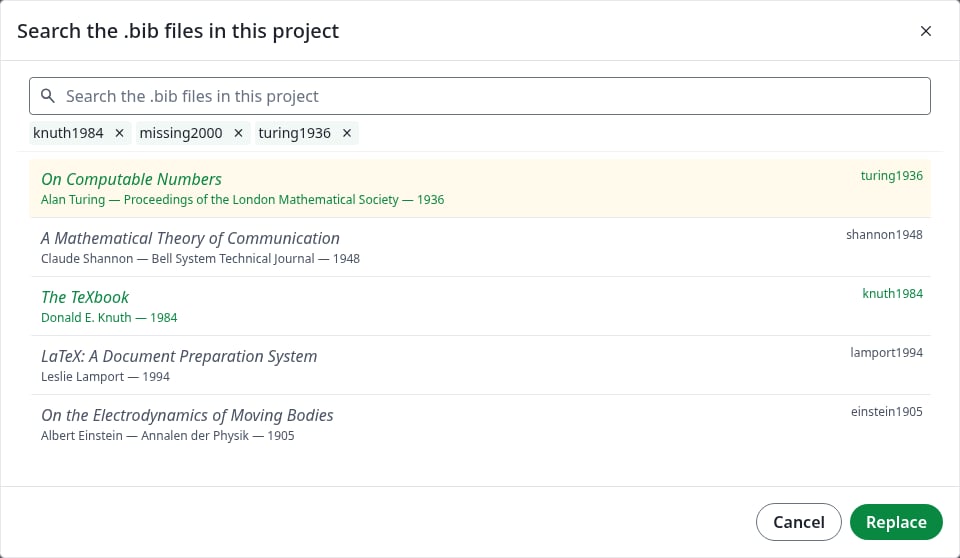
Add a reference: put the cursor between the braces of an existing citation and open the search. Insert adds the new keys after the ones already there.Replace references: select the keys in the editor, then press Ctrl+Space. The keys appear above the list and the button now says Replace. Remove the ones you do not want, add others, then click Replace. A key that is not in any .bib file stays until you remove it.
The search covers every .bib file in the project, including files imported from Zotero or Mendeley. When you edit a .bib file, the next search finds the new entries.