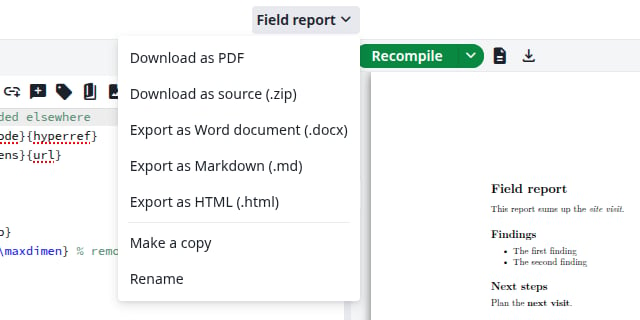
This creates a new LaTeX project from a Word document (.docx) or a Markdown file (.md). The project’s name comes from the file’s name.
1
Open the import dialog
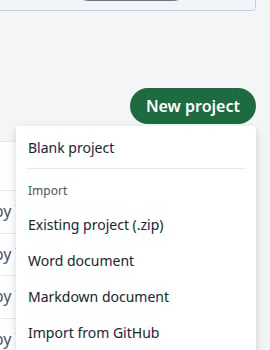
On the projects page, click New project. Under Import, click Word document or Markdown document.
The New project menu
2
Choose the file
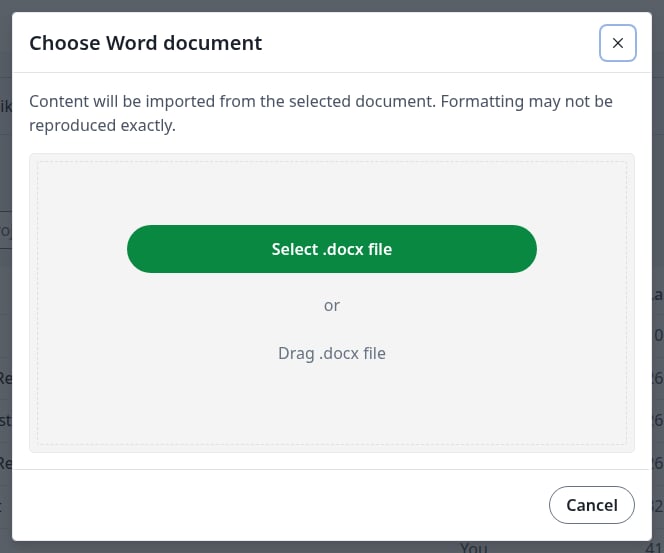
Click Select .docx file, or drag the file into the dialog. For Markdown, the button is Select .md file. The import starts right away.
Choosing a Word document
3
Start editing
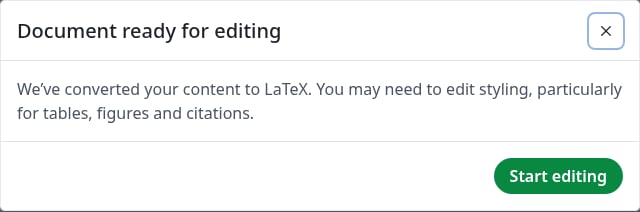
The new project opens with the message Document ready for editing. Click Start editing.
The import has finished
4
Check the result
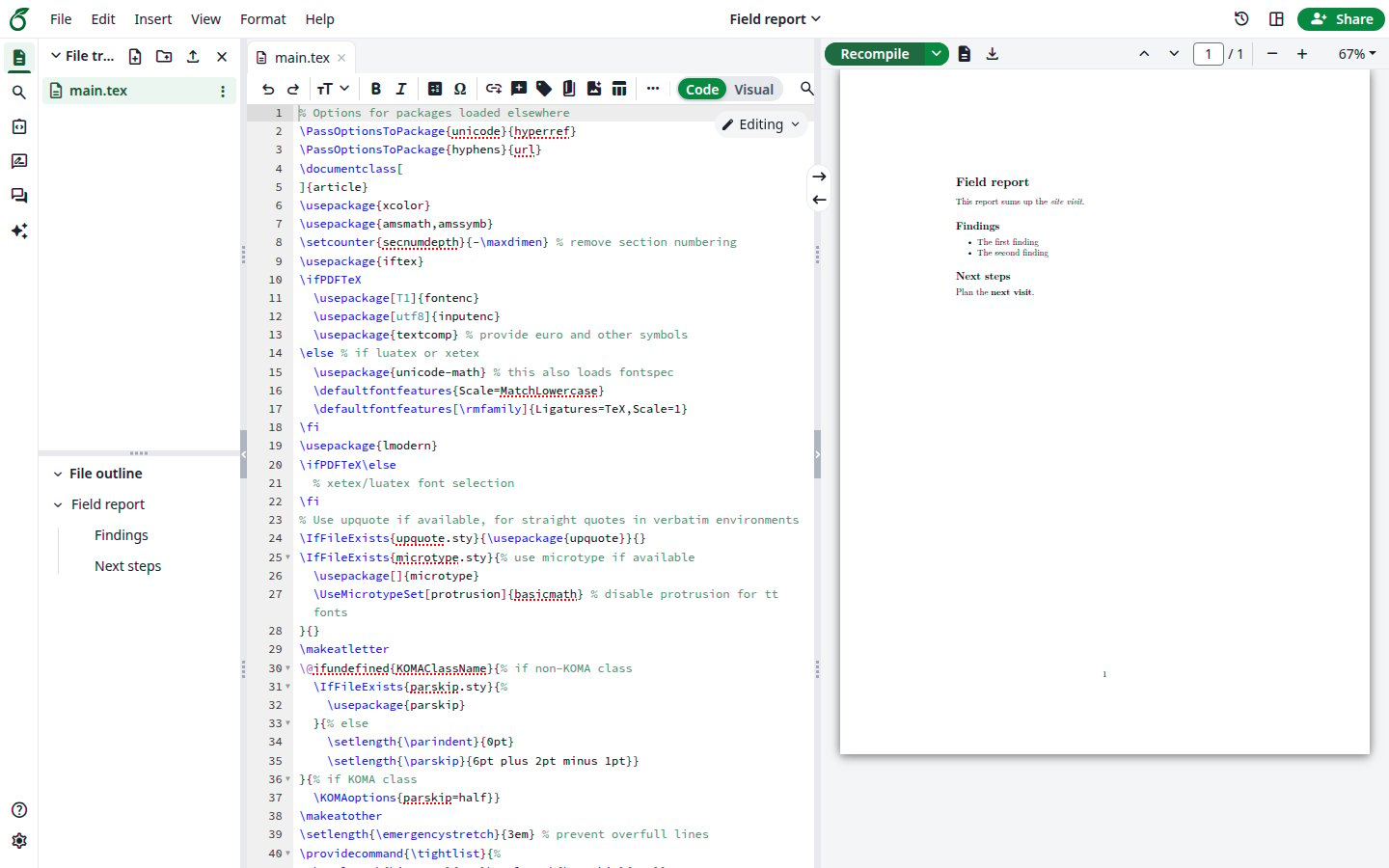
The document is now in main.tex, with its headings in the file outline. Click Recompile to see the PDF. Check the styling, particularly tables, figures and citations, which may need editing.
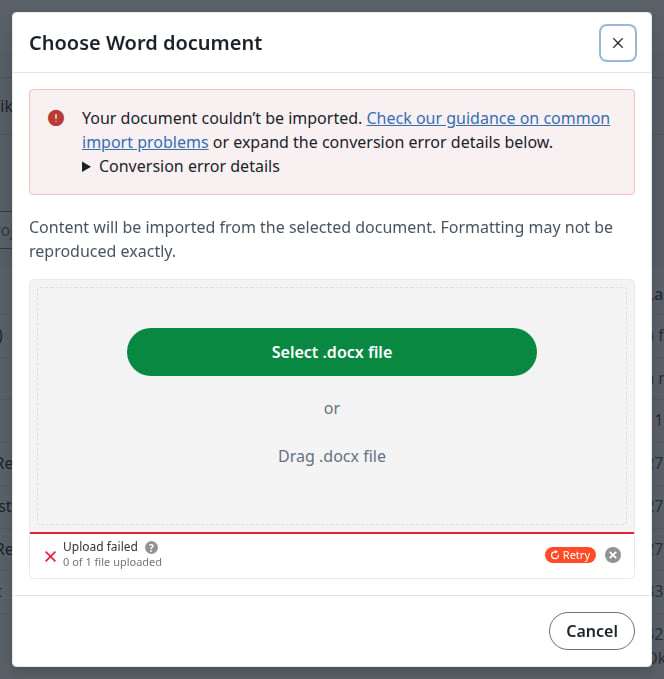
If the file cannot be converted, the dialog says Your document couldn’t be imported. Expand Conversion error details to see why. No project is created.
A document that could not be imported
The dialog only takes the type you chose. A .md file in the Word dialog shows You can only upload: .docx.