

What’ LDAP
LDAP is an authentication protocol used for external identity verification. Overleaf Server Pro provides a dedicated LDAP login form in the web interface, separate from the standard authentication method. When a user submits their LDAP username and password, the Overleaf backend verifies the credentials against the configured LDAP server, for exampleldap://ldap:10389.
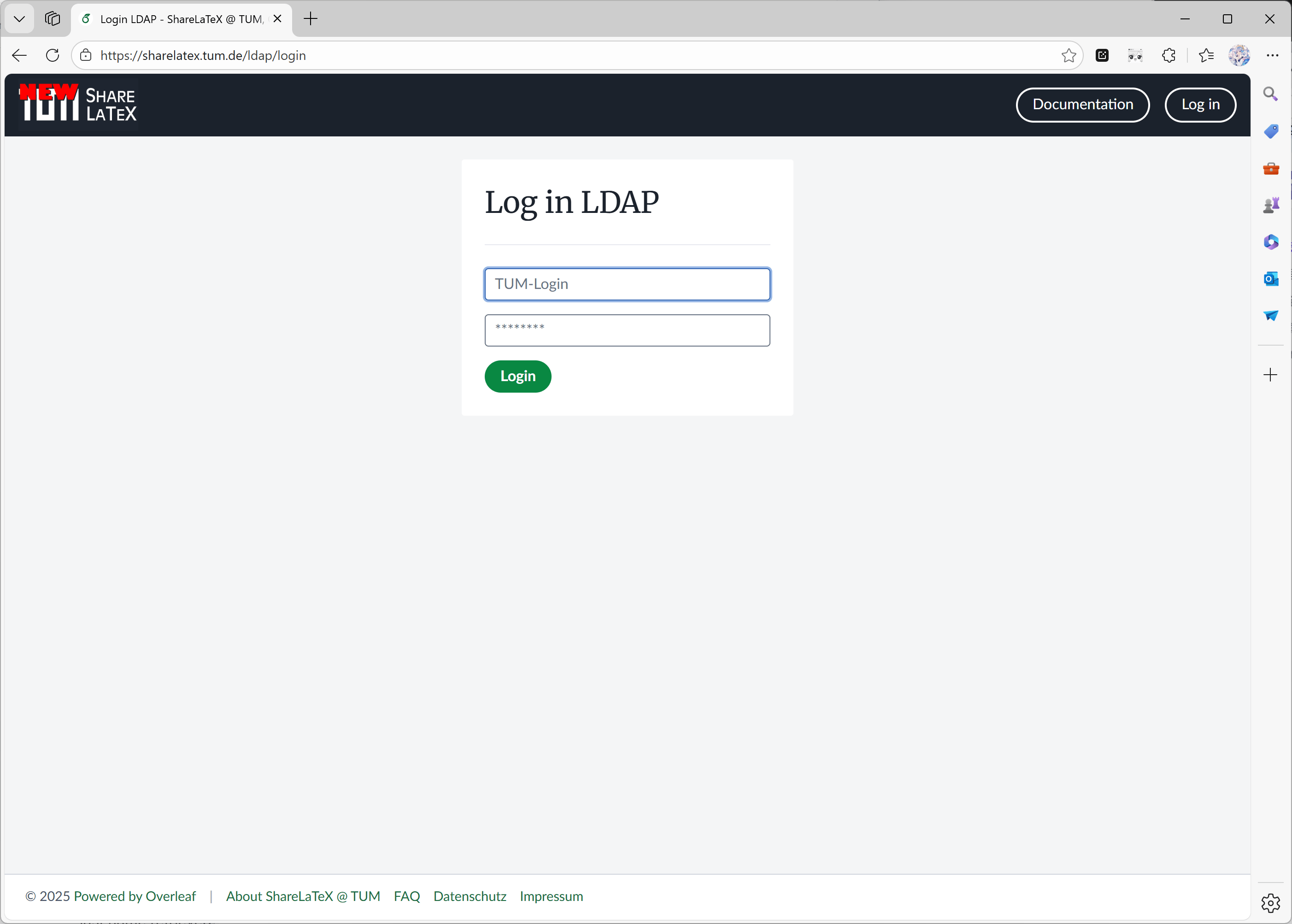
A Server Pro example for LDAP
Configuration
Internally, Overleaf LDAP uses the passport-ldapauth library. Most of these configuration options are passed through to theserver config object which is used to configure passport-ldapauth. If you are having issues configuring LDAP, it is worth reading the README for passport-ldapauth to get a feel for the configuration it expects.
The environment variable EXTERNAL_AUTH is required to enable the LDAP authentication module. This environment variable specifies which external authentication methods are activated. The value of this variable is a list. If the list includes ldap then LDAP authentication will be activated.
For example: EXTERNAL_AUTH=ldap saml
Different from Overleaf CEP, in our ayaka-notes edition, we limit LDAP authentication as a pure authentication method, which is available at http://your-overleaf.com/ldap/login.
When using LDAP authentication methods, a user enters a username and password in the login form, it is attempted:
- An LDAP user is searched for in the LDAP directory using the filter defined by
OVERLEAF_LDAP_SEARCH_FILTERand authenticated. - If authentication is successful, the Overleaf users database is checked for a user with the primary email address that matches the email address of the authenticated LDAP user:
- If a matching user is found, the
hashedPasswordfield for this user is deleted (if it exists). This ensures that the user can only log in via LDAP authentication in the future. - If no matching user is found, a new Overleaf user is created using the email, first name, and last name retrieved from the LDAP server.
- If a matching user is found, the
Environment Variables
OVERLEAF_LDAP_URL(required)- URL of the LDAP server.
- Example:
ldaps://ldap.example.com:636(LDAP over SSL) - Example:
ldap://ldap.example.com:389(unencrypted or STARTTLS, if configured).
- Example:
- URL of the LDAP server.
OVERLEAF_LDAP_IDENTITY_SERVICE_NAME- Display name for the LDAP identity service, used on the login page.
- Default to
Log in with LDAP Provider.
OVERLEAF_LDAP_EMAIL_ATT- The email attribute returned by the LDAP server, default
mail. Each LDAP user must have at least one email address. If multiple addresses are provided, only the first one will be used.
- The email attribute returned by the LDAP server, default
OVERLEAF_LDAP_FIRST_NAME_ATT- The property name holding the first name of the user which is used in the application, usually
givenName.
- The property name holding the first name of the user which is used in the application, usually
OVERLEAF_LDAP_LAST_NAME_ATT- The property name holding the family name of the user which is used in the application, usually
sn.
- The property name holding the family name of the user which is used in the application, usually
OVERLEAF_LDAP_NAME_ATT- The property name holding the full name of the user, usually
cn. If either of the two previous variables is not defined, the first and/or last name of the user is extracted from this variable. Otherwise, it is not used.
- The property name holding the full name of the user, usually
OVERLEAF_LDAP_PLACEHOLDER- The placeholder for the login form, defaults to
Username.
- The placeholder for the login form, defaults to
OVERLEAF_LDAP_UPDATE_USER_DETAILS_ON_LOGIN- If set to
true, updates the LDAP userfirst_nameandlast_namefield on login, and turn off the user details form on the/user/settingspage for LDAP users. Otherwise, details will be fetched only on first login.
- If set to
OVERLEAF_LDAP_BIND_DN- The distinguished name of the LDAP user that should be used for the LDAP connection (this user should be able to search/list accounts on the LDAP server), e.g.,
cn=ldap_reader,dc=example,dc=com. If not defined, anonymous binding is used.
- The distinguished name of the LDAP user that should be used for the LDAP connection (this user should be able to search/list accounts on the LDAP server), e.g.,
OVERLEAF_LDAP_BIND_CREDENTIALS- Password for
OVERLEAF_LDAP_BIND_DN.
- Password for
OVERLEAF_LDAP_BIND_PROPERTY- Property of the user to bind against the client, defaults to
dn.
- Property of the user to bind against the client, defaults to
OVERLEAF_LDAP_SEARCH_BASE(required)- The base DN from which to search for users. E.g.,
ou=people,dc=example,dc=com.
- The base DN from which to search for users. E.g.,
OVERLEAF_LDAP_SEARCH_FILTER- LDAP search filter with which to find a user. Use the literal ‘{{username}}’ to have the given username be interpolated in for the LDAP search.
- Example:
(|(uid={{username}})(mail={{username}}))(user can login with email or with login name). - Example:
(sAMAccountName={{username}})(Active Directory).
- Example:
- LDAP search filter with which to find a user. Use the literal ‘{{username}}’ to have the given username be interpolated in for the LDAP search.
OVERLEAF_LDAP_SEARCH_SCOPE- The scope of the search can be
base,one, orsub(default).
- The scope of the search can be
OVERLEAF_LDAP_SEARCH_ATTRIBUTES- JSON array of attributes to fetch from the LDAP server, e.g.,
["uid", "mail", "givenName", "sn"]. By default, all attributes are fetched.
- JSON array of attributes to fetch from the LDAP server, e.g.,
OVERLEAF_LDAP_STARTTLS- If
true, LDAP over TLS is used.
- If
OVERLEAF_LDAP_TLS_OPTS_CA_PATH- Path to the file containing the CA certificate used to verify the LDAP server’s SSL/TLS certificate. If there are multiple certificates, then it can be a JSON array of paths to the certificates. The files must be accessible to the docker container.
- Example (one certificate):
/var/lib/overleaf/certs/ldap_ca_cert.pem - Example (multiple certificates):
["/var/lib/overleaf/certs/ldap_ca_cert1.pem", "/var/lib/overleaf/certs/ldap_ca_cert2.pem"]
- Example (one certificate):
- Path to the file containing the CA certificate used to verify the LDAP server’s SSL/TLS certificate. If there are multiple certificates, then it can be a JSON array of paths to the certificates. The files must be accessible to the docker container.
OVERLEAF_LDAP_TLS_OPTS_REJECT_UNAUTH- If
true, the server certificate is verified against the list of supplied CAs.
- If
OVERLEAF_LDAP_CACHE- If
true, then up to 100 credentials at a time will be cached for 5 minutes.
- If
OVERLEAF_LDAP_TIMEOUT- How long the client should let operations live for before timing out, ms (Default: Infinity).
OVERLEAF_LDAP_CONNECT_TIMEOUT- How long the client should wait before timing out on TCP connections, ms (Default: OS default).
OVERLEAF_LDAP_IS_ADMIN_ATTandOVERLEAF_LDAP_IS_ADMIN_ATT_VALUE- When both environment variables are set, the login process updates
user.isAdmin = trueif the LDAP profile contains the attribute specified byOVERLEAF_LDAP_IS_ADMIN_ATTand its value either matchesOVERLEAF_LDAP_IS_ADMIN_ATT_VALUEor is an array containingOVERLEAF_LDAP_IS_ADMIN_ATT_VALUE, otherwiseuser.isAdminis set tofalse. If either of these variables is not set, then the admin status is only set totrueduring admin user creation in Launchpad.
- When both environment variables are set, the login process updates
OVERLEAF_LDAP_CONTACTS_FILTER- The filter used to search for users in the LDAP server to be loaded into contacts. The placeholder ‘{{userProperty}}’ within the filter is replaced with the value of the property specified by
OVERLEAF_LDAP_CONTACTS_PROPERTYfrom the LDAP user initiating the search. If not defined, no users are retrieved from the LDAP server into contacts.
- The filter used to search for users in the LDAP server to be loaded into contacts. The placeholder ‘{{userProperty}}’ within the filter is replaced with the value of the property specified by
OVERLEAF_LDAP_CONTACTS_SEARCH_BASE- Specifies the base DN from which to start searching for the contacts. Defaults to
OVERLEAF_LDAP_SEARCH_BASE.
- Specifies the base DN from which to start searching for the contacts. Defaults to
OVERLEAF_LDAP_CONTACTS_SEARCH_SCOPE- The scope of the search can be
base,one, orsub(default).
- The scope of the search can be
OVERLEAF_LDAP_CONTACTS_PROPERTY- Specifies the property of the user object that will replace the ‘{{userProperty}}’ placeholder in the
OVERLEAF_LDAP_CONTACTS_FILTER.
- Specifies the property of the user object that will replace the ‘{{userProperty}}’ placeholder in the
OVERLEAF_LDAP_CONTACTS_NON_LDAP_VALUE- Specifies the value of the
OVERLEAF_LDAP_CONTACTS_PROPERTYif the search is initiated by a non-LDAP user. If this variable is not defined, the resulting filter will match nothing. The value*can be used as a wildcard.
- Specifies the value of the
Example
Example
gid. Non-LDAP users will have all LDAP users with UNIX gid=1000 in their contacts.Sample variables.env file
Sample variables.env file
Step-by-step: goauthentik
This walks through a setup that is tested against goauthentik. The examples use the Base DNdc=example,dc=com; replace it with yours.
Create a bind account
ldapservice, and click Create: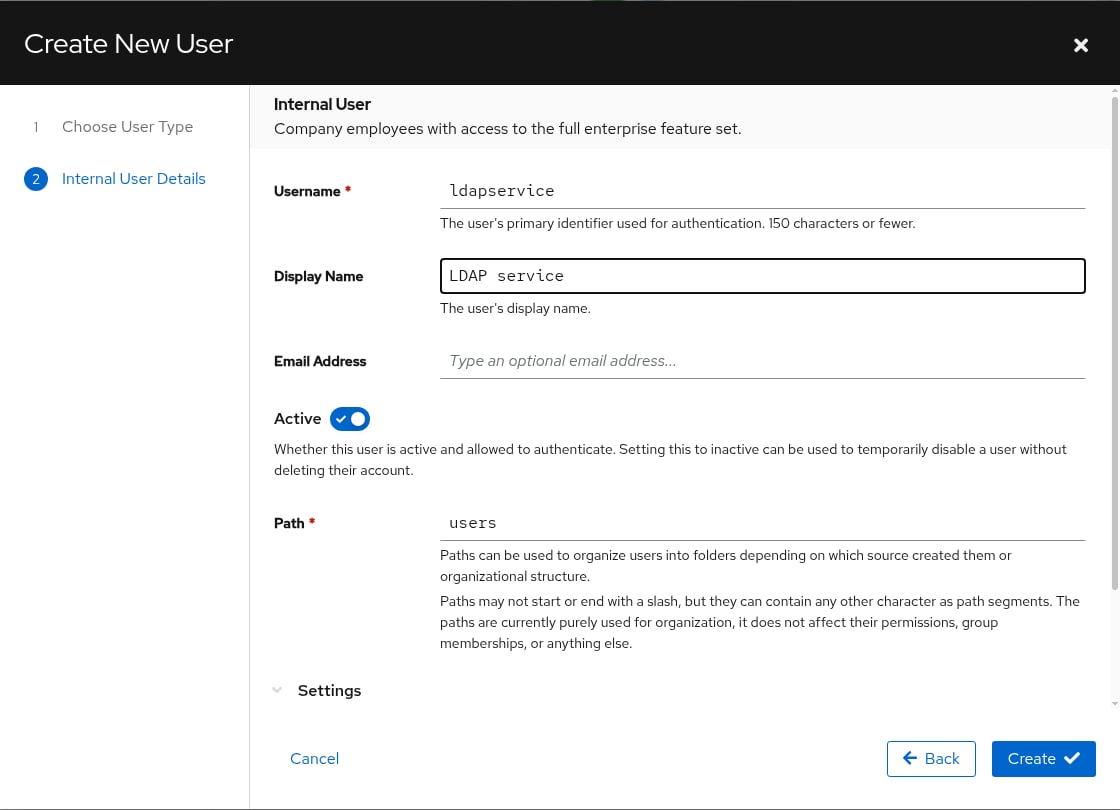
Authentik: create the bind account
OVERLEAF_LDAP_BIND_CREDENTIALS: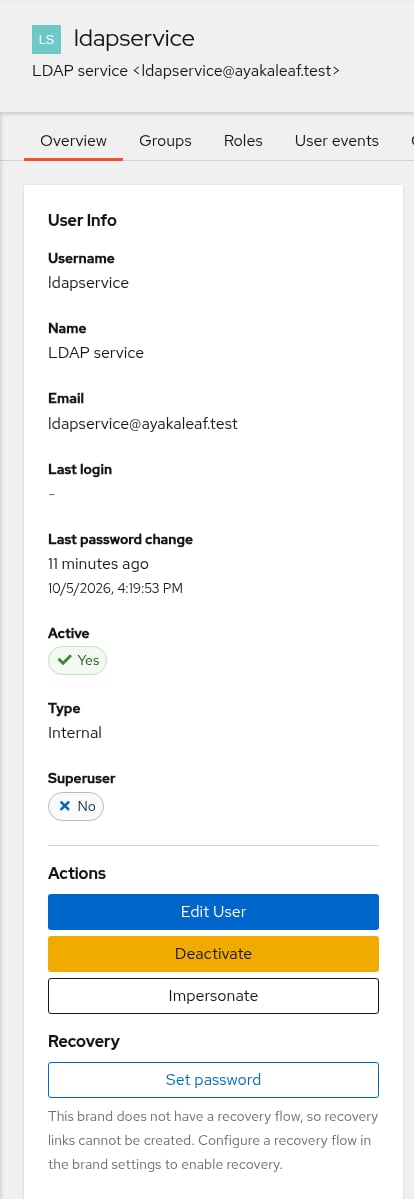
Authentik: set the password of the bind account (test instance)
19 in …/#/identity/users/19. You need it in step 3.Create the provider and the application
overleaf-ldap, and click Next: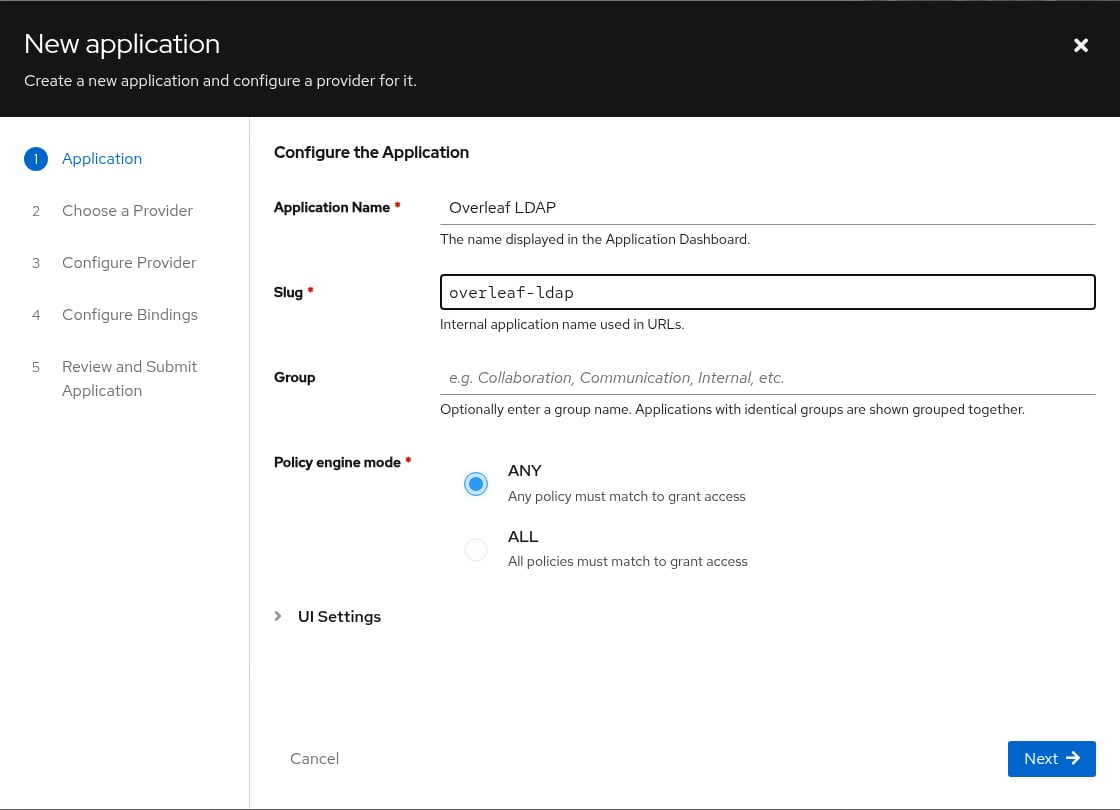
Authentik: name and slug of the application
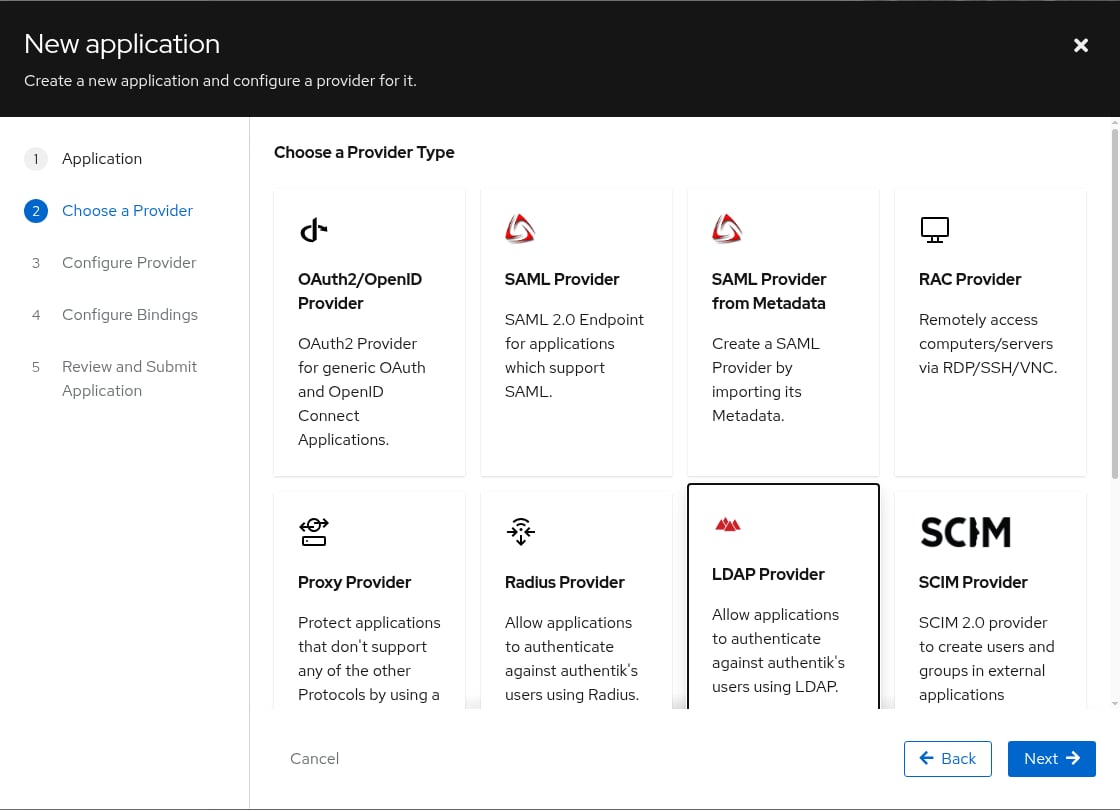
Authentik: choose the LDAP provider
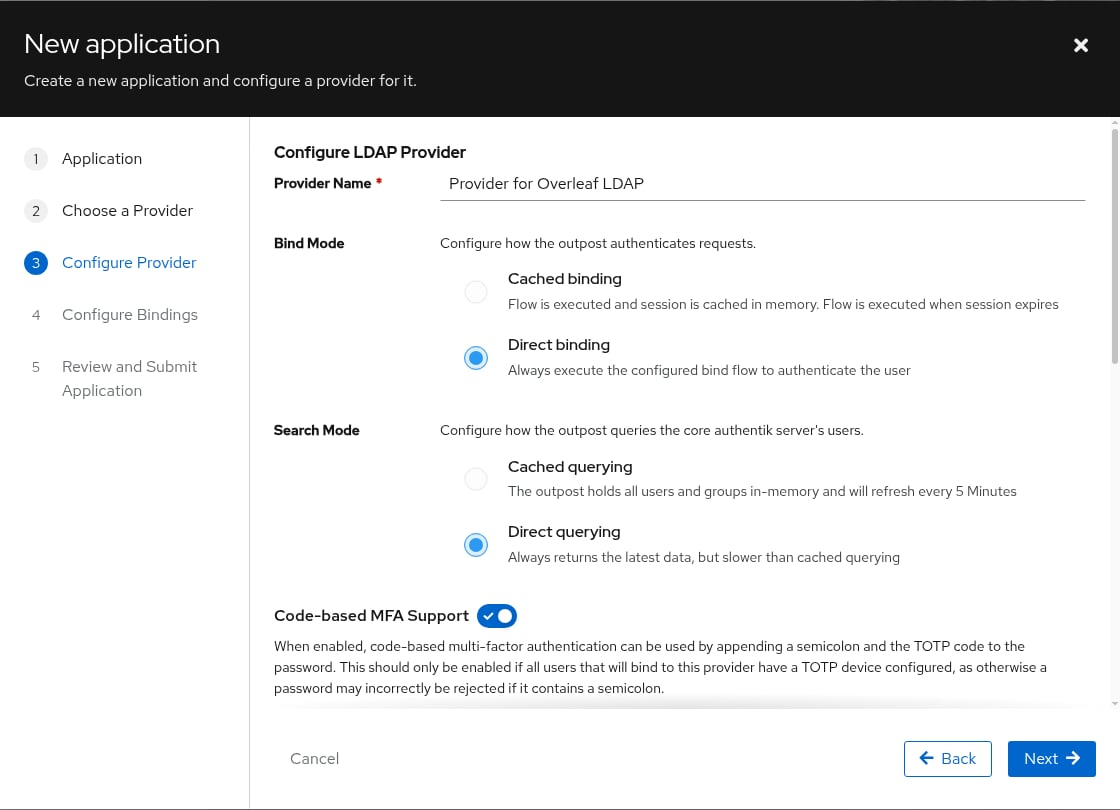
Authentik: bind and search mode of the LDAP provider
default-authentication-flow and Base DN to your base DN, for example dc=example,dc=com: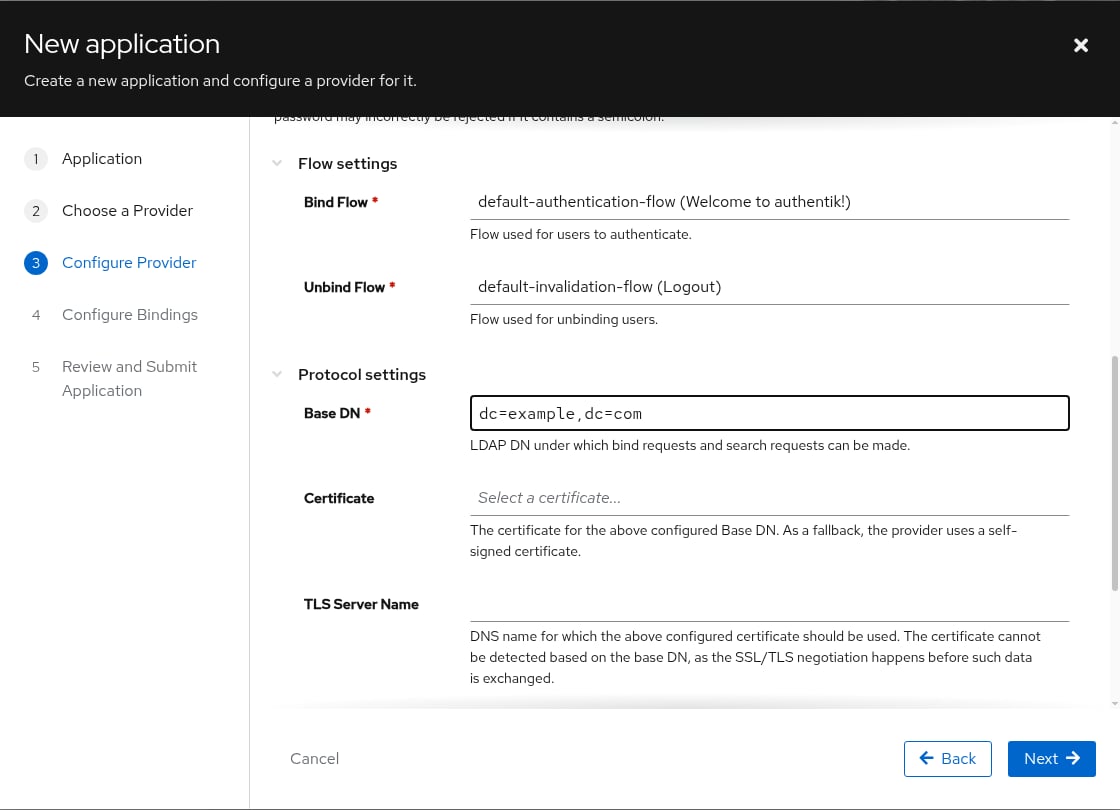
Authentik: bind flow and Base DN of the LDAP provider
Let the bind account search the directory
ak-managed-role--user-<number>, then turn on Search full LDAP directory: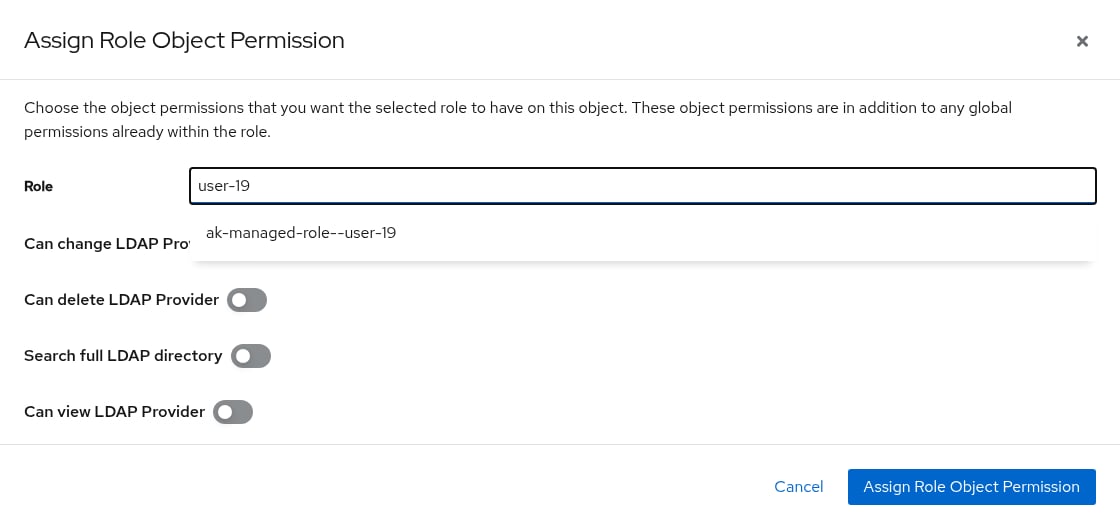
Authentik: give the bind account the search permission (test instance)
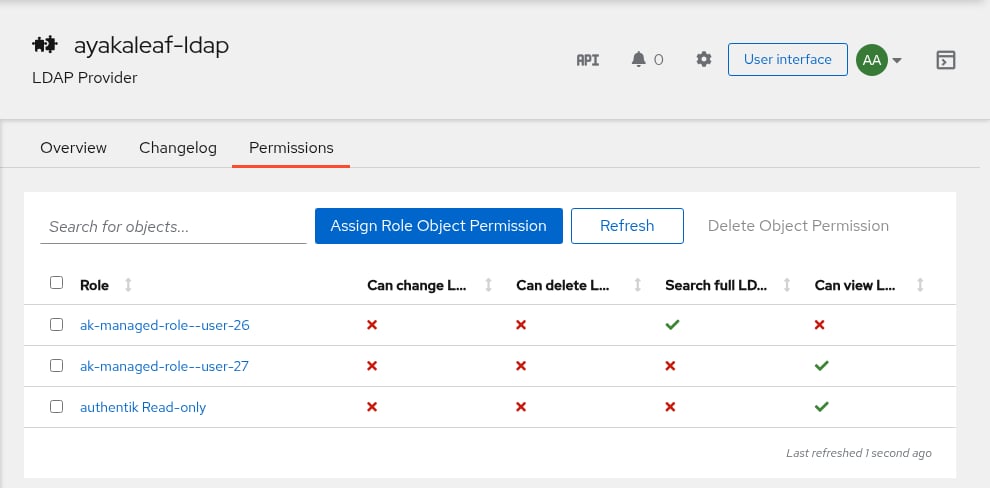
Authentik: permissions of an LDAP provider (test instance)
Run the LDAP outpost
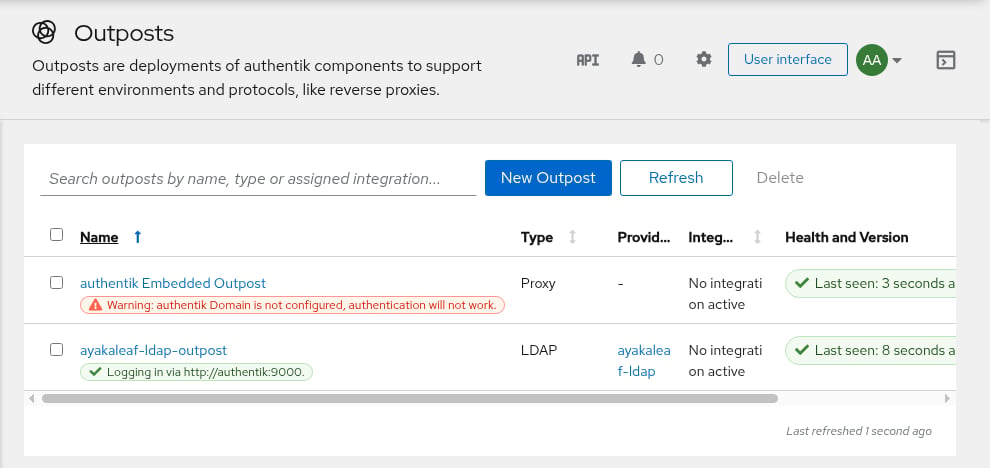
Authentik: a running LDAP outpost (test instance)
Fill in the DNs
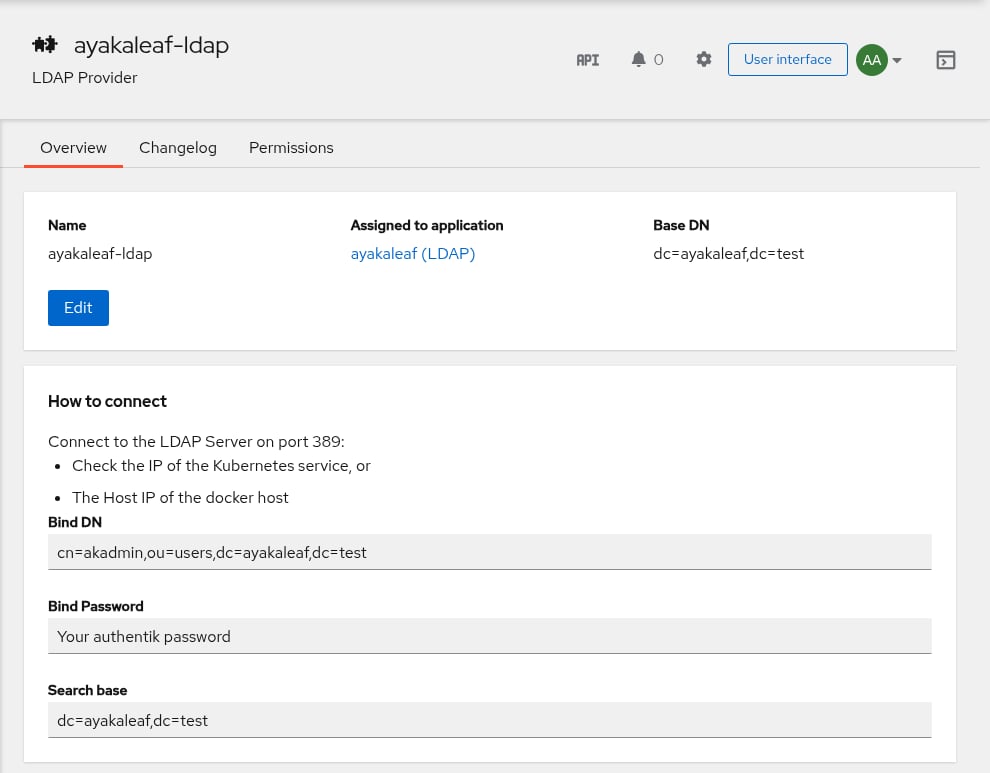
Authentik: overview of an LDAP provider (test instance)
- Bind DN shows the account you are logged in with. Use the bind account from step 1 instead:
cn=ldapservice,ou=users,<Base DN>. - Search base shows the Base DN. Use
ou=users,<Base DN>.
Check the search
dn::dn: at all usually means the permission from step 3 is missing.Map the admins (optional)
memberOf, as DNs under ou=groups. To make the members of the Authentik group Admins admins of Overleaf:Tested variables.env for goauthentik
Tested variables.env for goauthentik