

This feature is provided by ayaka-notes/ayakaleaf-pro and is available from v6.3.0. We welcome your feedback if you encounter any problems.
AI assistant and LaTeX error assistant
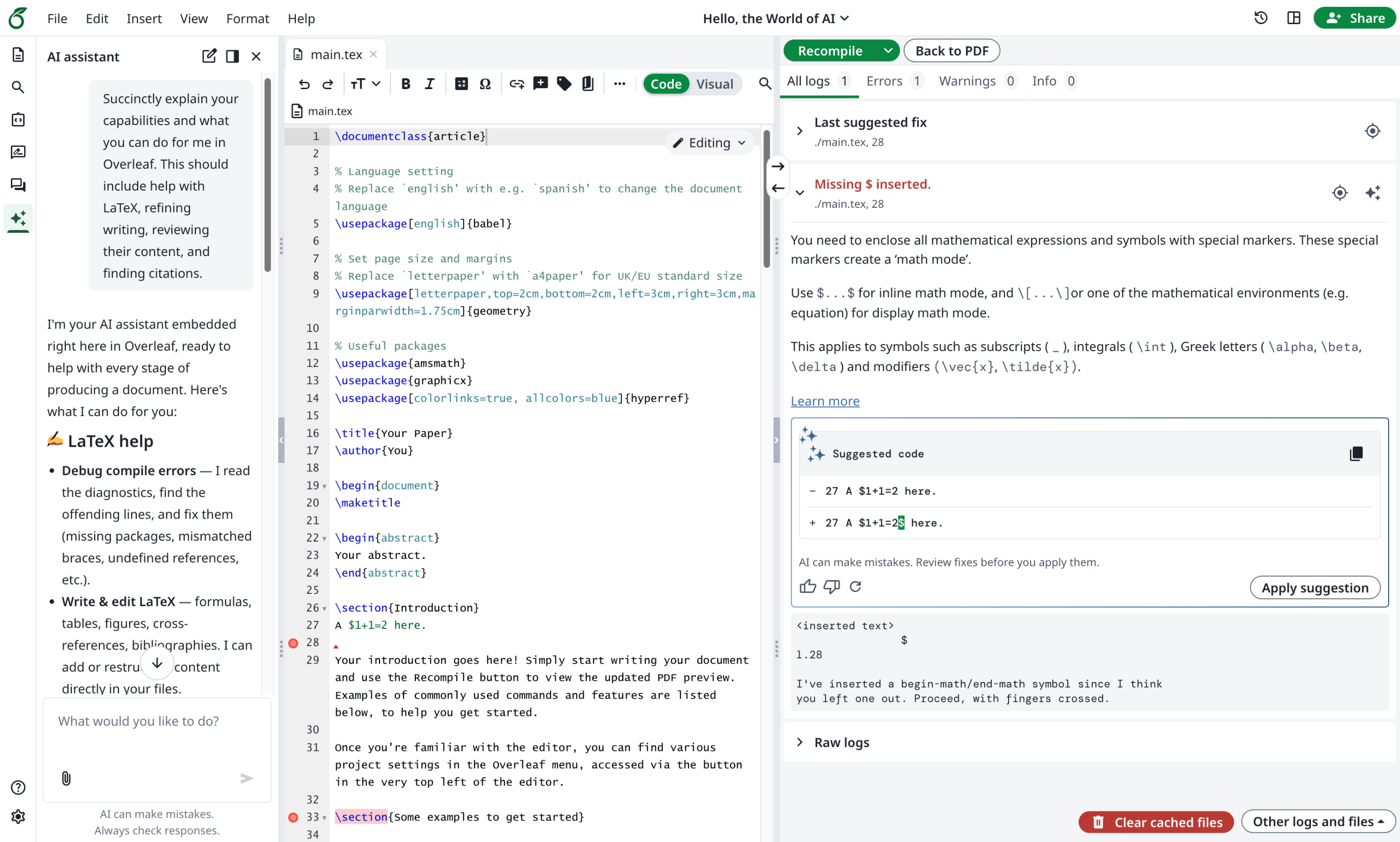
Ayakaleaf Pro brings AI features into the editor in 2 ways.- The AI Assistant can use your project documents and current selection as context to answer questions and suggest edits for you to review.
- The Error Assistant proposes a targeted fix when you select a LaTeX compilation error.
Toolkit configuration
Add the following toconfig/variables.env in your Toolkit deployment, replacing the example URL, key, and model with values from your provider:
The quality of AI suggestions depends on the model you choose. If you already have a Codex or ChatGPT subscription, you can connect it via CLIProxyAPI’s OpenAI-compatible endpoint.
AI_BASE_URL is the OpenAI-compatible API base URL, including the provider’s version prefix where required. Do not append /chat/completions since we will append this internally. The gateway and model must support streaming chat completions and function tools. Both features send document context to this gateway; chat can also send uploaded images when using an image-capable model.
Toolkit forwards config/variables.env into the application container. Keep the variable names shown here; do not add an OVERLEAF_ prefix. From the Toolkit directory, recreate the application container after changing these variables:
Gateway settings
For image uploads, set
AI_IMAGE_MODEL to a model that accepts image input and supports the tools used by chat. Any chat request whose history contains an image attachment uses this model, including later messages in that conversation. Without this setting, image requests use the normal chat model, which must itself support images. LaTeX error suggestions continue to use AI_MODEL.
For example, to enable an image model and a weekly AI allowance:
User access and consent
Instance availability and user permission are separate.AI_ENABLED and the gateway configuration control instance availability. A signed-in user must also pass the existing account checks:
aiFeatures.enabledmust not befalse. This existing database field controls both chat and LaTeX error suggestions.- The user’s effective
features.aiUsageQuotamust match the configured unlimited tier (unlimitedby default), or the existing legacyfeatures.aiErrorAssistantpermission must be enabled. Effective features include applicable account feature overrides.
aiUsageQuota field is a permission tier, not a numeric token allowance. AI_TOKEN_QUOTA is a separate limit applied equally to each permitted user; the current module does not provide an individual numeric limit per account.
In the admin user list, select a user and open Update account info → AI features. Enable AI features updates aiFeatures.enabled when the account changes are saved. The server checks current permissions on new AI requests, including requests from an already open editor. Refresh the editor to update its visible controls after a permission change.
Usage and reset
The admin AI features tab shows the current period’s Usage, Limit, and Reset button on one row. Usage is read when the tab opens; it is not continuously refreshed. Reopen the tab after a chat or error suggestion finishes to see the latest count. Reset takes effect immediately and clears only that user’s current period counter, then reloads the displayed usage. It does not require saving the rest of the account form.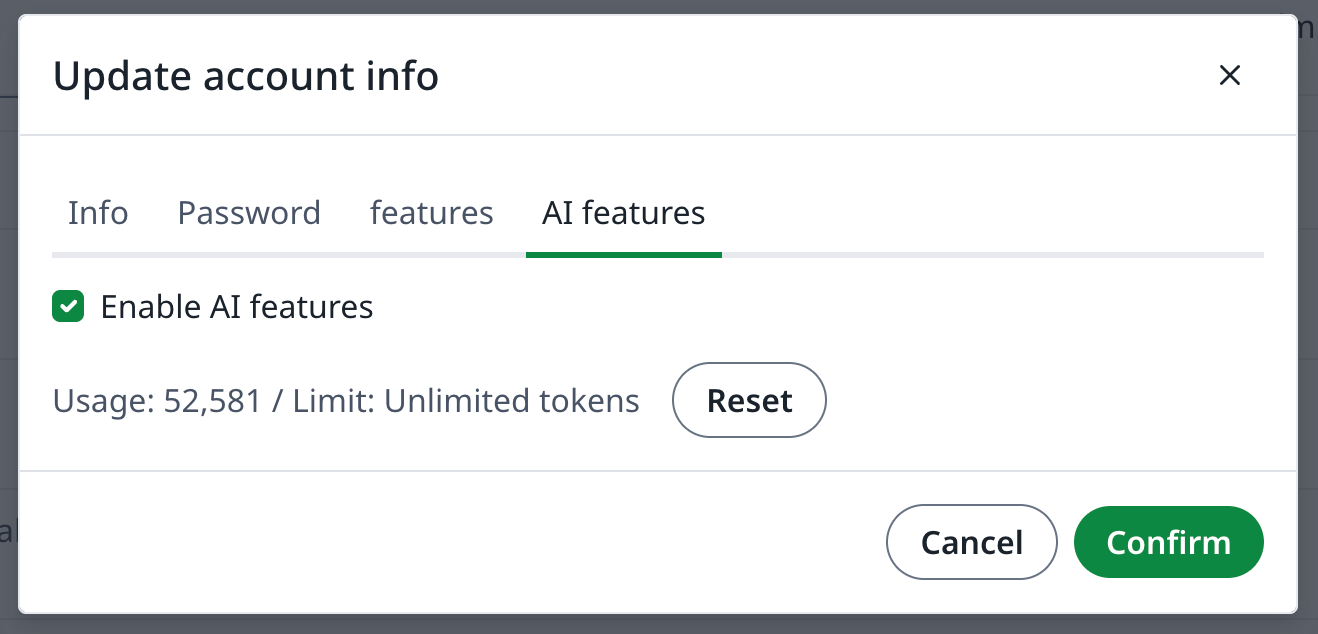
AI_TOKEN_QUOTA; error suggestions have no separate request-count limit. Resetting the counter does not change permission, consent, the configured limit, or the provider’s own billing records. Counters use UTC period keys and expire after 40 days; retaining Redis data preserves current usage across application restarts.
Optional search services
Web search uses a Tavily-compatible API. It is available when a search API key is configured. These settings are independent of the AI gateway:
For example:
searchDocumentation tool and accepts JSON or SSE responses. This is an MCP client for documentation search; these modules do not expose project files as an MCP server or provide a general-purpose MCP server registry.
Search queries go to the configured search service. Search results can then be included in requests to the AI gateway. The chat’s Tools menu lets users enable or disable Web and Documentation for their requests; a tool must also be configured on the server to be available to the model.