

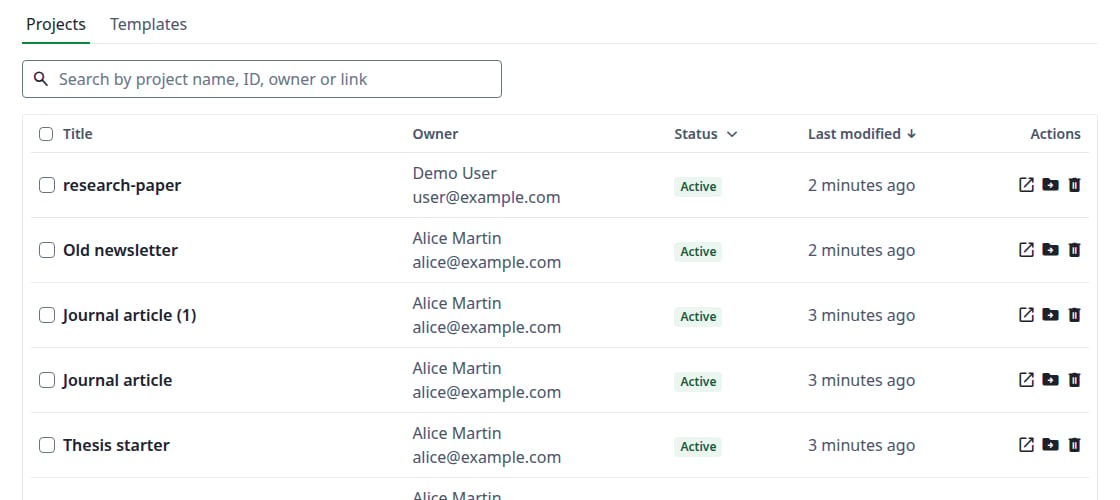
All projects
Find a project
Type in Search by project name, ID, owner or link. A link can be the project’s address or one of its sharing links. Use the Status filter to narrow the list. Click Title or Last modified to sort. Deleted projects do not appear in the results. If your search also matches one, a line above the table says so, for example Found 1 matching deleted projects. Click Display deleted projects to see them.Project status
Every project has one status, and the Status filter shows how many projects each one has.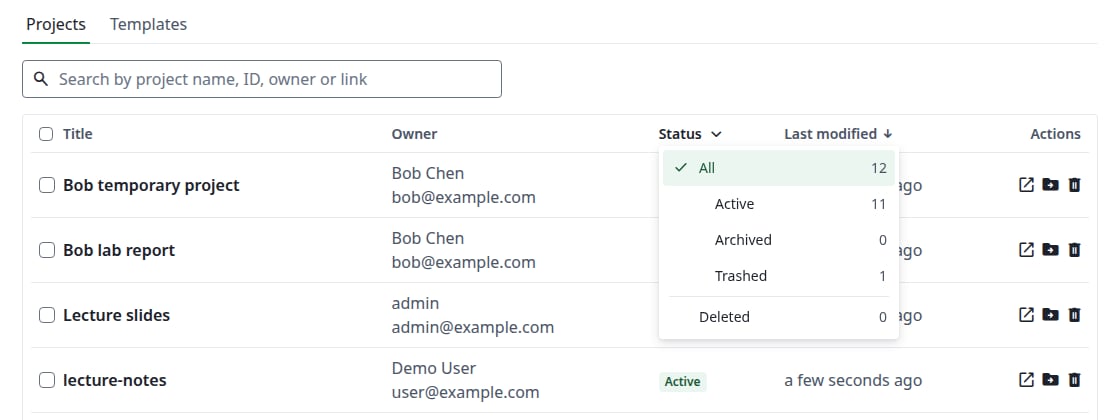
The Status filter
A project moves through the statuses in stages:
- Active, Archived and Trashed are the owner’s choice, made on their own projects page. The owner can always go back. Restore from the trash always leads to Active, even if the project was archived before.
- Deleted is the next stage. The owner can only delete from the trash; an administrator can delete from any of the three.
- Restore brings a deleted project back as Active, whatever its status was, and its name gets
(Restored)at the end. Only an administrator can do this. If the owner’s account is deleted too, restore the account first: otherwise the dialog says The owner of this project is deleted: restore the owner first. - Delete permanently is the last stage and cannot be undone. Deleted projects otherwise stay until you remove them, unless the instance sets
ENABLE_CRON_RESOURCE_DELETION, which removes them after 90 days.
The status follows the owner only. When a collaborator archives or trashes a shared project, it moves on their own projects page, and the status here stays the same.
Actions on a project
Change the owner
Click the folder icon, type a name or email, choose the user, then click Change project owner. The dialog warns that this cannot be undone, and that the new owner will be notified and can change the project’s access settings. Disabled accounts are not offered. If you change the text after choosing, the choice is cancelled: choose the user again.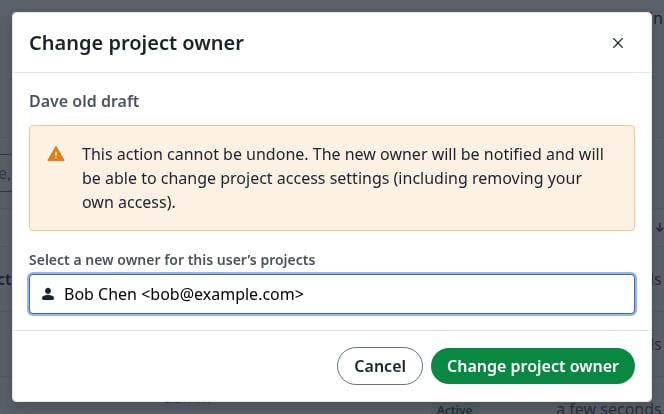
Changing a project's owner
Delete, restore or permanently delete
Click the bin icon, then Delete. To find the project again, choose Deleted in the Status filter.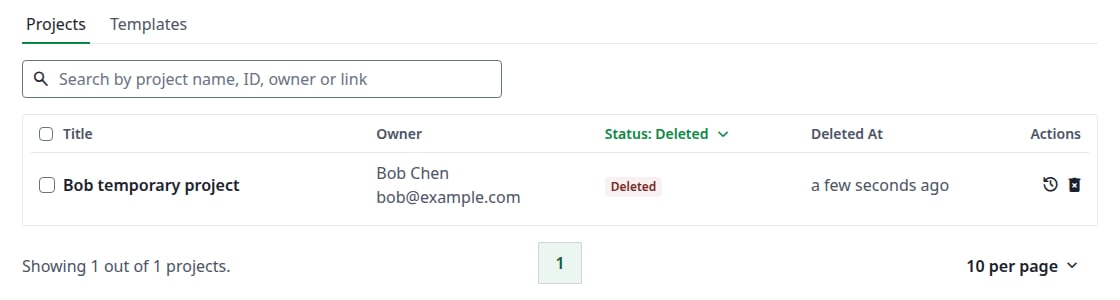
A deleted project
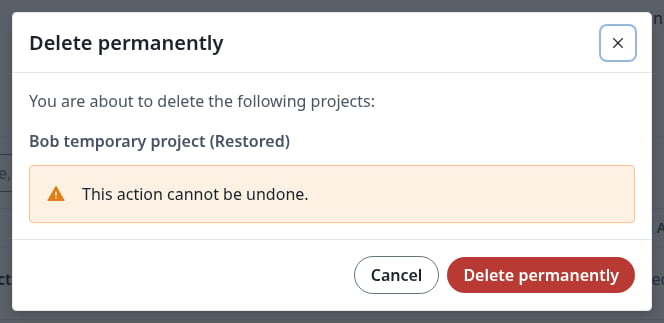
Deleting a project permanently
Change several projects at once
Tick the projects in the list. Buttons appear next to the search: Download, Change project owner and Delete. Download saves the selected projects in one.zip file. With Change project owner, the current owners of the ticked projects cannot be chosen. In the Deleted view, the buttons are Restore and Delete permanently.
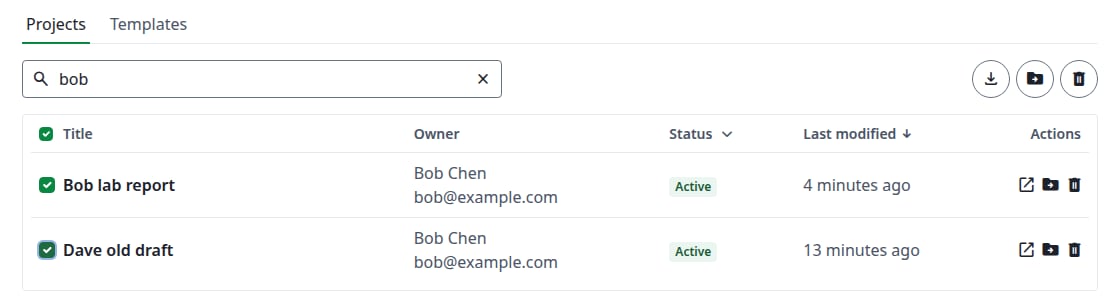
Bulk actions
The project page
Click a project’s title to open its page. At the top are the icons to edit, open, download and delete the project. It has five tabs.Overview
The project’s details and settings. Click the pencil icon to change the Name, Link sharing, Compiler, TeX Live version and Main document, or to click Change project owner. Then click Save.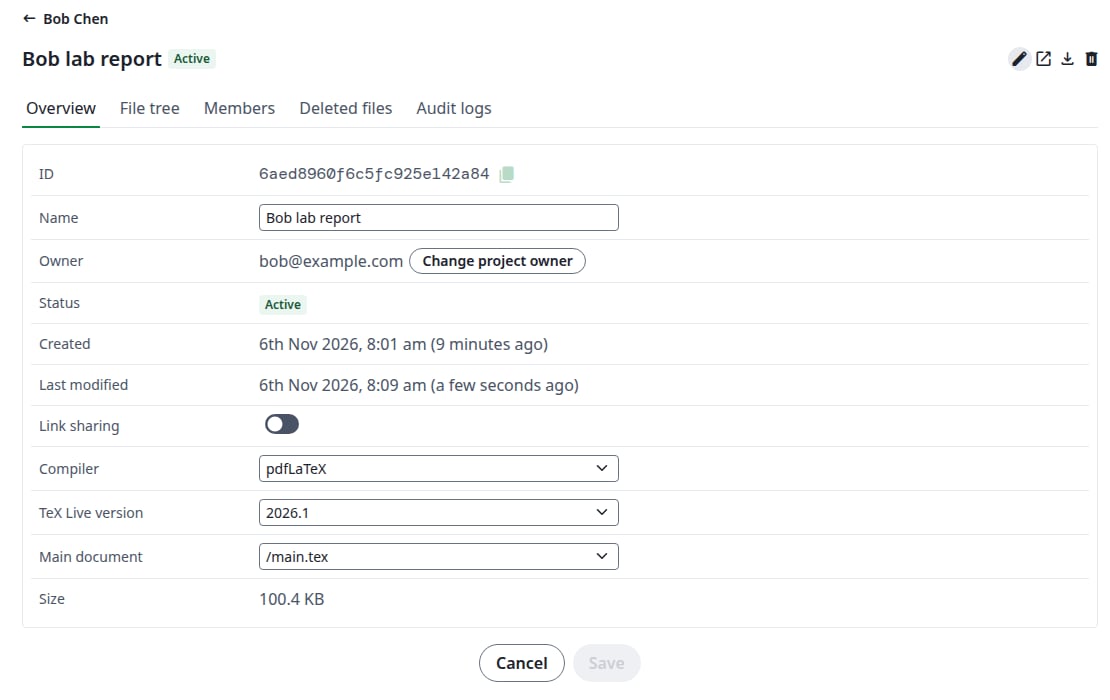
Editing a project
File tree
The project’s files and folders, read-only.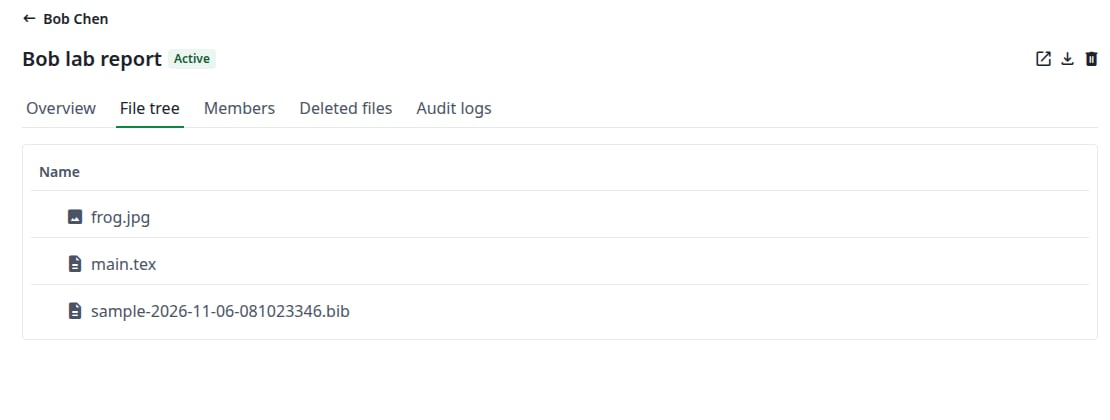
A project's files
Members
Who has access: the owner, the collaborators and the pending invitations. Click the pencil icon to change them:- Choose Editor, Reviewer or Viewer for a collaborator. The change applies at once.
- Click the bin next to a collaborator, then Remove access.
- For a pending invitation, click the envelope to Resend invite, or the bin to Revoke Invite.
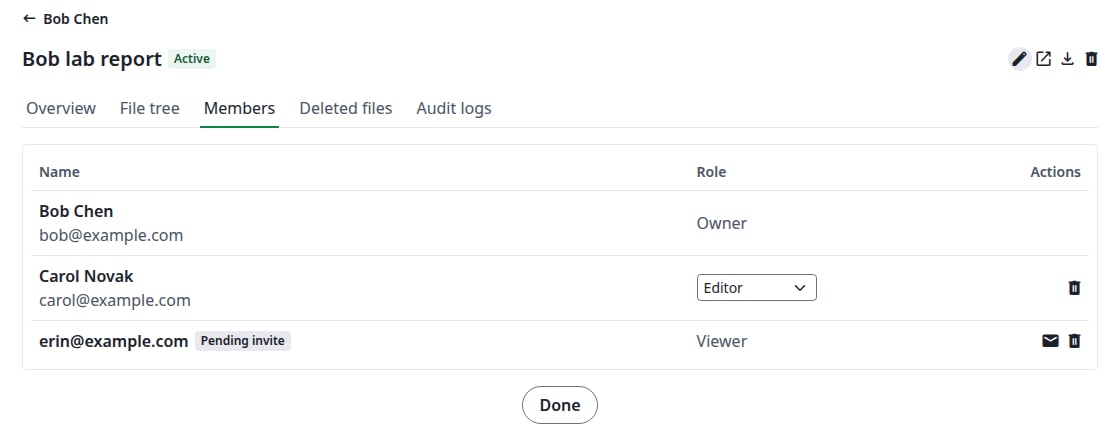
Changing a project's members
Deleted files
Files removed from the project. Click the arrow icon next to a file, then Restore file. A copy with the date in its name goes into the project’s root folder, and the row shows its name. The deleted file stays in the list. The copy appears on the File tree tab after you reload the page.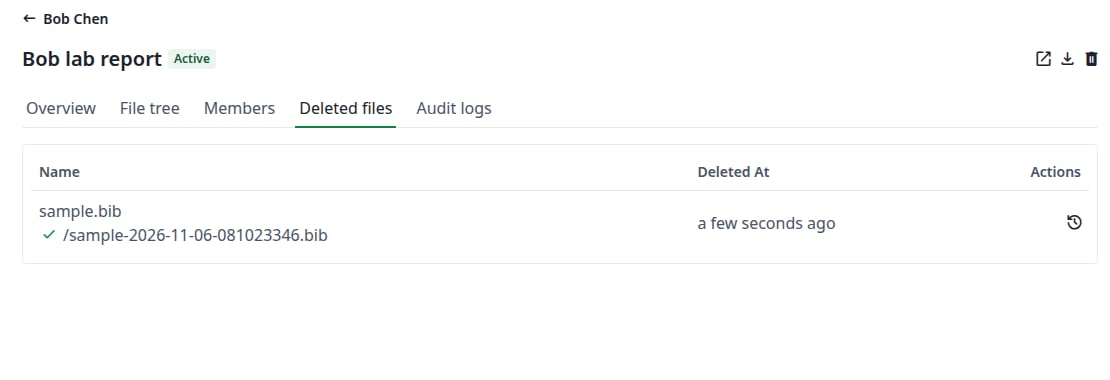
A restored file
Audit logs
What happened to this project: the date, the operation, who did it, the IP address and details. Search it, or filter by Operation.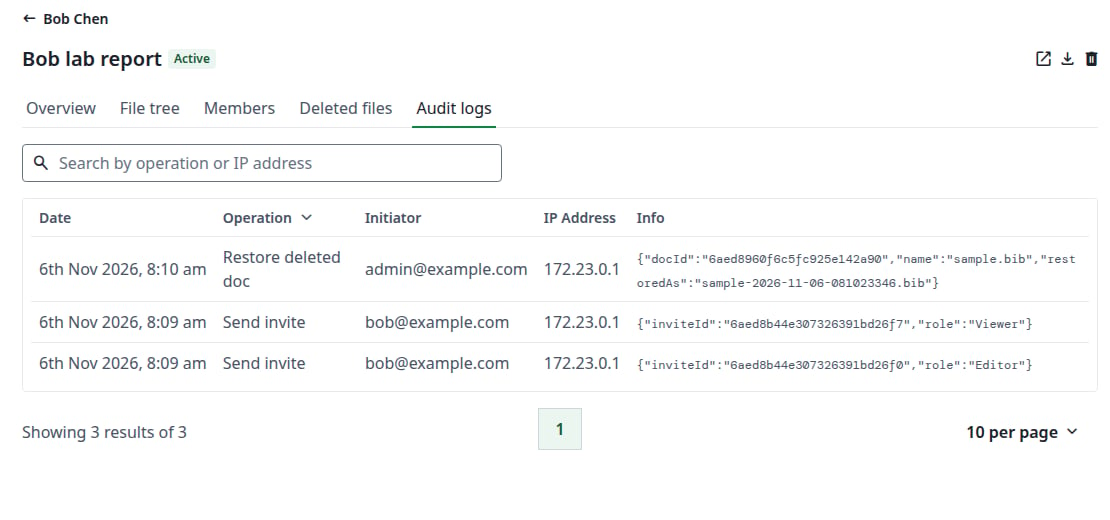
A project's audit logs