

.bib 檔案的形式匯入專案,然後像平常一樣從中引用。這個檔案是一份副本:只有在你點擊 Refresh 時才會變更。
如果你在 Account settings 中看不到 Mendeley 選項,請管理員開啟 Mendeley 整合。
連結你的 Mendeley 帳號
此操作只需做一次。1
開啟帳號設定
點擊 Account,然後點擊 Account settings。在 Reference managers 下找到 Mendeley,點擊 Link to Mendeley。
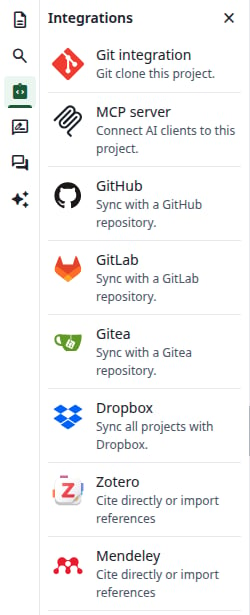
帳號設定中的 Mendeley
Integrations 面板
2
在 Mendeley 上授權
Mendeley 頁面會開啟。如有提示請先登入,然後授權該應用程式。
3
檢查連結
你會回到帳號設定。一則綠色訊息顯示 Reference manager linked,按鈕變為 Unlink。
你的 Mendeley 帳號已連結
從文獻庫建立檔案
1
開啟 Add files 對話框
開啟一個專案。在檔案樹中點擊 New file,然後點擊 From Mendeley。只有在帳號連結後才會出現此項目。
2
選擇檔案名稱與文獻庫
File Name 預設為 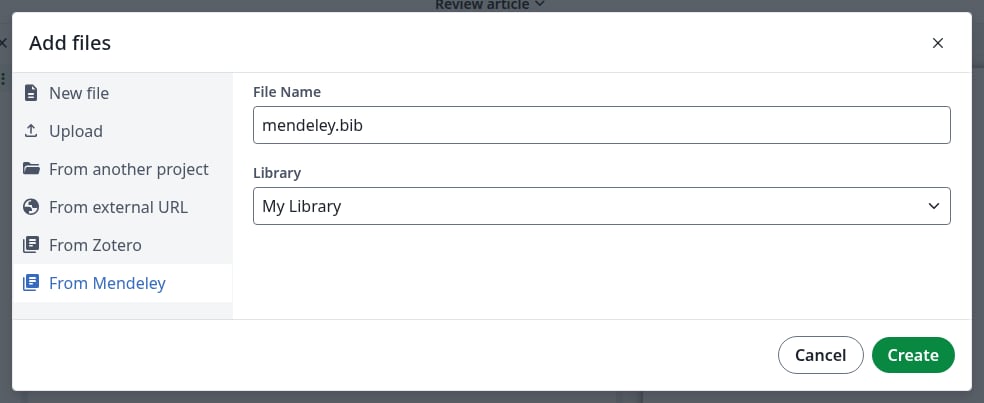
mendeley.bib。請保留 .bib 副檔名:否則你將看不到預覽,\cite 與 \bibliography 也都找不到其中的條目。Library 預設為 My Library,同時也會列出你的群組。一個檔案對應一個文獻庫。來自個人文獻庫的檔案
3
點擊 Create
對話框關閉,檔案出現在檔案樹中。點擊它:會顯示匯入時間及其條目。你無法在編輯器中編輯它。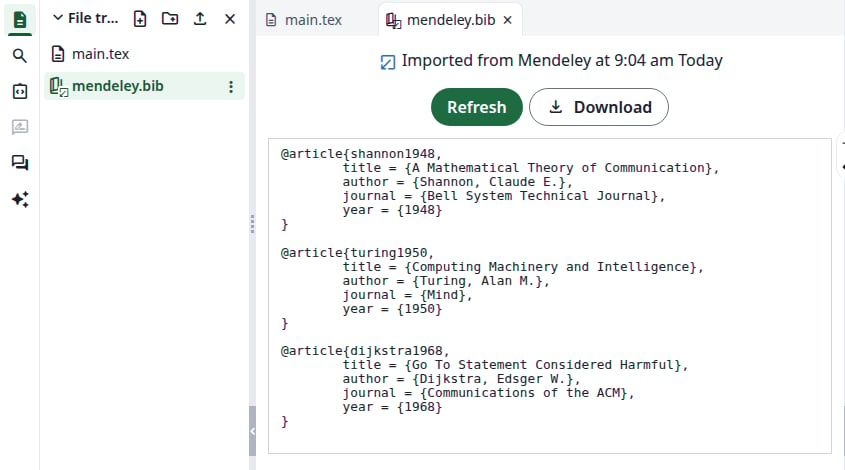
匯入的檔案
匯入群組
再操作一次,使用另一個檔案名稱,並在 Library 下選擇該群組。一個專案可以有多個這樣的檔案。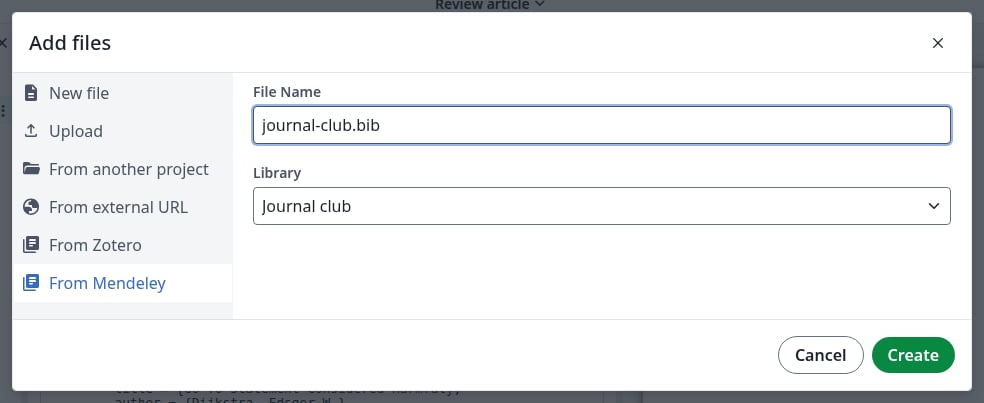
來自群組的檔案
從檔案中引用
1
開始引用
在 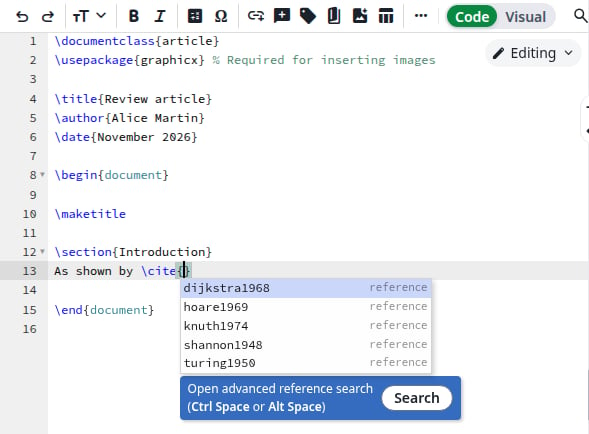
.tex 檔案中輸入 \cite{。清單會顯示專案中所有 .bib 檔案的條目。點擊其中一筆即可插入。已匯入檔案的條目
2
或依標題或作者搜尋
點擊清單下方的 Search,或在大括號內按 Ctrl+Space。輸入內容進行篩選,點擊一或多筆條目,然後點擊 Insert。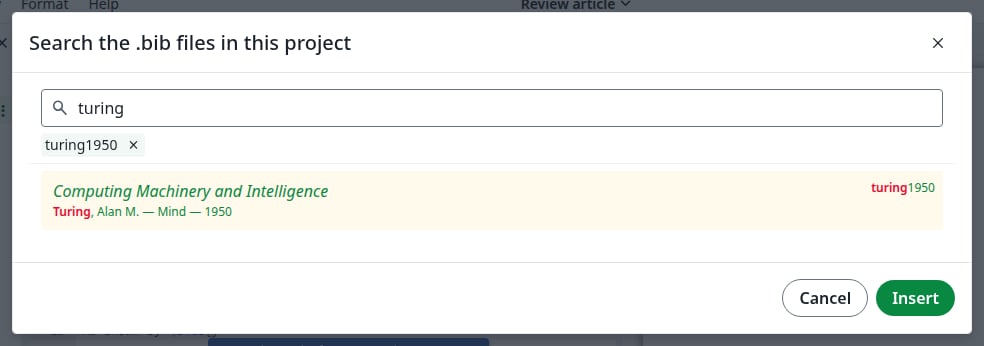
文獻搜尋
3
加入參考文獻列表
在 點擊 Recompile。參考文獻會出現在 PDF 中。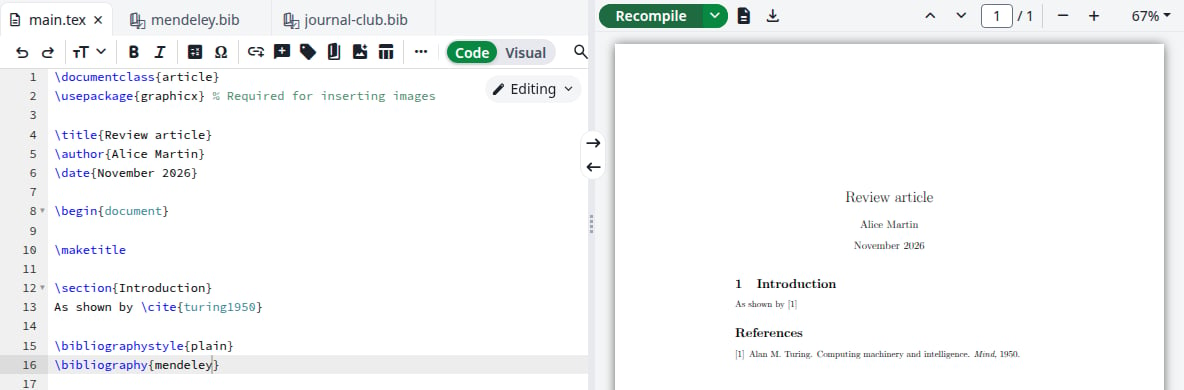
\end{document} 之前加入以下幾行,使用不含 .bib 的檔案名稱。若有多個檔案,請以逗號分隔名稱。編譯後的參考文獻
.bib 檔案,該清單會保持空白。你仍然可以從中引用。

清單空白是正常的
重新整理檔案
Mendeley 文獻庫中的變更不會自動進入專案。1
開啟檔案
在檔案樹中點擊已匯入的檔案。
2
點擊 Refresh
整個檔案會從你建立時選擇的文獻庫重新匯入:新條目出現,已刪除的條目消失。頂部的時間會隨之改變。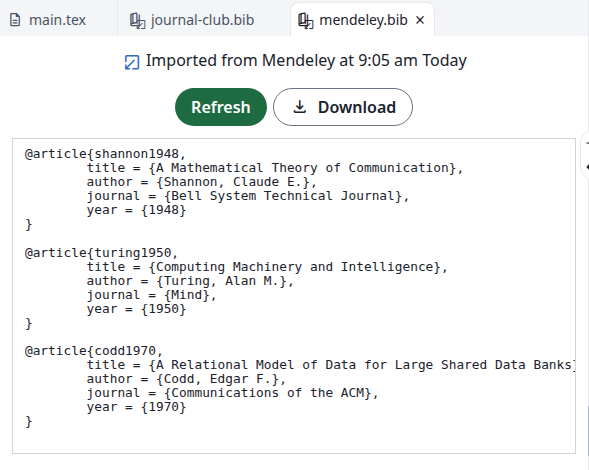
重新整理後的檔案
3
重新編譯
點擊 Recompile 更新 PDF。
取消連結你的 Mendeley 帳號
在 Account settings 的 Mendeley 下點擊 Unlink,然後在對話框中再次點擊 Unlink。按鈕會重新顯示 Link to Mendeley。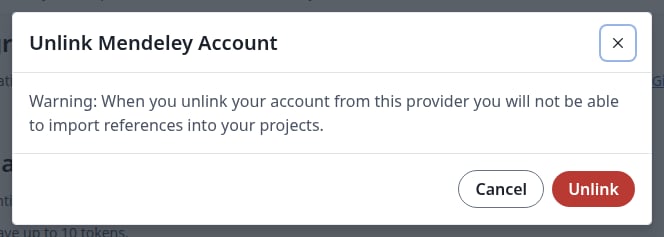
取消連結帳號
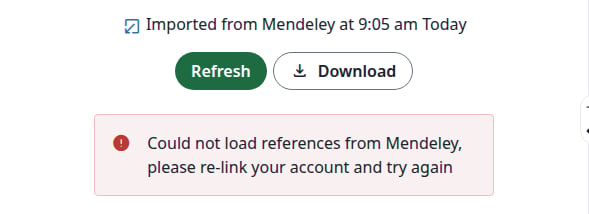
未連結帳號時重新整理
如果發生問題
在 Add files 對話框中出現 Could not load references from Mendeley, please re-link your account and try again 或 There was an error accessing your Mendeley data:Overleaf 無法再讀取你的文獻庫,例如你在 Mendeley 上撤銷了它的存取權。在 Account settings 中點擊 Unlink,然後點擊 Link to Mendeley。在此之前,Create 也會失敗,並顯示 The project that contains this file is not shared with you,即使是在你自己的專案中。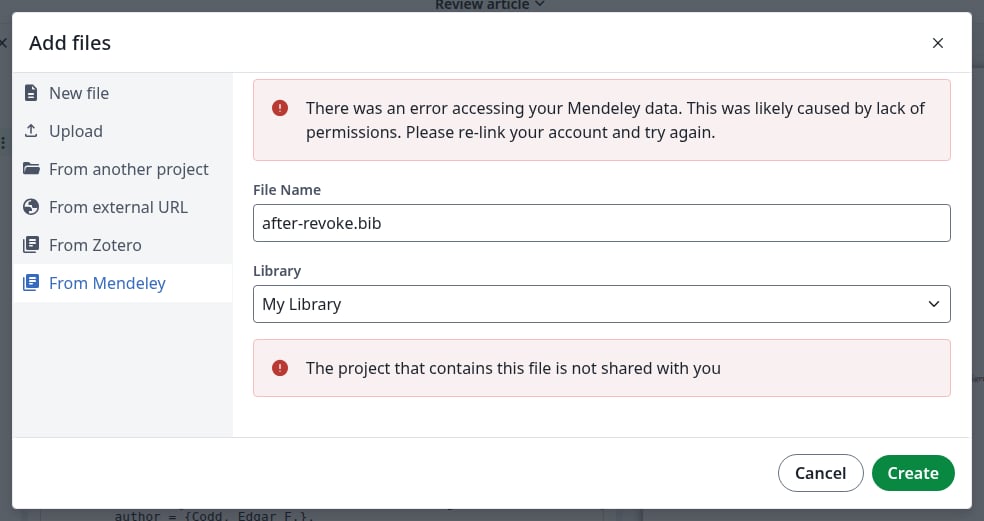
Overleaf 無法再讀取你的文獻庫