Creating your first administrator account
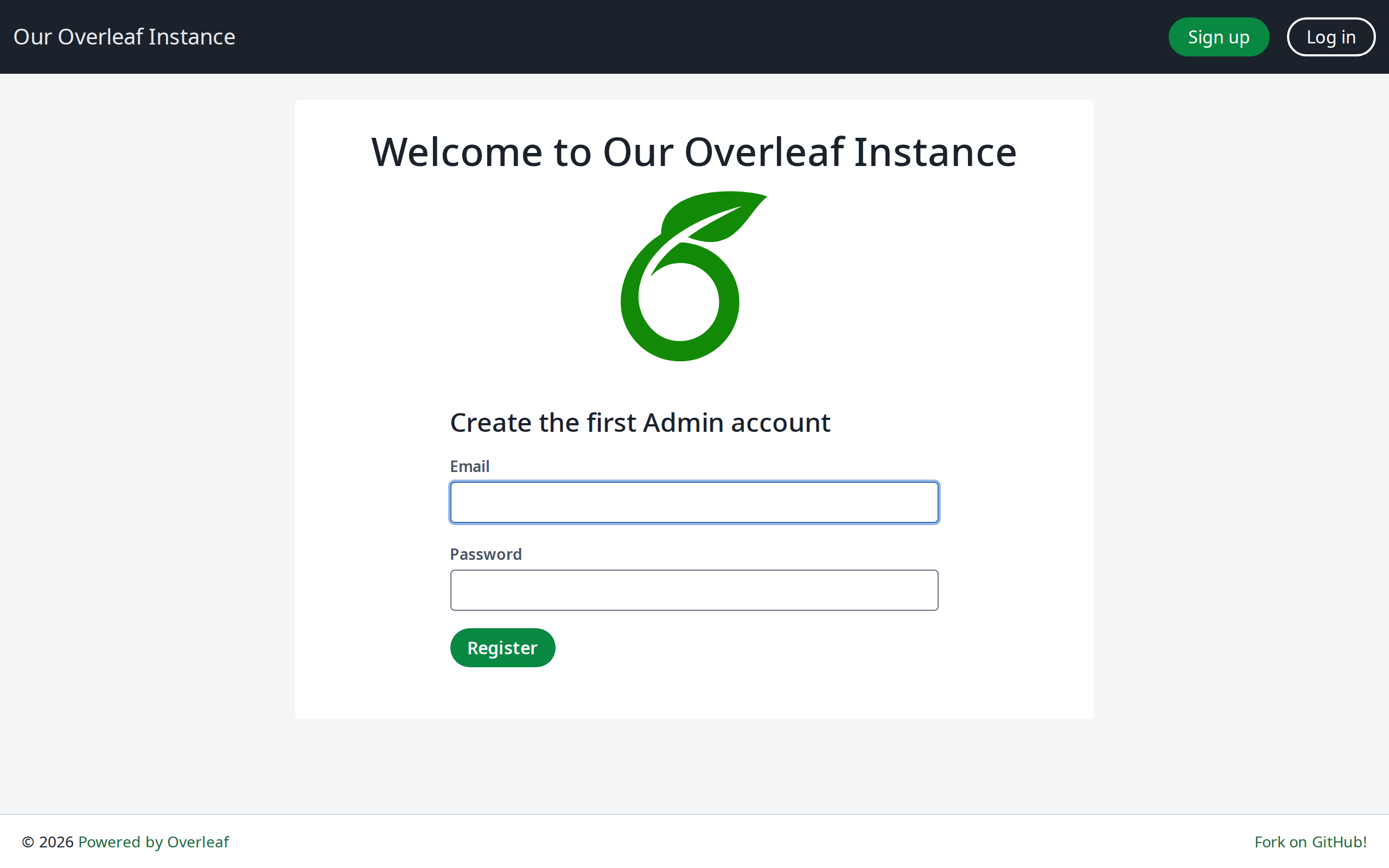
In a browser, open http://localhost/launchpad. If you changedOVERLEAF_LISTEN_IP or OVERLEAF_PORT, use your OVERLEAF_SITE_URL instead, for example http://192.168.1.20:8080/launchpad. The same applies to the other localhost links on this page. You should see a form with email and password fields. Fill these in with the credentials you want to use as the administrator account, then click Register.
Passwords must be at least 8 characters long (no more than 72), cannot contain email addresses or be too similar to email addresses, and must contain only valid characters.
Creating your first example project
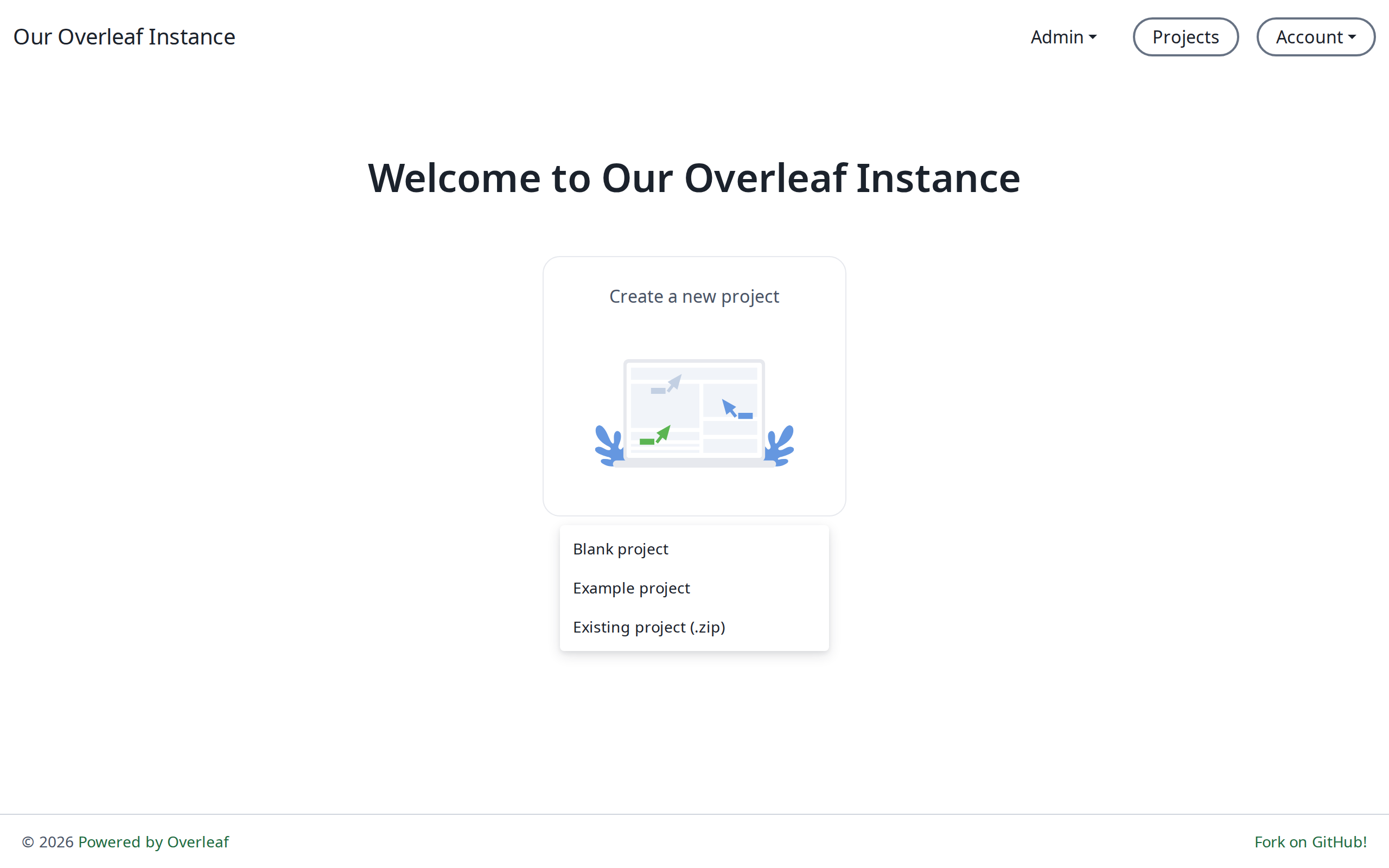
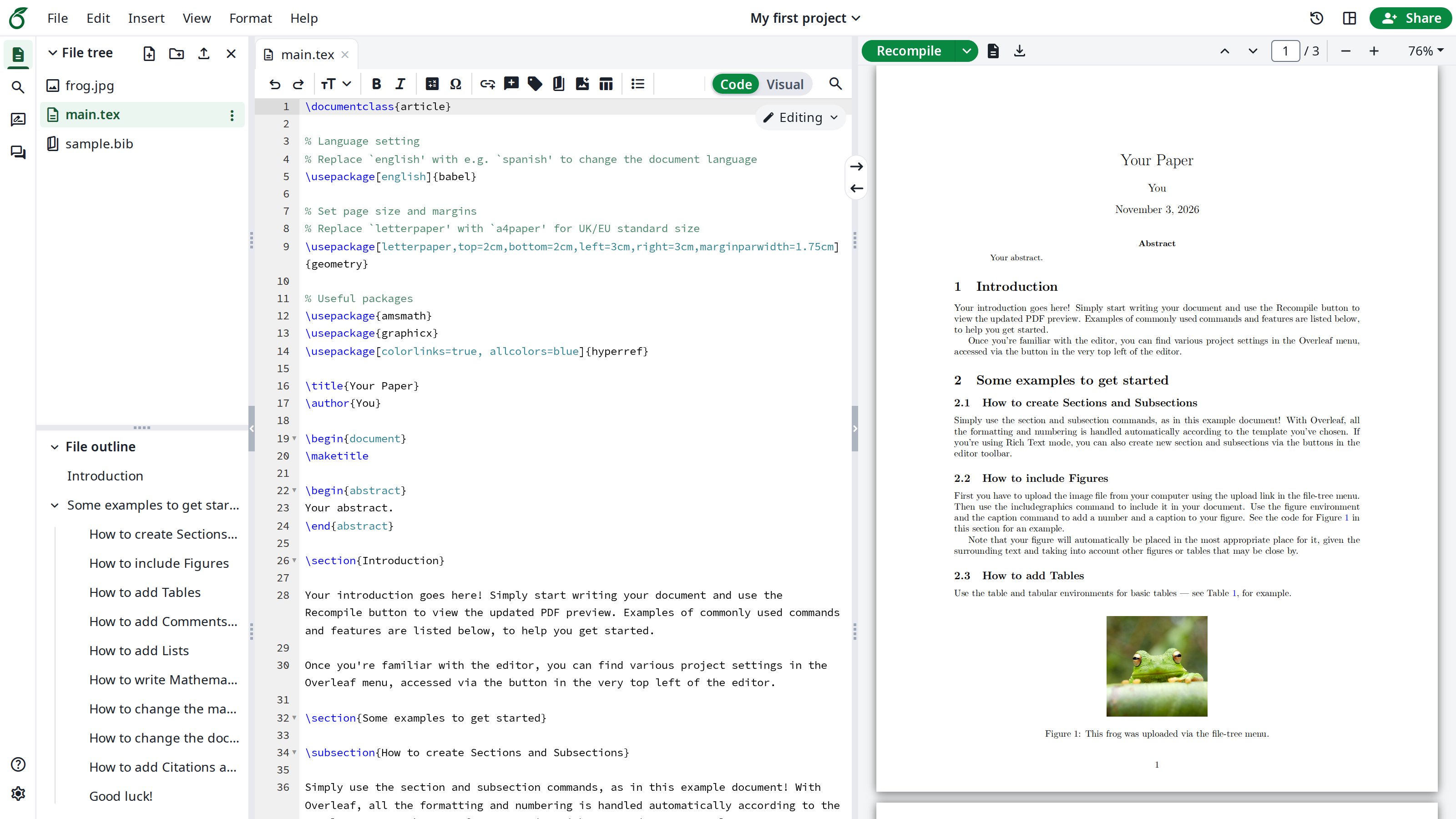
Open http://localhost/project in your browser and you will see a button prompting you to create your first project.