> ## Documentation Index
> Fetch the complete documentation index at: https://ayakaleaf-pro.mintlify.site/llms.txt
> Use this file to discover all available pages before exploring further.
# 範本
此功能最初由 [yu-i-i/overleaf-cep](https://github.com/yu-i-i/overleaf-cep) 開發,並由 [ayaka-notes/overleaf-pro](https://github.com/ayaka-notes/overleaf-pro) 修改與最佳化。
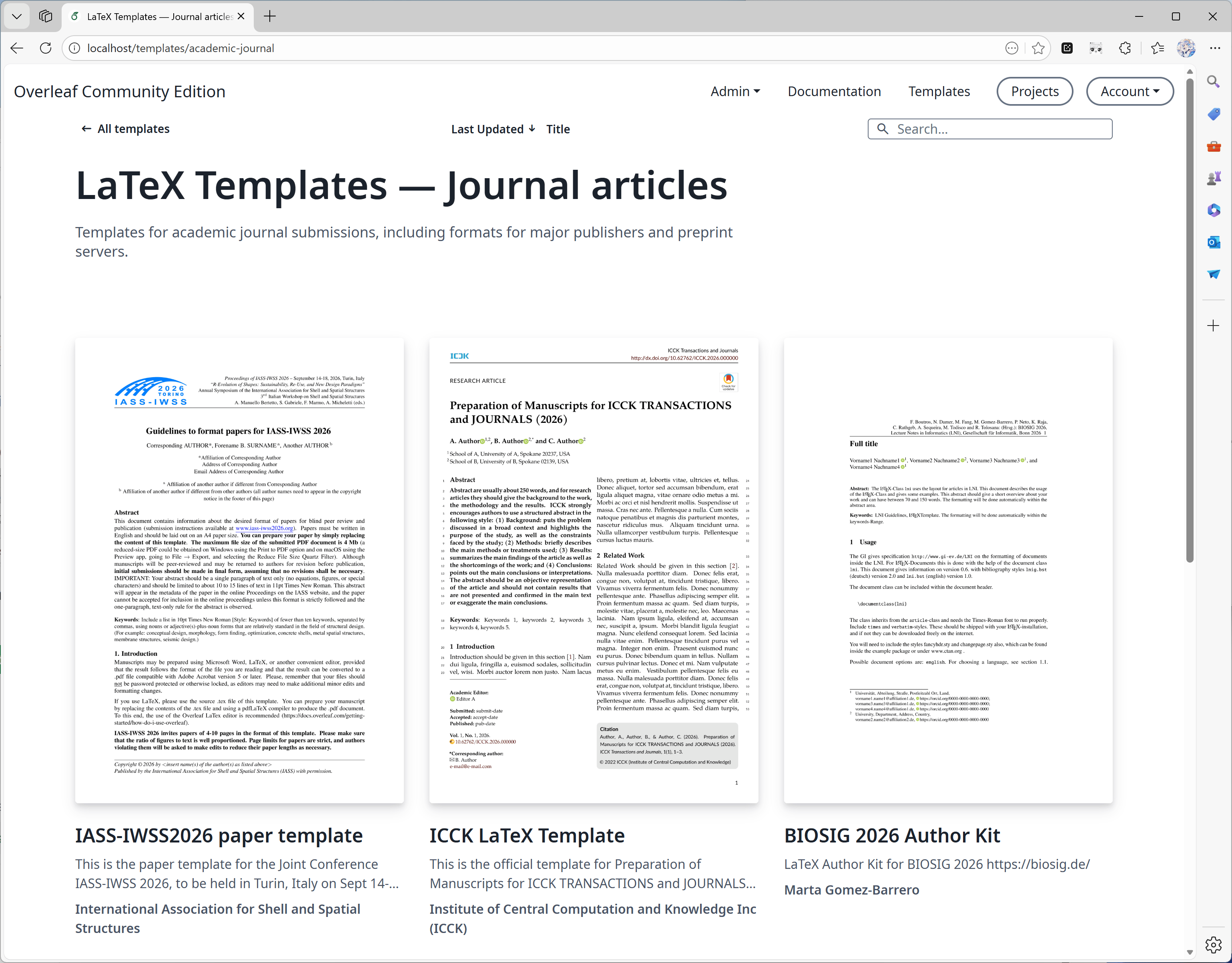
預設情況下,只有已登入的使用者可以瀏覽範本庫並開啟範本連結。若要與未登入的訪問者分享範本,還需設定 `OVERLEAF_ALLOW_PUBLIC_ACCESS=true`,請參閱[頁面存取](/zh-TW/on-premises/configuration/overleaf-toolkit/public-access#page-access "mention")。從範本建立專案一律需要登入。
 ### 設定
自 6.3.0 起,範本庫會在伺服器端執行分頁、搜尋與排序,無需進行遷移。若範本庫規模較大,請參閱版本說明中的[選用 MongoDB 索引](/zh-TW/on-premises/release-notes/release-notes-6.x.x#feature-04-template-pagination "mention")。
範本庫功能由下列環境變數控制:
* `OVERLEAF_TEMPLATE_GALLERY`:設為 `true` 以啟用範本庫。
* `OVERLEAF_TEMPLATE_CATEGORIES`:選用,以空白分隔的零個或多個範本分類鍵清單。有效的鍵包括:
* *`academic-journal`*
* *`book`*
* *`presentation`*
* *`poster`*
* *`cv`*
* *`homework`*
* *`bibliography`*
* *`calendar`*
* *`formal-letter`*
* *`report`*
* *`thesis`*
* *`newsletter`*
特殊鍵 *`all`* 會自動附加,代表包含所有範本的分類。
針對每個分類鍵,可設定下列選用環境變數:
* `TEMPLATE__NAME`:範本分類的顯示名稱。
* `TEMPLATE__DESCRIPTION`:分類的簡短說明。
若分類鍵包含連字號(`-`),請在環境變數名稱中將其替換為底線(`_`)。
* `ENABLE_CONVERSIONS`:必須設為 `true`,才能為範本產生縮圖與預覽。
### 發布權限
管理員可以發布範本。你也可以指派一位非管理員使用者,管理顯示於本地範本庫 `/templates` 中的精選範本。
為此,你需要在 `toolkit/config/variables.env` 中將環境變數 `OVERLEAF_TEMPLATES_USER_ID` 設為執行個體中負責範本管理之使用者的 `ID`,例如:
```dotenv theme={null}
OVERLEAF_TEMPLATES_USER_ID=56a8865231faeb5f07d69959
```
### 發布範本
針對每個要上傳的範本:
1. 建立一個包含範本原始碼的專案,並確認能成功編譯。
2. 在編輯器中選擇 **File** > **Manage Template**。
3. 在出現的表單中輸入範本詳細資料:
* *Title*(標題)必須是唯一的。
* *Description*(說明)欄位支援 Markdown 格式。
* *Author*(作者)欄位接受 Markdown 格式的連結。
送出後,可以透過範本庫頁面編輯範本詳細資料或刪除範本。管理員與範本使用者(`OVERLEAF_TEMPLATES_USER_ID`)可以管理任何範本。
以下是範例:
```dotenv wrap expandable theme={null}
#################
# TEMPLATES #
#################
ENABLE_CONVERSIONS=true
OVERLEAF_TEMPLATE_GALLERY=true
OVERLEAF_TEMPLATE_CATEGORIES=academic-journal book presentation poster cv homework bibliography calendar formal-letter report thesis newsletter
TEMPLATE_ACADEMIC_JOURNAL_NAME=Journal articles
TEMPLATE_ACADEMIC_JOURNAL_DESCRIPTION=Templates for academic journal submissions, including formats for major publishers and preprint servers.
TEMPLATE_BIBLIOGRAPHY_NAME=Bibliographies
TEMPLATE_BIBLIOGRAPHY_DESCRIPTION=Styles for creating and managing bibliographies with BibTeX or BibLaTeX. Suitable for use in academic papers, theses, and reports.
TEMPLATE_BOOK_NAME=Books
TEMPLATE_BOOK_DESCRIPTION=Templates for writing books or long-form documents, including chapter structuring, front matter, and indexing.
TEMPLATE_CALENDAR_NAME=Calendars
TEMPLATE_CALENDAR_DESCRIPTION=Templates to create yearly, monthly, or weekly calendars. Useful for personal planners or event scheduling.
TEMPLATE_CV_NAME=CVs and résumés
TEMPLATE_CV_DESCRIPTION=Templates for CVs and résumés with various formats for academic, industry, and creative positions.
TEMPLATE_FORMAL_LETTER_NAME=Formal letters
TEMPLATE_FORMAL_LETTER_DESCRIPTION=Templates for professional letters, such as cover letters, recommendation letters, and official correspondence.
TEMPLATE_HOMEWORK_NAME=Assignments
TEMPLATE_HOMEWORK_DESCRIPTION=Templates for homework, coursework, and problem sets. Designed to be clean and well-structured for students and educators.
TEMPLATE_NEWSLETTER_NAME=Newsletters
TEMPLATE_NEWSLETTER_DESCRIPTION=Templates for creating newsletters with formats for academic, corporate, or community communications.
TEMPLATE_POSTER_NAME=Posters
TEMPLATE_POSTER_DESCRIPTION=Templates for scientific and academic posters, typically used in conferences and research presentations.
TEMPLATE_PRESENTATION_NAME=Presentations
TEMPLATE_PRESENTATION_DESCRIPTION=Templates for Beamer and other presentation formats, tailored for academic talks and lectures.
TEMPLATE_REPORT_NAME=Reports
TEMPLATE_REPORT_DESCRIPTION=Templates for technical, lab, or project reports. Includes sections for figures, tables, and references.
TEMPLATE_THESIS_NAME=Theses
TEMPLATE_THESIS_DESCRIPTION=Templates for writing theses and dissertations, following institutional formatting and citation guidelines.
TEMPLATE_ALL_NAME=All templates
TEMPLATE_ALL_DESCRIPTION=Browse a collection of all available LaTeX templates, categorized by document type, style, and purpose.
```
### 從 overleaf.com 轉移範本
由於 Overleaf Pro 的架構設計為可離線運作,因此沒有自動化方式能將 [overleaf.com](https://www.overleaf.com/) 範本庫中的範本整合到你的地端安裝中,不過你可以逐一手動完成。
預設情況下,Overleaf Pro 會使用 basic scheme 版本的 TeX Live 進行編譯。此基本版本相當輕量,僅包含極有限的 LaTeX 套件子集,因此當使用者在本地地端執行個體上使用來自 [overleaf.com](https://www.overleaf.com/) 的範本時,很可能會遇到缺少套件的錯誤。
可惜的是,雖然沒有自動安裝缺少套件的方式,但 Server Pro 提供一項可設定的功能,讓使用者能以更安全的方式、在可使用更多套件的環境中編譯專案。此功能稱為[沙箱編譯](https://docs.overleaf.com/on-premises/configuration/overleaf-toolkit/server-pro-only-configuration/sandboxed-compiles)(也稱為 Sibling Containers)。
為確保下載的範本與你的地端 Server Pro 執行個體相容,我們強烈建議你啟用[沙箱編譯](https://docs.overleaf.com/on-premises/configuration/overleaf-toolkit/server-pro-only-configuration/sandboxed-compiles),因為此功能能讓使用者使用與 [overleaf.com](https://www.overleaf.com/) 相同的 TeX Live 環境。這些映像檔包含最常用的套件與字型,且已針對範本庫中的範本進行測試。
關於如何設定使用者可在專案中選擇的 TeX Live 版本,以及如何為新專案設定預設 TeX Live 映像檔版本,請參閱文件中的[變更 TeX Live 映像檔](https://docs.overleaf.com/on-premises/configuration/overleaf-toolkit/server-pro-only-configuration/sandboxed-compiles#changing-the-tex-live-image)一節。
1. 前往 [overleaf.com](https://www.overleaf.com/) 上的[範本庫](https://www.overleaf.com/latex/templates)並找到所需的範本,例如 [IEEE Photonics Journal Paper Template - Example Submission](https://www.overleaf.com/latex/examples/ieee-photonics-journal-paper-template-example-submission/bsfjjfkdsjds)
2. 點選 **Open as Template** 按鈕
3. 點選專案選單並選擇 **Download Source**
4. 接著登入地端 Server Pro 帳號
5. 在專案儀表板中點選 **New Project** 按鈕,並選擇 **Upload Project**
6. 點選 **Select a .zip file** 按鈕,並選擇下載的範本 zip 檔案
使用者便可在自己的帳號中使用這個新上傳的範本;若你是範本使用者,也可以將其發布給其他使用者使用。
### 問與答
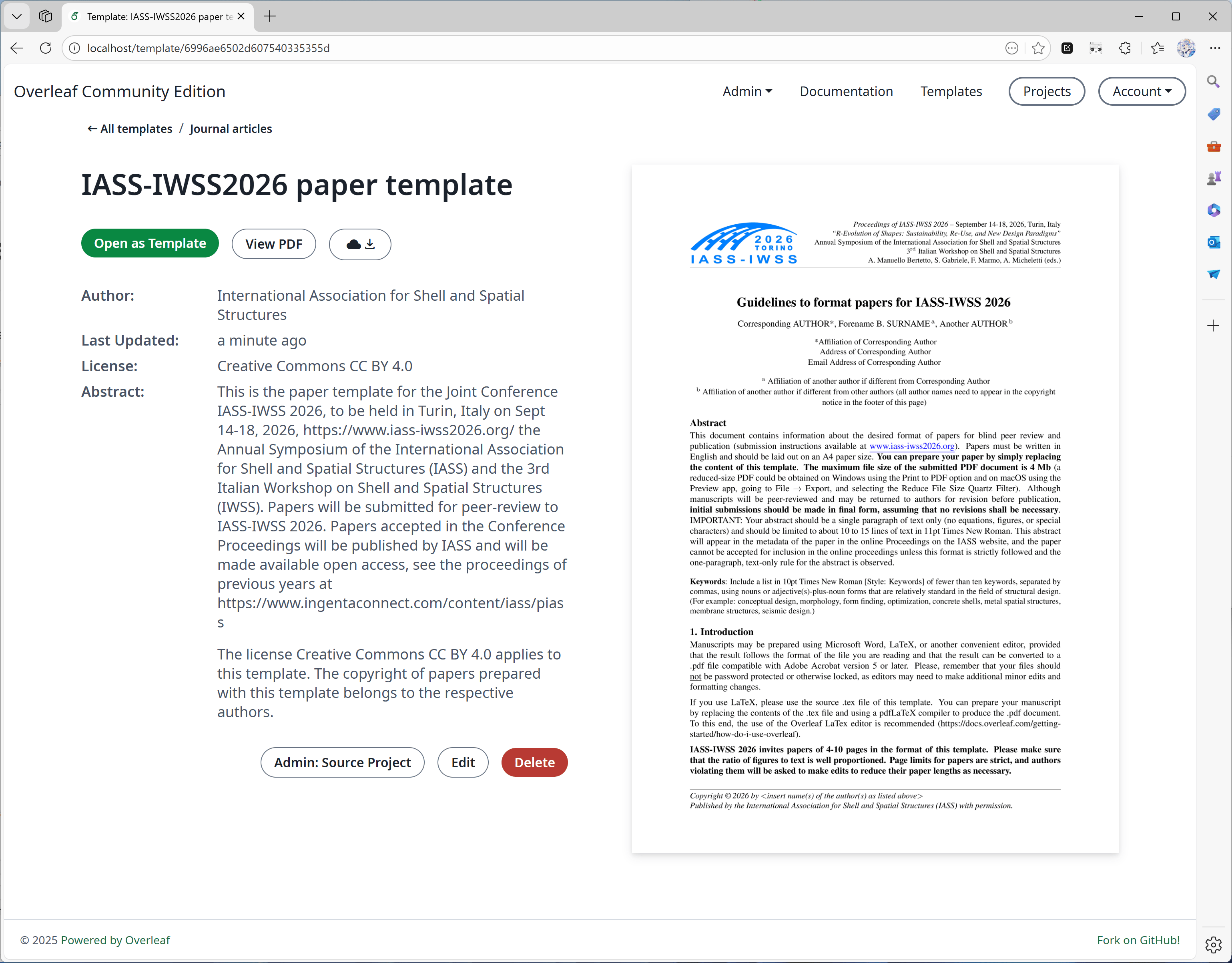
回答: 可以,但我們不建議這麼做。發布範本時,我們會為專案建立快照,並在發布當下將專案儲存為 zip 檔案。如此一來,即使刪除範本對應的專案,範本也不會受到影響。
不過,我們也會記錄與此範本關聯的 ProjectID,方便你日後更新範本。
若刪除對應的專案,範本詳細資料頁面上將不會顯示「Admin: Source Project」按鈕(見下圖)。
### 設定
自 6.3.0 起,範本庫會在伺服器端執行分頁、搜尋與排序,無需進行遷移。若範本庫規模較大,請參閱版本說明中的[選用 MongoDB 索引](/zh-TW/on-premises/release-notes/release-notes-6.x.x#feature-04-template-pagination "mention")。
範本庫功能由下列環境變數控制:
* `OVERLEAF_TEMPLATE_GALLERY`:設為 `true` 以啟用範本庫。
* `OVERLEAF_TEMPLATE_CATEGORIES`:選用,以空白分隔的零個或多個範本分類鍵清單。有效的鍵包括:
* *`academic-journal`*
* *`book`*
* *`presentation`*
* *`poster`*
* *`cv`*
* *`homework`*
* *`bibliography`*
* *`calendar`*
* *`formal-letter`*
* *`report`*
* *`thesis`*
* *`newsletter`*
特殊鍵 *`all`* 會自動附加,代表包含所有範本的分類。
針對每個分類鍵,可設定下列選用環境變數:
* `TEMPLATE__NAME`:範本分類的顯示名稱。
* `TEMPLATE__DESCRIPTION`:分類的簡短說明。
若分類鍵包含連字號(`-`),請在環境變數名稱中將其替換為底線(`_`)。
* `ENABLE_CONVERSIONS`:必須設為 `true`,才能為範本產生縮圖與預覽。
### 發布權限
管理員可以發布範本。你也可以指派一位非管理員使用者,管理顯示於本地範本庫 `/templates` 中的精選範本。
為此,你需要在 `toolkit/config/variables.env` 中將環境變數 `OVERLEAF_TEMPLATES_USER_ID` 設為執行個體中負責範本管理之使用者的 `ID`,例如:
```dotenv theme={null}
OVERLEAF_TEMPLATES_USER_ID=56a8865231faeb5f07d69959
```
### 發布範本
針對每個要上傳的範本:
1. 建立一個包含範本原始碼的專案,並確認能成功編譯。
2. 在編輯器中選擇 **File** > **Manage Template**。
3. 在出現的表單中輸入範本詳細資料:
* *Title*(標題)必須是唯一的。
* *Description*(說明)欄位支援 Markdown 格式。
* *Author*(作者)欄位接受 Markdown 格式的連結。
送出後,可以透過範本庫頁面編輯範本詳細資料或刪除範本。管理員與範本使用者(`OVERLEAF_TEMPLATES_USER_ID`)可以管理任何範本。
以下是範例:
```dotenv wrap expandable theme={null}
#################
# TEMPLATES #
#################
ENABLE_CONVERSIONS=true
OVERLEAF_TEMPLATE_GALLERY=true
OVERLEAF_TEMPLATE_CATEGORIES=academic-journal book presentation poster cv homework bibliography calendar formal-letter report thesis newsletter
TEMPLATE_ACADEMIC_JOURNAL_NAME=Journal articles
TEMPLATE_ACADEMIC_JOURNAL_DESCRIPTION=Templates for academic journal submissions, including formats for major publishers and preprint servers.
TEMPLATE_BIBLIOGRAPHY_NAME=Bibliographies
TEMPLATE_BIBLIOGRAPHY_DESCRIPTION=Styles for creating and managing bibliographies with BibTeX or BibLaTeX. Suitable for use in academic papers, theses, and reports.
TEMPLATE_BOOK_NAME=Books
TEMPLATE_BOOK_DESCRIPTION=Templates for writing books or long-form documents, including chapter structuring, front matter, and indexing.
TEMPLATE_CALENDAR_NAME=Calendars
TEMPLATE_CALENDAR_DESCRIPTION=Templates to create yearly, monthly, or weekly calendars. Useful for personal planners or event scheduling.
TEMPLATE_CV_NAME=CVs and résumés
TEMPLATE_CV_DESCRIPTION=Templates for CVs and résumés with various formats for academic, industry, and creative positions.
TEMPLATE_FORMAL_LETTER_NAME=Formal letters
TEMPLATE_FORMAL_LETTER_DESCRIPTION=Templates for professional letters, such as cover letters, recommendation letters, and official correspondence.
TEMPLATE_HOMEWORK_NAME=Assignments
TEMPLATE_HOMEWORK_DESCRIPTION=Templates for homework, coursework, and problem sets. Designed to be clean and well-structured for students and educators.
TEMPLATE_NEWSLETTER_NAME=Newsletters
TEMPLATE_NEWSLETTER_DESCRIPTION=Templates for creating newsletters with formats for academic, corporate, or community communications.
TEMPLATE_POSTER_NAME=Posters
TEMPLATE_POSTER_DESCRIPTION=Templates for scientific and academic posters, typically used in conferences and research presentations.
TEMPLATE_PRESENTATION_NAME=Presentations
TEMPLATE_PRESENTATION_DESCRIPTION=Templates for Beamer and other presentation formats, tailored for academic talks and lectures.
TEMPLATE_REPORT_NAME=Reports
TEMPLATE_REPORT_DESCRIPTION=Templates for technical, lab, or project reports. Includes sections for figures, tables, and references.
TEMPLATE_THESIS_NAME=Theses
TEMPLATE_THESIS_DESCRIPTION=Templates for writing theses and dissertations, following institutional formatting and citation guidelines.
TEMPLATE_ALL_NAME=All templates
TEMPLATE_ALL_DESCRIPTION=Browse a collection of all available LaTeX templates, categorized by document type, style, and purpose.
```
### 從 overleaf.com 轉移範本
由於 Overleaf Pro 的架構設計為可離線運作,因此沒有自動化方式能將 [overleaf.com](https://www.overleaf.com/) 範本庫中的範本整合到你的地端安裝中,不過你可以逐一手動完成。
預設情況下,Overleaf Pro 會使用 basic scheme 版本的 TeX Live 進行編譯。此基本版本相當輕量,僅包含極有限的 LaTeX 套件子集,因此當使用者在本地地端執行個體上使用來自 [overleaf.com](https://www.overleaf.com/) 的範本時,很可能會遇到缺少套件的錯誤。
可惜的是,雖然沒有自動安裝缺少套件的方式,但 Server Pro 提供一項可設定的功能,讓使用者能以更安全的方式、在可使用更多套件的環境中編譯專案。此功能稱為[沙箱編譯](https://docs.overleaf.com/on-premises/configuration/overleaf-toolkit/server-pro-only-configuration/sandboxed-compiles)(也稱為 Sibling Containers)。
為確保下載的範本與你的地端 Server Pro 執行個體相容,我們強烈建議你啟用[沙箱編譯](https://docs.overleaf.com/on-premises/configuration/overleaf-toolkit/server-pro-only-configuration/sandboxed-compiles),因為此功能能讓使用者使用與 [overleaf.com](https://www.overleaf.com/) 相同的 TeX Live 環境。這些映像檔包含最常用的套件與字型,且已針對範本庫中的範本進行測試。
關於如何設定使用者可在專案中選擇的 TeX Live 版本,以及如何為新專案設定預設 TeX Live 映像檔版本,請參閱文件中的[變更 TeX Live 映像檔](https://docs.overleaf.com/on-premises/configuration/overleaf-toolkit/server-pro-only-configuration/sandboxed-compiles#changing-the-tex-live-image)一節。
1. 前往 [overleaf.com](https://www.overleaf.com/) 上的[範本庫](https://www.overleaf.com/latex/templates)並找到所需的範本,例如 [IEEE Photonics Journal Paper Template - Example Submission](https://www.overleaf.com/latex/examples/ieee-photonics-journal-paper-template-example-submission/bsfjjfkdsjds)
2. 點選 **Open as Template** 按鈕
3. 點選專案選單並選擇 **Download Source**
4. 接著登入地端 Server Pro 帳號
5. 在專案儀表板中點選 **New Project** 按鈕,並選擇 **Upload Project**
6. 點選 **Select a .zip file** 按鈕,並選擇下載的範本 zip 檔案
使用者便可在自己的帳號中使用這個新上傳的範本;若你是範本使用者,也可以將其發布給其他使用者使用。
### 問與答
回答: 可以,但我們不建議這麼做。發布範本時,我們會為專案建立快照,並在發布當下將專案儲存為 zip 檔案。如此一來,即使刪除範本對應的專案,範本也不會受到影響。
不過,我們也會記錄與此範本關聯的 ProjectID,方便你日後更新範本。
若刪除對應的專案,範本詳細資料頁面上將不會顯示「Admin: Source Project」按鈕(見下圖)。
 回答: 發布範本時,我們會將專案儲存為 zip 與 PDF 檔案,這通常很快。不過,我們還需要為 PDF 產生縮圖,以便在範本詳細資料中顯示。
縮圖產生時間通常取決於 PDF 第一頁的內容。為了在顯示品質與轉換時間之間取得平衡,我們選擇了適中的寬度。
然而,若 PDF 第一頁包含大量文字,轉換縮圖可能需要 40 秒甚至更久,請耐心等候。以下是一張大型海報的範例,它需要較長的時間。
回答: 發布範本時,我們會將專案儲存為 zip 與 PDF 檔案,這通常很快。不過,我們還需要為 PDF 產生縮圖,以便在範本詳細資料中顯示。
縮圖產生時間通常取決於 PDF 第一頁的內容。為了在顯示品質與轉換時間之間取得平衡,我們選擇了適中的寬度。
然而,若 PDF 第一頁包含大量文字,轉換縮圖可能需要 40 秒甚至更久,請耐心等候。以下是一張大型海報的範例,它需要較長的時間。
 This documentation is built and hosted on [Mintlify](https://mintlify.com), a developer documentation platform.