> ## Documentation Index
> Fetch the complete documentation index at: https://ayakaleaf-pro.mintlify.site/llms.txt
> Use this file to discover all available pages before exploring further.
# 6. 安装后任务
### 创建第一个管理员账户
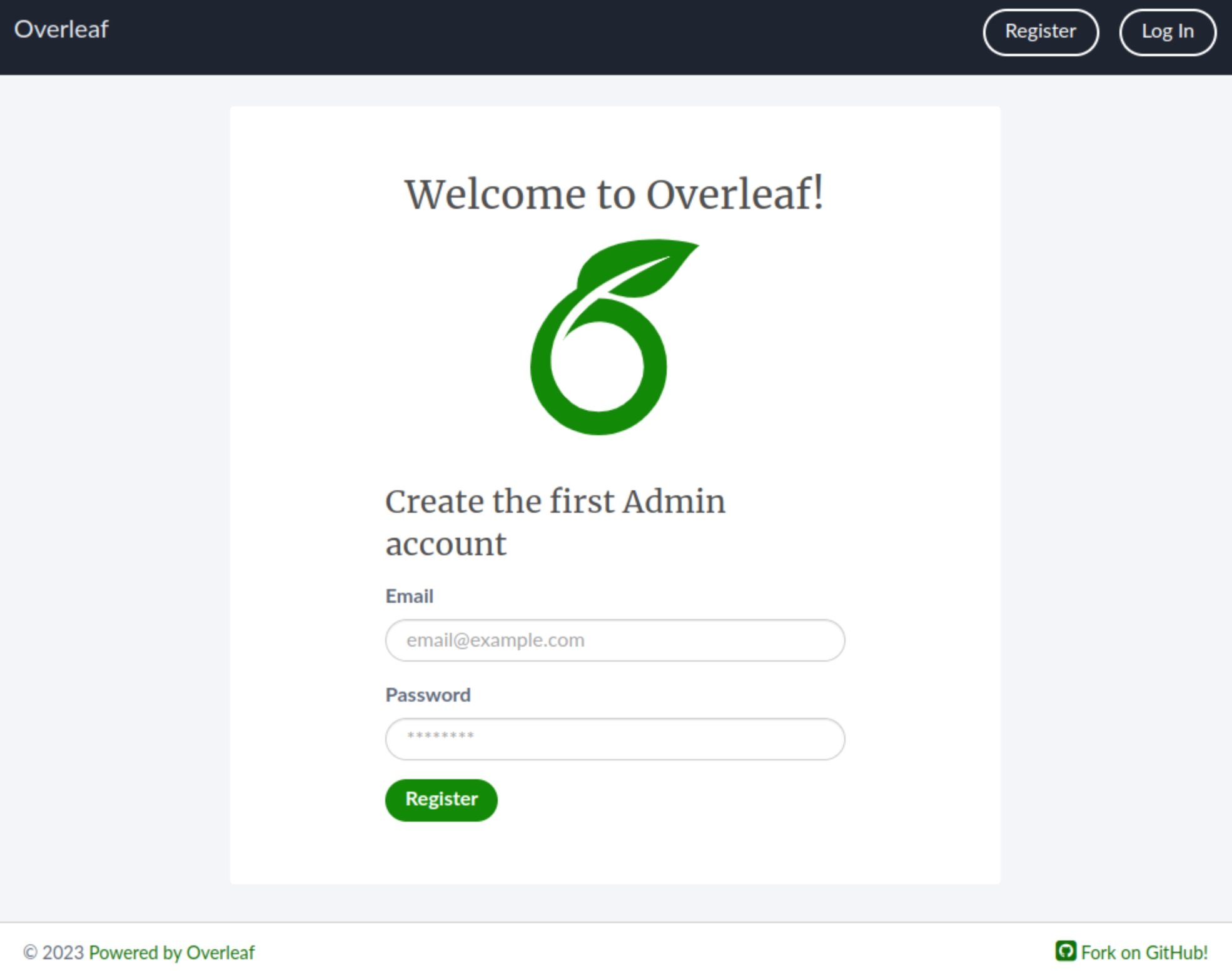
在浏览器中打开 [http://localhost/launchpad](http://localhost/launchpad)。你应该会看到一个包含邮箱和密码字段的表单。填写你想用作管理员账户的凭据,然后点击 **Register**。
密码长度必须至少为 8 个字符(不超过 72 个),不能包含邮箱地址或与邮箱地址过于相似,并且只能包含有效字符。
 然后点击链接进入登录页面([http://localhost/login](http://localhost/login))。输入凭据。登录后,你将看到欢迎页面。
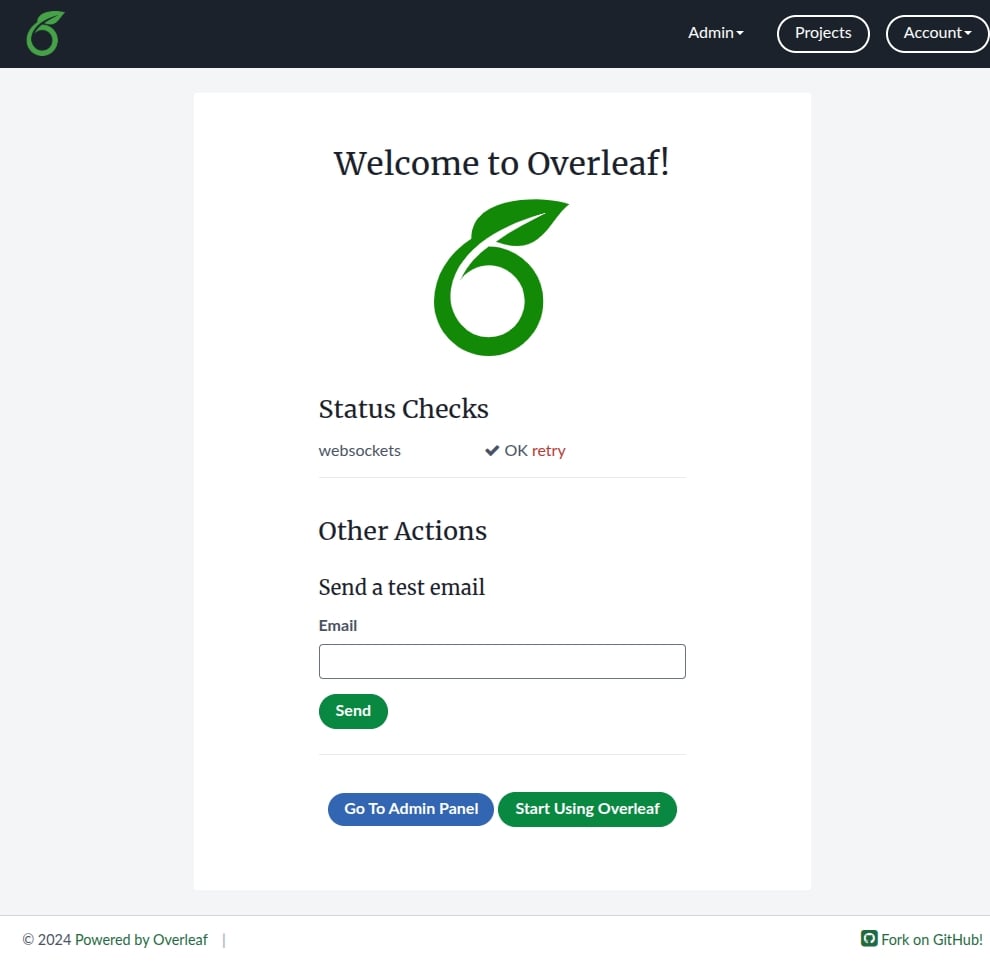 点击页面底部的绿色按钮,开始使用 Overleaf。
### 创建第一个示例项目
在浏览器中打开 [http://localhost/project](http://localhost/project),你会看到一个提示你创建第一个项目的按钮。
点击页面底部的绿色按钮,开始使用 Overleaf。
### 创建第一个示例项目
在浏览器中打开 [http://localhost/project](http://localhost/project),你会看到一个提示你创建第一个项目的按钮。
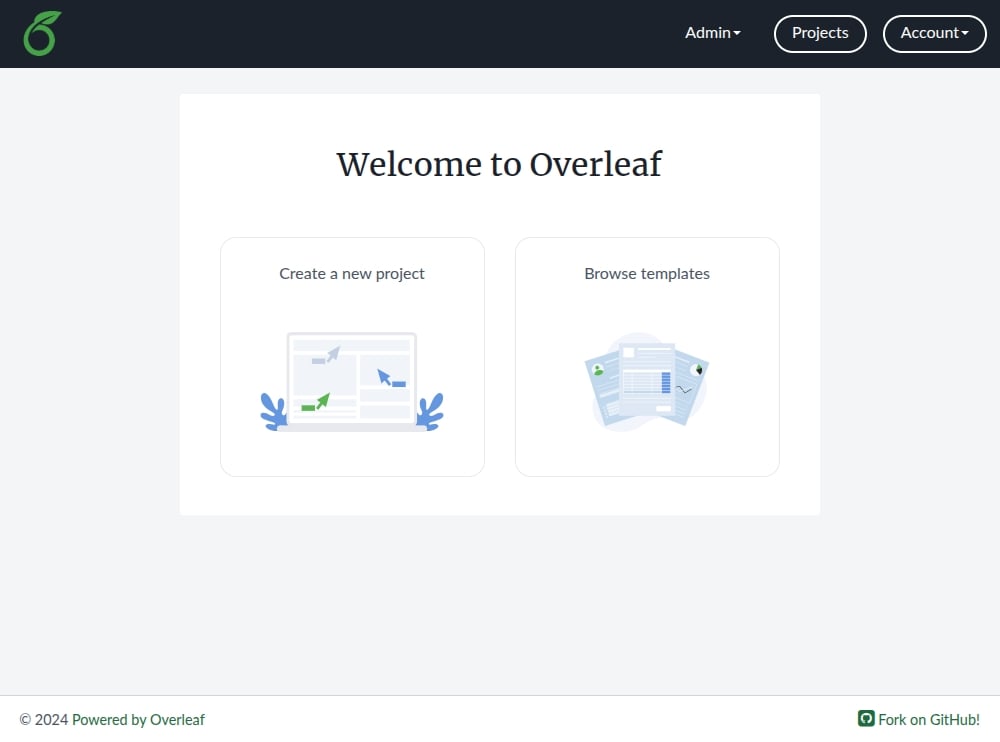 点击此按钮,选择 Example Project,然后按照屏幕上的说明操作。
你将进入新项目,在其中可以看到文本编辑器和 PDF 预览。
点击此按钮,选择 Example Project,然后按照屏幕上的说明操作。
你将进入新项目,在其中可以看到文本编辑器和 PDF 预览。
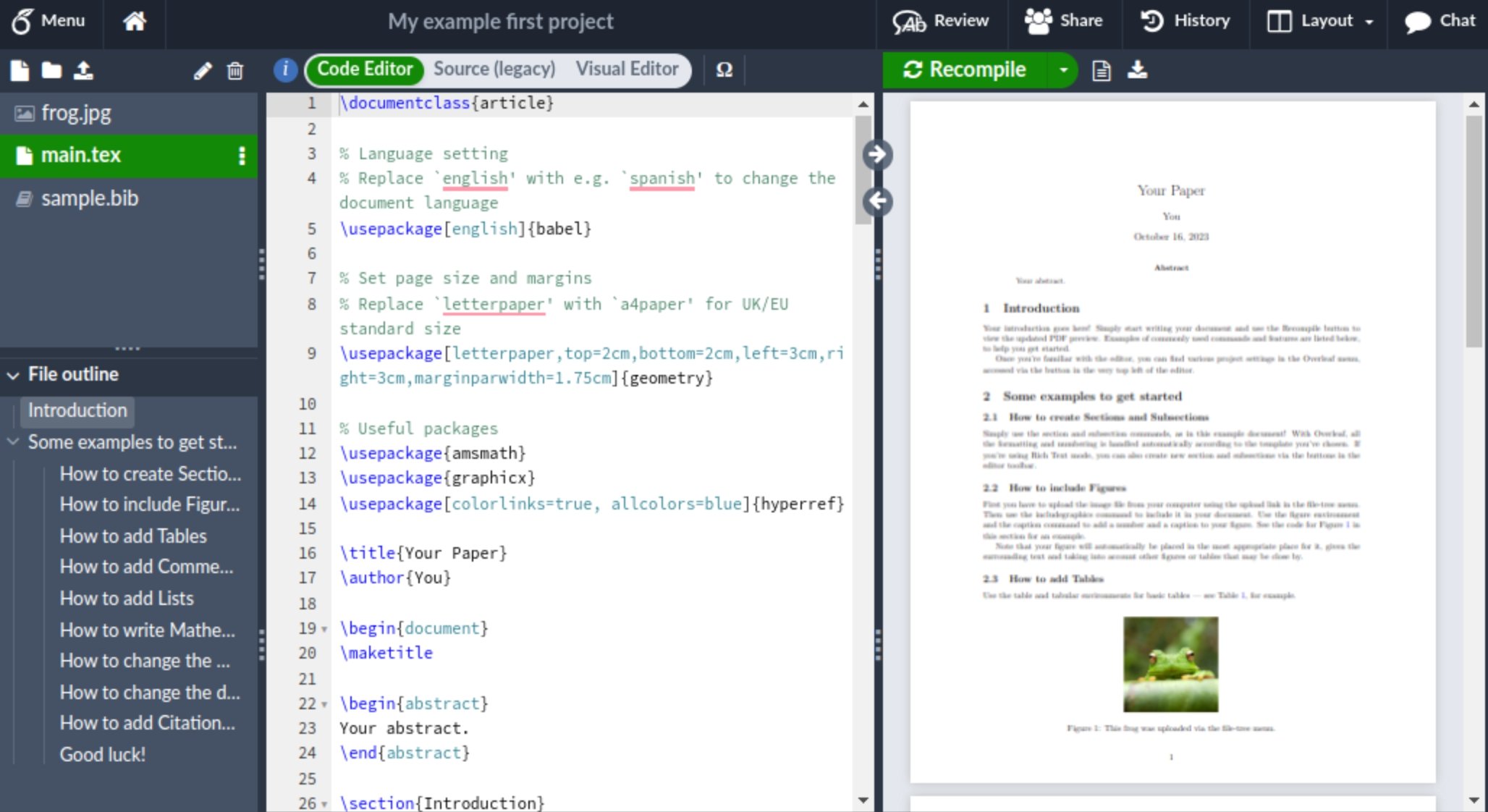 最后,你可以点击 **Home** 图标返回项目页面。
This documentation is built and hosted on [Mintlify](https://mintlify.com), a developer documentation platform.
最后,你可以点击 **Home** 图标返回项目页面。
This documentation is built and hosted on [Mintlify](https://mintlify.com), a developer documentation platform.