> ## Documentation Index
> Fetch the complete documentation index at: https://ayakaleaf-pro.mintlify.site/llms.txt
> Use this file to discover all available pages before exploring further.
# MCP Server
Each project has an MCP server, so AI clients such as Claude Code, Codex, Cursor, VS Code or Gemini CLI can work on it: read and edit its files, compile it, read the LaTeX log, download the PDF and answer comments.
This feature is developed by [ayaka-notes/ayakaleaf-pro](https://github.com/ayaka-notes/ayakaleaf-pro). It is introduced from v6.4.0 and later.
 ### Setup
The MCP server comes with the Git integration: enable [git-bridge](/on-premises/configuration/overleaf-toolkit/git-integration), and the MCP server is available too. There is nothing else to configure.
### Connect an AI client
1. In **Account Settings**, generate a Git authentication token. The same token is used for the MCP server and for Git.
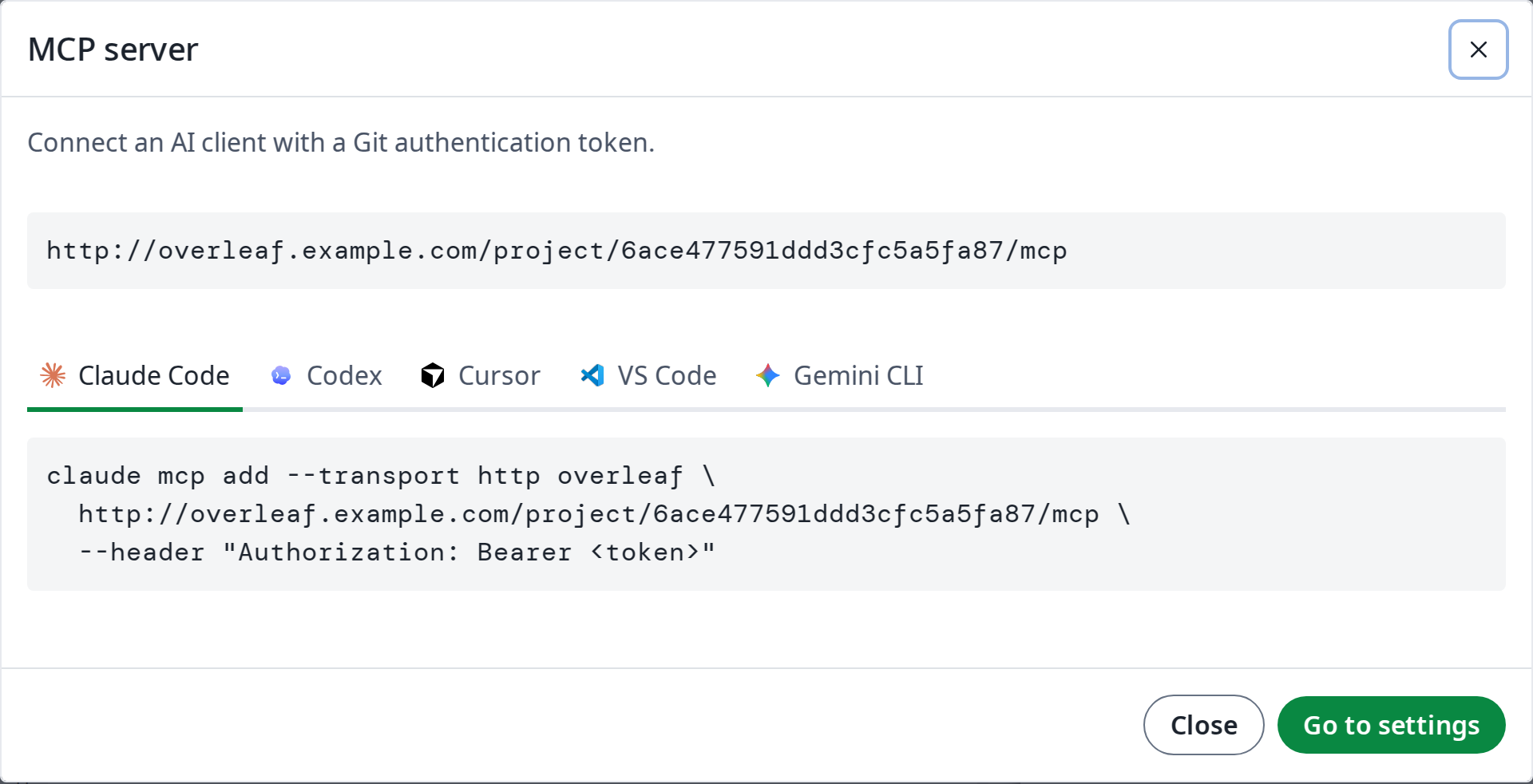
2. In the editor, open **Integrations** and click **MCP server**. It shows the address of the project's MCP server, `https:///project//mcp`, and how to add it to each AI client: copy the command, and replace `` with your token.
### Usage
Once connected, ask the AI client in plain words. For example:
| You ask | The AI client uses |
| - | - |
| *Fix the typos in the introduction.* | `read_file`, `edit_file`: the edits show live in the editor |
| *Compile the project and fix the LaTeX errors.* | `compile`, `get_compile_log`, `edit_file` |
| *Answer the open comments, then resolve them.* | `list_comments`, `reply_to_comment`, `resolve_comment` |
| *Switch to XeLaTeX and download the PDF.* | `update_settings`, `compile`, `get_output_file_link` |
### Tools
| Group | Tools |
| - | - |
| Project | `get_clone_info`, `get_settings`, `update_settings`, `list_versions` |
| Files | `list_files`, `read_file`, `edit_file`, `write_file`, `delete_file` |
| Compile | `compile`, `get_compile_log`, `get_output_file_link`, `word_count` |
| Comments | `list_comments`, `reply_to_comment`, `resolve_comment`, `reopen_comment` |
Edits made with `edit_file` and `write_file` show live in the editor and merge with those of collaborators. For many files at once, binary files or renames, the AI client can also clone the project with Git and push.
### Permissions
The MCP server follows the project's sharing settings, like Git:
* Everyone who can view the project can read it, compile it and download its output.
* Only the owner and editors can change its files and settings.
* Reviewers can also reply to comments, and resolve or reopen the comments they started.
* Viewers who joined with a link cannot see the comments, as in the editor.
This documentation is built and hosted on [Mintlify](https://mintlify.com), a developer documentation platform.
### Setup
The MCP server comes with the Git integration: enable [git-bridge](/on-premises/configuration/overleaf-toolkit/git-integration), and the MCP server is available too. There is nothing else to configure.
### Connect an AI client
1. In **Account Settings**, generate a Git authentication token. The same token is used for the MCP server and for Git.
2. In the editor, open **Integrations** and click **MCP server**. It shows the address of the project's MCP server, `https:///project//mcp`, and how to add it to each AI client: copy the command, and replace `` with your token.
### Usage
Once connected, ask the AI client in plain words. For example:
| You ask | The AI client uses |
| - | - |
| *Fix the typos in the introduction.* | `read_file`, `edit_file`: the edits show live in the editor |
| *Compile the project and fix the LaTeX errors.* | `compile`, `get_compile_log`, `edit_file` |
| *Answer the open comments, then resolve them.* | `list_comments`, `reply_to_comment`, `resolve_comment` |
| *Switch to XeLaTeX and download the PDF.* | `update_settings`, `compile`, `get_output_file_link` |
### Tools
| Group | Tools |
| - | - |
| Project | `get_clone_info`, `get_settings`, `update_settings`, `list_versions` |
| Files | `list_files`, `read_file`, `edit_file`, `write_file`, `delete_file` |
| Compile | `compile`, `get_compile_log`, `get_output_file_link`, `word_count` |
| Comments | `list_comments`, `reply_to_comment`, `resolve_comment`, `reopen_comment` |
Edits made with `edit_file` and `write_file` show live in the editor and merge with those of collaborators. For many files at once, binary files or renames, the AI client can also clone the project with Git and push.
### Permissions
The MCP server follows the project's sharing settings, like Git:
* Everyone who can view the project can read it, compile it and download its output.
* Only the owner and editors can change its files and settings.
* Reviewers can also reply to comments, and resolve or reopen the comments they started.
* Viewers who joined with a link cannot see the comments, as in the editor.
This documentation is built and hosted on [Mintlify](https://mintlify.com), a developer documentation platform.