> ## Documentation Index
> Fetch the complete documentation index at: https://ayakaleaf-pro.mintlify.site/llms.txt
> Use this file to discover all available pages before exploring further.
# Git integration
The Git integration is only available at [ayaka-notes/overleaf](https://github.com/ayaka-notes/overleaf) currently.
This feature is initially developed by [ayaka-notes/ayakaleaf-pro](https://github.com/ayaka-notes/ayakaleaf-pro).
If you’re using the Toolkit, enable the `git-bridge` by setting the following in your `config/overleaf.rc`:
```text title="config/overleaf.rc" theme={null}
GIT_BRIDGE_ENABLED=true
```
For users running a custom `docker-compose.yml`, add the following container configuration to your compose file:
```yaml title="docker-compose.yml (git-bridge service)" wrap theme={null}
git-bridge:
restart: always
image: ghcr.io/ayaka-notes/overleaf-pro/git-bridge:6.3.0 # tag should match the `sharelatex` container tag
volumes:
- ~/git_bridge_data:/data/git-bridge
container_name: git-bridge
expose:
- "8000"
environment:
GIT_BRIDGE_API_BASE_URL: "http://sharelatex:3000/api/v0/"
# "http://sharelatex/api/v0/" for version 4.1.6 and earlier
GIT_BRIDGE_OAUTH2_SERVER: "http://sharelatex"
GIT_BRIDGE_POSTBACK_BASE_URL: "http://git-bridge:8000"
GIT_BRIDGE_ROOT_DIR: "/data/git-bridge"
user: root
command: ["/server-pro-start.sh"]
```
You’ll also need to link the `git-bridge` container in the `sharelatex` container and define the following environment variables, please pay attention to `V1_HISTORY_URL`:
```yaml title="docker-compose.yml (sharelatex service)" theme={null}
sharelatex:
links:
- git-bridge
environment:
GIT_BRIDGE_ENABLED: true
GIT_BRIDGE_HOST: "git-bridge"
GIT_BRIDGE_PORT: "8000"
# We use v1 now, if you used to set V1_HISTORY_URL, please update now
V1_HISTORY_URL: "http://sharelatex:3100/api"
```
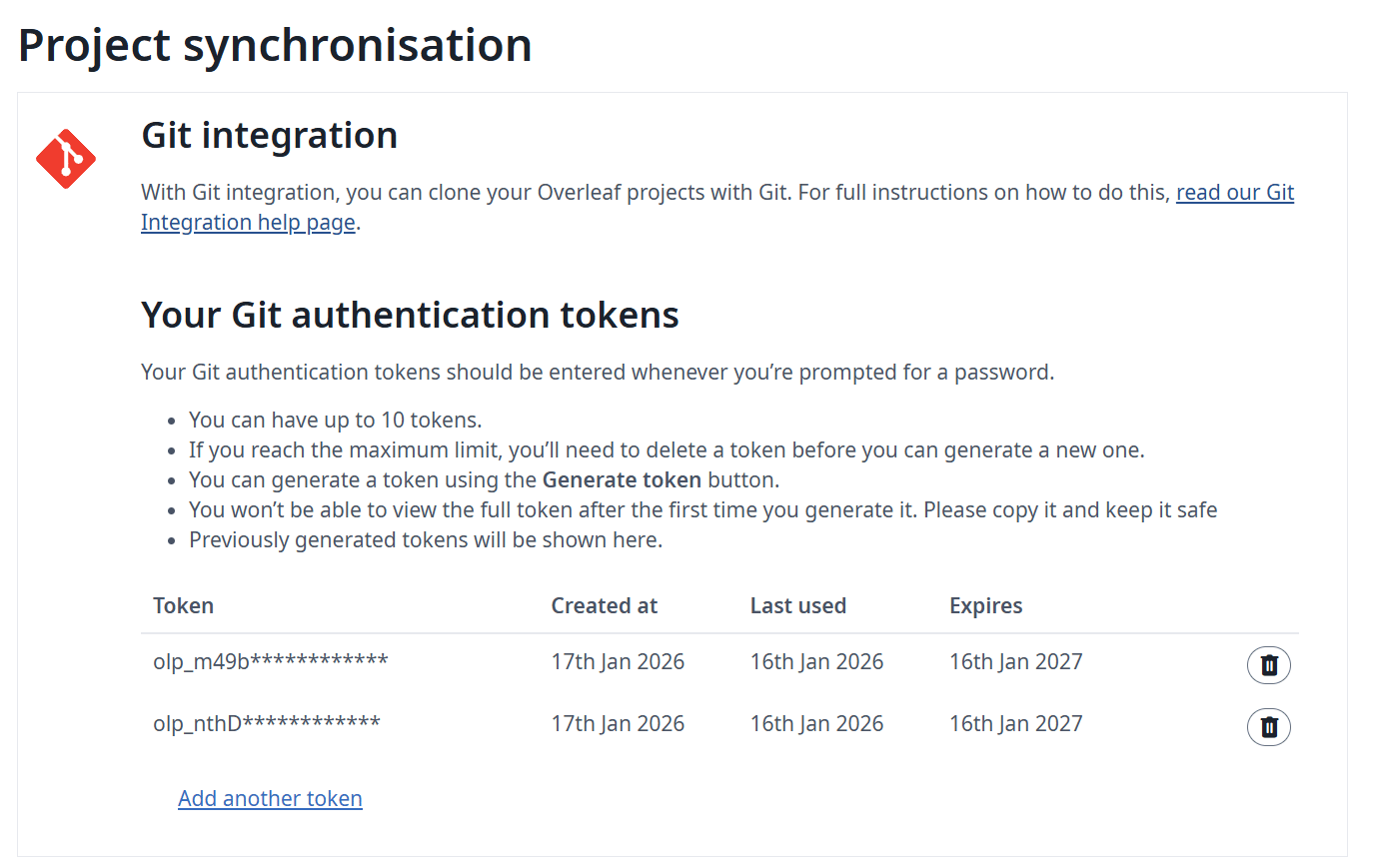
When authenticating a git client, users need a Personal Access Token. Users can manage Personal Access Tokens through the application UI (see the documentation):
 We recommend you monitor your host resources after enabling the `git-bridge`. The load increase will depend on:
* the number of users accessing the feature
* the types of projects hosted in your instance (larger projects are generally more resource intensive)
### Swapping projects to S3
The Git integration stores a complete git repository on disk for each project that gets cloned by a user. If you have limited disk space, you can activate a swap job that will move repositories that are less used to AWS S3. If a swapped repository is needed again, it gets moved back to the disk. The following environment variables control the swap job:
| Name | Description |
| - | - |
| `GIT_BRIDGE_SWAPSTORE_TYPE` | Set this to "s3" to activate the swap job. |
| `GIT_BRIDGE_SWAPSTORE_AWS_ACCESS_KEY` | Your AWS access key |
| `GIT_BRIDGE_SWAPSTORE_AWS_SECRET` | Your AWS secret |
| `GIT_BRIDGE_SWAPSTORE_S3_BUCKET_NAME` | This bucket will contain the zipped git repositories |
| `GIT_BRIDGE_SWAPSTORE_AWS_REGION` | The bucket’s region |
| `GIT_BRIDGE_SWAPJOB_MIN_PROJECTS` |
We recommend you monitor your host resources after enabling the `git-bridge`. The load increase will depend on:
* the number of users accessing the feature
* the types of projects hosted in your instance (larger projects are generally more resource intensive)
### Swapping projects to S3
The Git integration stores a complete git repository on disk for each project that gets cloned by a user. If you have limited disk space, you can activate a swap job that will move repositories that are less used to AWS S3. If a swapped repository is needed again, it gets moved back to the disk. The following environment variables control the swap job:
| Name | Description |
| - | - |
| `GIT_BRIDGE_SWAPSTORE_TYPE` | Set this to "s3" to activate the swap job. |
| `GIT_BRIDGE_SWAPSTORE_AWS_ACCESS_KEY` | Your AWS access key |
| `GIT_BRIDGE_SWAPSTORE_AWS_SECRET` | Your AWS secret |
| `GIT_BRIDGE_SWAPSTORE_S3_BUCKET_NAME` | This bucket will contain the zipped git repositories |
| `GIT_BRIDGE_SWAPSTORE_AWS_REGION` | The bucket’s region |
| `GIT_BRIDGE_SWAPJOB_MIN_PROJECTS` | How many projects to keep on disk, at a minimum.
- Default: 50
|
| `GIT_BRIDGE_SWAPJOB_LOW_GIB` | Low watermark for swapping. The swap job will move projects until disk usage is below this value.
- Default: 128 GB
|
| `GIT_BRIDGE_SWAPJOB_HIGH_GIB` | High watermark for swapping. The swap job will start swapping when disk usage reaches this value.
- Default: 256 GB
|
| `GIT_BRIDGE_SWAPJOB_INTERVAL_MILLIS` | The amount of time between checking disk usage and running the swap job.
- Default: 3600000 ms = 1 hour
|
### Q\&A
Users with read-only access can only clone this project; users with read-write access can clone and push projects. Note: Users need to be logged in to join this project.
This documentation is built and hosted on [Mintlify](https://mintlify.com), a developer documentation platform.