> ## Documentation Index
> Fetch the complete documentation index at: https://ayakaleaf-pro.mintlify.site/llms.txt
> Use this file to discover all available pages before exploring further.
# Dropbox Synchronisation
This feature is developed by [ayaka-notes/ayakaleaf-pro](https://github.com/ayaka-notes/ayakaleaf-pro). It is introduced from v6.4.0 and later. It's still in beta status. We need your feedback if you have any problem.
Dropbox Synchronisation keeps the projects of a user in sync with their Dropbox, like on Overleaf Cloud: once a user links their Dropbox account, each of their projects appears as a folder in `Apps//`, changes in Overleaf are sent to Dropbox, and changes made in Dropbox come back to Overleaf.
### Setup Dropbox Synchronisation
You need to enable [git-bridge](/on-premises/configuration/overleaf-toolkit/git-integration) first: without it, the account settings hide the project sync section.
```dotenv title="config/overleaf.rc" theme={null}
GIT_BRIDGE_ENABLED=true
```
Create an app in the [Dropbox App Console](https://www.dropbox.com/developers/apps), signed in with the Dropbox account that will own the app:
1. Click **Create app**, then fill in the page:
* **1. Choose an API**: select **Scoped access**.
* **2. Choose the type of access you need**: select **App folder**, not **Full Dropbox**. Overleaf only syncs inside the folder of the app.
* **3. Name your app**: enter a name, e.g. `Overleaf`. It must be unique on Dropbox. Each user's projects appear in `Apps//` in their Dropbox, and this name is `DROPBOX_APP_NAME` below.
* Click **Create app**. The app opens on its **Settings** tab.
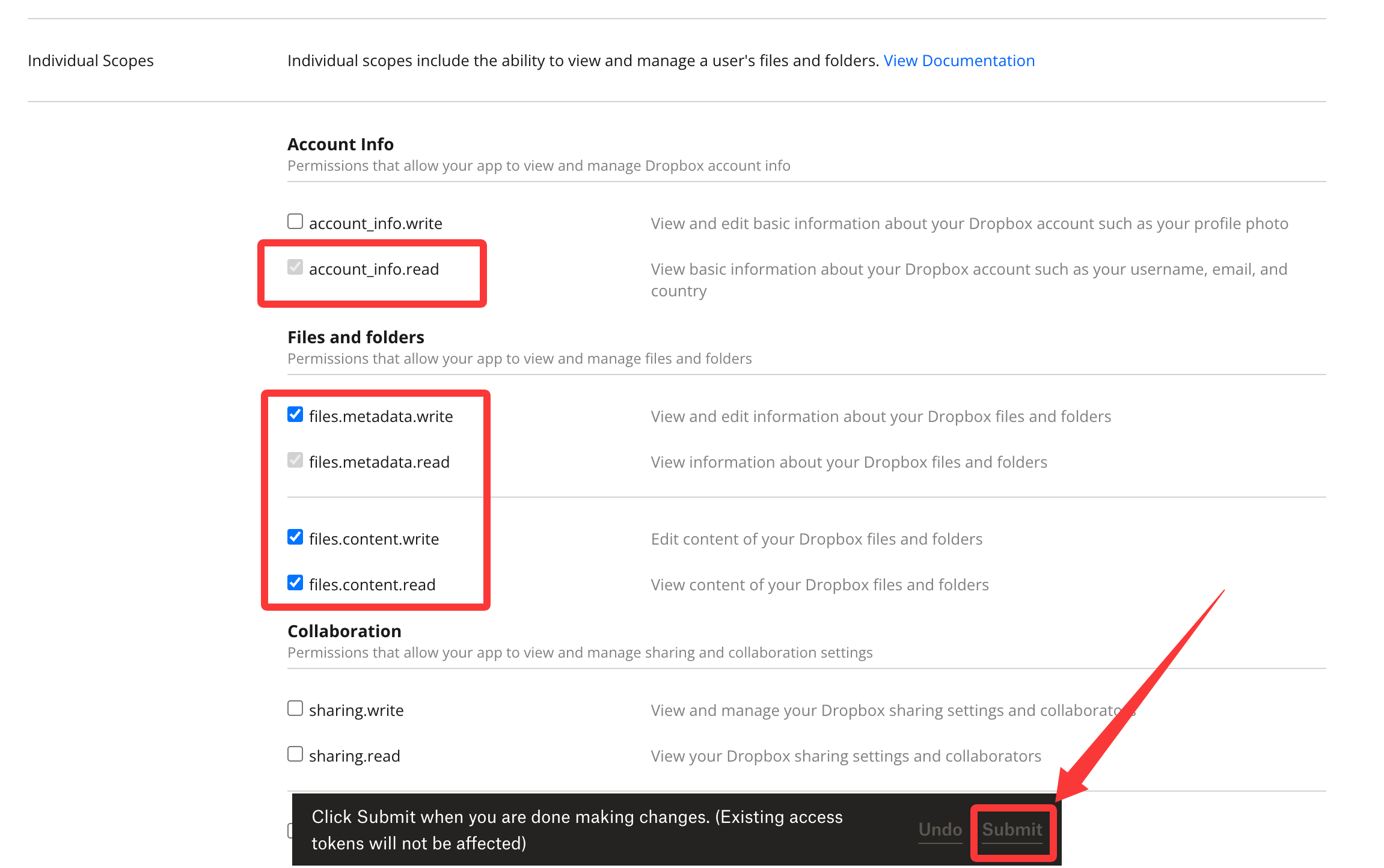
2. On the **Permissions** tab, under **Files and folders**, check `files.metadata.write`, `files.content.write` and `files.content.read`. `account_info.read` and `files.metadata.read` are checked with them and cannot be unchecked. Do not check other permissions.
3. Click **Submit** in the bar at the bottom of the **Permissions** tab. **Without Submit the permissions are not saved**, and Dropbox refuses to sync files for the users who link their account.
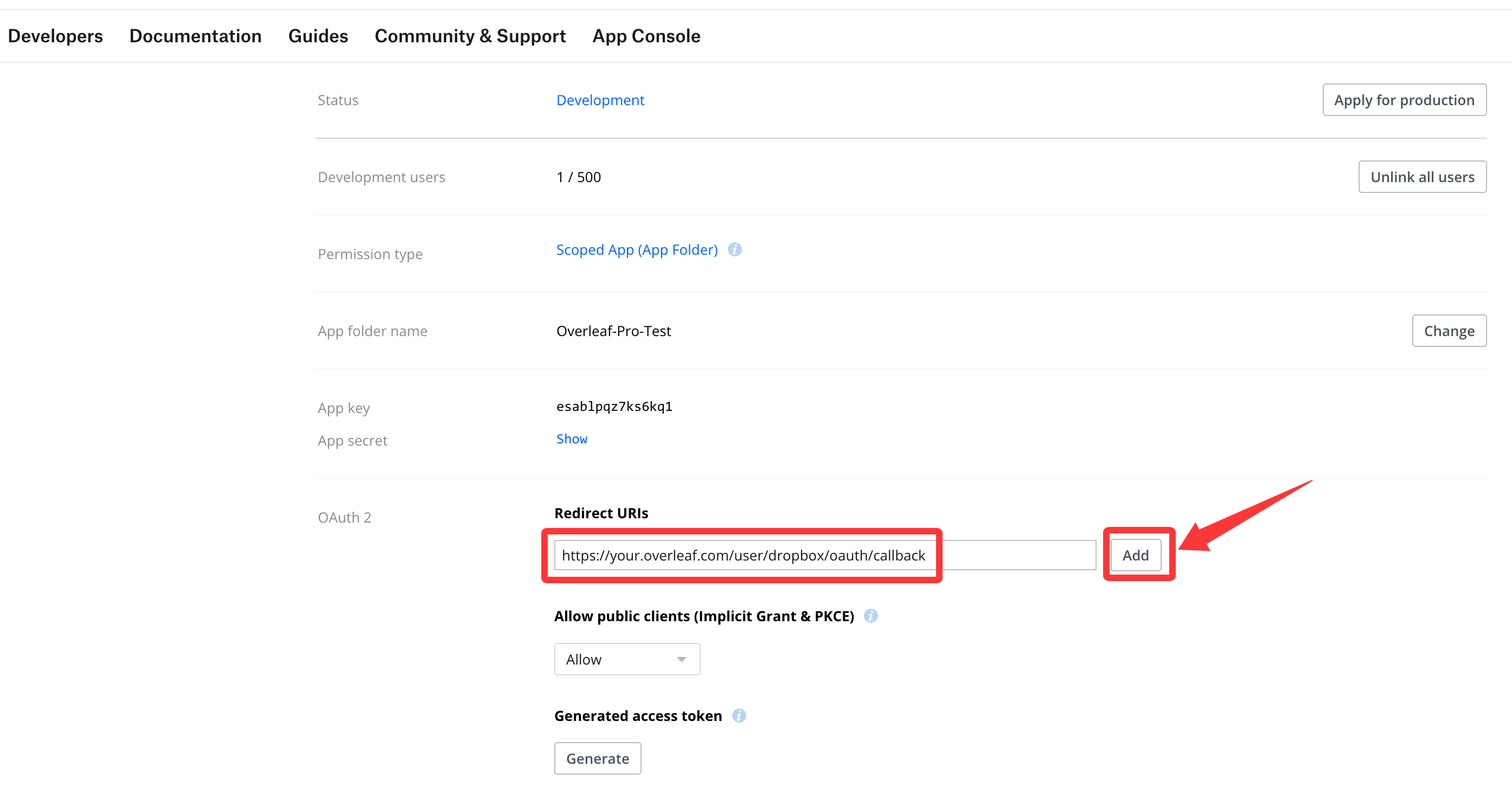
 4. On the **Settings** tab, under **OAuth 2**, enter `${OVERLEAF_SITE_URL}/user/dropbox/oauth/callback` in **Redirect URIs**, then **click Add**. Typing the URI is not enough: it is only saved once it shows in the list above the field.
 5. On the **Settings** tab, under **Webhooks**, enter `${OVERLEAF_SITE_URL}/dropbox/webhook` in **Webhook URIs**, then **click Add** as well. Dropbox calls it right away to check it, so Overleaf must already be running with the settings below and be reachable from the internet (see [Webhook](#webhook)). Its status shows **Enabled** once the check passes.
Copy the **App key** and the **App secret** (click **Show**) from the **Settings** tab, then add the following settings to your overleaf env var files. You can add the webhook (step 5) after Overleaf runs with them.
```dotenv title="config/variables.env" wrap theme={null}
# used to encrypt the user's Dropbox refresh token.
# How to generate: `openssl rand -hex 32`
DROPBOX_TOKEN_CIPHER_PASSWORD=0123456789ABCDEFG # changed to yours
# Dropbox Sync Settings
DROPBOX_ENABLED=true
DROPBOX_APP_KEY=
DROPBOX_APP_SECRET=
# the name of your Dropbox app (step 1), which is the folder name in Apps/
DROPBOX_APP_NAME=Overleaf
# OAuth callback is: ${OVERLEAF_SITE_URL}/user/dropbox/oauth/callback
# Webhook is: ${OVERLEAF_SITE_URL}/dropbox/webhook
# (Optional) DROPBOX_SYNC_PROXY_URL=http://10.0.0.1:10808
```
* Before configuring the redirect URI and the webhook, make sure `OVERLEAF_SITE_URL` is set correctly.
* Dropbox fixes the permissions of a token when the user links their account: submitting permissions does not change existing tokens. Users who linked before the permissions were submitted, or before you changed them, have to unlink and link their Dropbox account again.
* A new app is in **Development** status. If **Development users** on the **Settings** tab shows **Only you**, only your Dropbox account can be linked: click **Enable additional users** to let other users link theirs. It then shows how many users linked, e.g. `1 / 500`: **a Development app takes at most 500 users**. For more users, click **Apply for production**, and Dropbox reviews the app.
If you are in a region with restricted network access, you may need to configure a proxy to access Dropbox. Set the following environment variable: `DROPBOX_SYNC_PROXY_URL=http://10.0.0.1:10808`. It must be a standard HTTP/HTTPS forward proxy, and must not use `127.0.0.1`.
### Webhook
Dropbox tells Overleaf about changes in Dropbox with a webhook, so they show up in Overleaf within seconds. The webhook goes to your site's address, `${OVERLEAF_SITE_URL}/dropbox/webhook`, no extra port is needed, but **Dropbox must be able to reach it from the internet**. When you add it in the App Console, Dropbox checks it right away.
Without a webhook, for example on a server that Dropbox cannot reach, changes in Overleaf are still sent to Dropbox, but changes in Dropbox only come back when a user clicks *sync this project now* in the Dropbox dialog of the editor.
### How syncing works
* **Linking**: when a user links their Dropbox account, the projects they own are sent to Dropbox. Projects shared with them appear in Dropbox with their next change.
* **Overleaf to Dropbox**: new files, renames, moves, deletions and project renames are sent right away. Edits in the editor are sent once Overleaf saves them to its storage, a few minutes after everyone has left the project. To send them earlier, click *sync this project now* in the Dropbox dialog of the editor (once per minute).
* **Dropbox to Overleaf**: new and changed files, new folders and deletions in a project folder are applied to the project. A new folder at the top of the app folder becomes a new project. Deleting a project folder in Dropbox marks the project as deleted in Overleaf.
* **Conflicts**: when a file changes in both places at the same time, the last change wins. Dropbox may keep the other version as a *conflicted copy*.
* **Collaborators**: collaborators who link their Dropbox get the projects shared with them. Read-only viewers and reviewers get the project, but their changes in Dropbox do not sync back to Overleaf.
* **Ignored files**: files Overleaf does not sync, like build output (`.aux`, `.log`, …), `.DS_Store` or Python virtual environments, stay in Dropbox only.
### Q\&A
Answer:
* Projects are matched to Dropbox folders by name, so a user who has two projects with the same name is asked to rename one of them first.
* A Dropbox account can only be linked to one Overleaf account.
Answer: Overleaf unlinks a Dropbox account when Dropbox refuses its token (for example after the user removed the app in Dropbox), when the Dropbox is full, or when Dropbox suspended the account. The user can link it again once the problem is solved.
Answer: Please rename the project in Overleaf instead. For Overleaf, renaming the folder in Dropbox deletes the project folder and creates a new one, so the old project is marked as deleted and a new project is created from the files.
This documentation is built and hosted on [Mintlify](https://mintlify.com), a developer documentation platform.
5. On the **Settings** tab, under **Webhooks**, enter `${OVERLEAF_SITE_URL}/dropbox/webhook` in **Webhook URIs**, then **click Add** as well. Dropbox calls it right away to check it, so Overleaf must already be running with the settings below and be reachable from the internet (see [Webhook](#webhook)). Its status shows **Enabled** once the check passes.
Copy the **App key** and the **App secret** (click **Show**) from the **Settings** tab, then add the following settings to your overleaf env var files. You can add the webhook (step 5) after Overleaf runs with them.
```dotenv title="config/variables.env" wrap theme={null}
# used to encrypt the user's Dropbox refresh token.
# How to generate: `openssl rand -hex 32`
DROPBOX_TOKEN_CIPHER_PASSWORD=0123456789ABCDEFG # changed to yours
# Dropbox Sync Settings
DROPBOX_ENABLED=true
DROPBOX_APP_KEY=
DROPBOX_APP_SECRET=
# the name of your Dropbox app (step 1), which is the folder name in Apps/
DROPBOX_APP_NAME=Overleaf
# OAuth callback is: ${OVERLEAF_SITE_URL}/user/dropbox/oauth/callback
# Webhook is: ${OVERLEAF_SITE_URL}/dropbox/webhook
# (Optional) DROPBOX_SYNC_PROXY_URL=http://10.0.0.1:10808
```
* Before configuring the redirect URI and the webhook, make sure `OVERLEAF_SITE_URL` is set correctly.
* Dropbox fixes the permissions of a token when the user links their account: submitting permissions does not change existing tokens. Users who linked before the permissions were submitted, or before you changed them, have to unlink and link their Dropbox account again.
* A new app is in **Development** status. If **Development users** on the **Settings** tab shows **Only you**, only your Dropbox account can be linked: click **Enable additional users** to let other users link theirs. It then shows how many users linked, e.g. `1 / 500`: **a Development app takes at most 500 users**. For more users, click **Apply for production**, and Dropbox reviews the app.
If you are in a region with restricted network access, you may need to configure a proxy to access Dropbox. Set the following environment variable: `DROPBOX_SYNC_PROXY_URL=http://10.0.0.1:10808`. It must be a standard HTTP/HTTPS forward proxy, and must not use `127.0.0.1`.
### Webhook
Dropbox tells Overleaf about changes in Dropbox with a webhook, so they show up in Overleaf within seconds. The webhook goes to your site's address, `${OVERLEAF_SITE_URL}/dropbox/webhook`, no extra port is needed, but **Dropbox must be able to reach it from the internet**. When you add it in the App Console, Dropbox checks it right away.
Without a webhook, for example on a server that Dropbox cannot reach, changes in Overleaf are still sent to Dropbox, but changes in Dropbox only come back when a user clicks *sync this project now* in the Dropbox dialog of the editor.
### How syncing works
* **Linking**: when a user links their Dropbox account, the projects they own are sent to Dropbox. Projects shared with them appear in Dropbox with their next change.
* **Overleaf to Dropbox**: new files, renames, moves, deletions and project renames are sent right away. Edits in the editor are sent once Overleaf saves them to its storage, a few minutes after everyone has left the project. To send them earlier, click *sync this project now* in the Dropbox dialog of the editor (once per minute).
* **Dropbox to Overleaf**: new and changed files, new folders and deletions in a project folder are applied to the project. A new folder at the top of the app folder becomes a new project. Deleting a project folder in Dropbox marks the project as deleted in Overleaf.
* **Conflicts**: when a file changes in both places at the same time, the last change wins. Dropbox may keep the other version as a *conflicted copy*.
* **Collaborators**: collaborators who link their Dropbox get the projects shared with them. Read-only viewers and reviewers get the project, but their changes in Dropbox do not sync back to Overleaf.
* **Ignored files**: files Overleaf does not sync, like build output (`.aux`, `.log`, …), `.DS_Store` or Python virtual environments, stay in Dropbox only.
### Q\&A
Answer:
* Projects are matched to Dropbox folders by name, so a user who has two projects with the same name is asked to rename one of them first.
* A Dropbox account can only be linked to one Overleaf account.
Answer: Overleaf unlinks a Dropbox account when Dropbox refuses its token (for example after the user removed the app in Dropbox), when the Dropbox is full, or when Dropbox suspended the account. The user can link it again once the problem is solved.
Answer: Please rename the project in Overleaf instead. For Overleaf, renaming the folder in Dropbox deletes the project folder and creates a new one, so the old project is marked as deleted and a new project is created from the files.
This documentation is built and hosted on [Mintlify](https://mintlify.com), a developer documentation platform.