> ## Documentation Index
> Fetch the complete documentation index at: https://ayakaleaf-pro.mintlify.site/llms.txt
> Use this file to discover all available pages before exploring further.
# 템플릿
이 기능은 처음에 [yu-i-i/overleaf-cep](https://github.com/yu-i-i/overleaf-cep)에서 개발되었으며, [ayaka-notes/ayakaleaf-pro](https://github.com/ayaka-notes/ayakaleaf-pro)에서 수정 및 최적화되었습니다.
기본적으로 로그인한 사용자만 갤러리를 탐색하고 템플릿 링크를 열 수 있습니다. 로그아웃한 방문자와 템플릿을 공유하려면 `OVERLEAF_ALLOW_PUBLIC_ACCESS=true`도 설정하세요. [페이지 접근](/ko/on-premises/configuration/overleaf-toolkit/public-access#page-access "mention")을 참고하세요. 템플릿에서 프로젝트를 생성하려면 항상 로그인이 필요합니다.
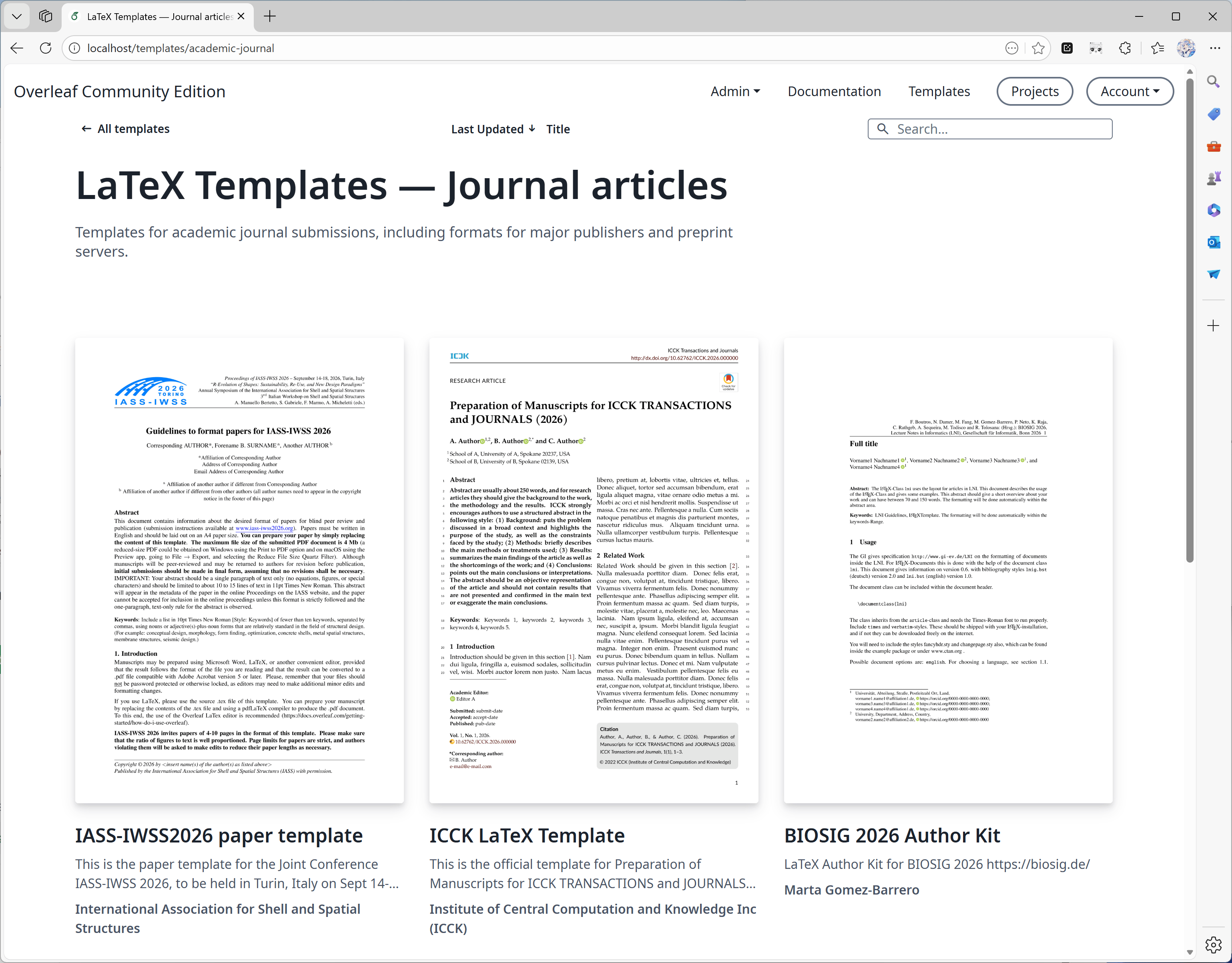
 ### 구성
6.3.0부터 갤러리는 페이지네이션, 검색, 정렬을 서버에서 수행합니다. 마이그레이션은 필요하지 않습니다. 대규모 갤러리의 경우 릴리스 노트의 [선택적 MongoDB 인덱스](/ko/on-premises/release-notes/release-notes-6.x.x#feature-04-template-pagination "mention")를 참고하세요.
템플릿 갤러리 기능은 다음 환경 변수로 제어합니다.
* `OVERLEAF_TEMPLATE_GALLERY`: 템플릿 갤러리를 활성화하려면 `true`로 설정합니다.
* `OVERLEAF_TEMPLATE_CATEGORIES`: 0개 이상의 템플릿 카테고리 키를 공백으로 구분한 선택적 목록입니다. 유효한 키는 다음과 같습니다.
* *`academic-journal`*
* *`book`*
* *`presentation`*
* *`poster`*
* *`cv`*
* *`homework`*
* *`bibliography`*
* *`calendar`*
* *`formal-letter`*
* *`report`*
* *`thesis`*
* *`newsletter`*
특수 키 \_`all`\_은 자동으로 추가됩니다. 이 키는 모든 템플릿을 포함하는 카테고리를 나타냅니다.
각 카테고리 키에 대해 다음 선택적 환경 변수를 설정할 수 있습니다.
* `TEMPLATE__NAME`: 템플릿 카테고리의 표시 이름입니다.
* `TEMPLATE__DESCRIPTION`: 카테고리에 대한 짧은 설명입니다.
카테고리 키에 하이픈(`-`)이 포함된 경우 환경 변수 이름에서는 밑줄(`_`)로 바꿉니다.
* `ENABLE_CONVERSIONS`: 템플릿의 썸네일과 미리보기 생성을 활성화하려면 반드시 `true`로 설정해야 합니다.
### 게시 권한
관리자는 템플릿을 게시할 수 있습니다. 또한 관리자가 아닌 사용자를 지정하여 `/templates`의 로컬 갤러리에 표시되는 선별된 템플릿을 관리하도록 할 수도 있습니다.
이렇게 하려면 `toolkit/config/variables.env`의 환경 변수 `OVERLEAF_TEMPLATES_USER_ID`를 인스턴스 내에서 템플릿 관리를 담당할 사용자의 `ID`로 설정해야 합니다. 예를 들면 다음과 같습니다.
```dotenv theme={null}
OVERLEAF_TEMPLATES_USER_ID=56a8865231faeb5f07d69959
```
### 템플릿 게시
업로드하려는 각 템플릿에 대해 다음을 수행합니다.
1. 템플릿의 소스 코드가 포함된 프로젝트를 만들고 컴파일되는지 확인합니다.
2. 편집기에서 **파일** > **템플릿 관리**를 선택합니다.
3. 표시되는 양식에 템플릿 세부 정보를 입력합니다.
* \_제목\_은 고유해야 합니다.
* *설명* 필드는 Markdown 서식을 지원합니다.
* *작성자* 필드는 Markdown 형식의 링크를 허용합니다.
제출한 후에는 템플릿 갤러리 페이지에서 템플릿 세부 정보를 편집하거나 템플릿을 삭제할 수 있습니다. 관리자와 템플릿 사용자(`OVERLEAF_TEMPLATES_USER_ID`)는 모든 템플릿을 관리할 수 있습니다.
다음은 예시입니다.
```dotenv wrap expandable theme={null}
#################
# TEMPLATES #
#################
ENABLE_CONVERSIONS=true
OVERLEAF_TEMPLATE_GALLERY=true
OVERLEAF_TEMPLATE_CATEGORIES=academic-journal book presentation poster cv homework bibliography calendar formal-letter report thesis newsletter
TEMPLATE_ACADEMIC_JOURNAL_NAME=Journal articles
TEMPLATE_ACADEMIC_JOURNAL_DESCRIPTION=Templates for academic journal submissions, including formats for major publishers and preprint servers.
TEMPLATE_BIBLIOGRAPHY_NAME=Bibliographies
TEMPLATE_BIBLIOGRAPHY_DESCRIPTION=Styles for creating and managing bibliographies with BibTeX or BibLaTeX. Suitable for use in academic papers, theses, and reports.
TEMPLATE_BOOK_NAME=Books
TEMPLATE_BOOK_DESCRIPTION=Templates for writing books or long-form documents, including chapter structuring, front matter, and indexing.
TEMPLATE_CALENDAR_NAME=Calendars
TEMPLATE_CALENDAR_DESCRIPTION=Templates to create yearly, monthly, or weekly calendars. Useful for personal planners or event scheduling.
TEMPLATE_CV_NAME=CVs and résumés
TEMPLATE_CV_DESCRIPTION=Templates for CVs and résumés with various formats for academic, industry, and creative positions.
TEMPLATE_FORMAL_LETTER_NAME=Formal letters
TEMPLATE_FORMAL_LETTER_DESCRIPTION=Templates for professional letters, such as cover letters, recommendation letters, and official correspondence.
TEMPLATE_HOMEWORK_NAME=Assignments
TEMPLATE_HOMEWORK_DESCRIPTION=Templates for homework, coursework, and problem sets. Designed to be clean and well-structured for students and educators.
TEMPLATE_NEWSLETTER_NAME=Newsletters
TEMPLATE_NEWSLETTER_DESCRIPTION=Templates for creating newsletters with formats for academic, corporate, or community communications.
TEMPLATE_POSTER_NAME=Posters
TEMPLATE_POSTER_DESCRIPTION=Templates for scientific and academic posters, typically used in conferences and research presentations.
TEMPLATE_PRESENTATION_NAME=Presentations
TEMPLATE_PRESENTATION_DESCRIPTION=Templates for Beamer and other presentation formats, tailored for academic talks and lectures.
TEMPLATE_REPORT_NAME=Reports
TEMPLATE_REPORT_DESCRIPTION=Templates for technical, lab, or project reports. Includes sections for figures, tables, and references.
TEMPLATE_THESIS_NAME=Theses
TEMPLATE_THESIS_DESCRIPTION=Templates for writing theses and dissertations, following institutional formatting and citation guidelines.
TEMPLATE_ALL_NAME=All templates
TEMPLATE_ALL_DESCRIPTION=Browse a collection of all available LaTeX templates, categorized by document type, style, and purpose.
```
### overleaf.com에서 템플릿 가져오기
Overleaf Pro는 오프라인에서 동작하도록 설계되었기 때문에 [overleaf.com](https://www.overleaf.com/) 갤러리 템플릿을 온프레미스 설치에 자동으로 통합하는 방법은 없지만, 템플릿별로 수동으로 가져올 수는 있습니다.
기본적으로 Overleaf Pro는 컴파일에 TeXLive의 basic scheme 버전을 사용하도록 구성되어 있습니다. 이 basic 버전은 가벼우며 매우 제한된 LaTeX 패키지만 포함하고 있어, 사용자가 로컬 온프레미스 인스턴스에서 [overleaf.com](https://www.overleaf.com/)의 템플릿을 사용하려고 할 때 패키지 누락 오류가 발생할 가능성이 높습니다.
안타깝게도 누락된 패키지를 자동으로 설치하는 방법은 없지만, Server Pro에는 사용자가 더 많은 패키지에 접근하면서 더 안전한 방식으로 프로젝트를 컴파일할 수 있도록 하는 구성 설정이 있습니다. 이 기능을 [샌드박스 컴파일](https://docs.overleaf.com/on-premises/configuration/overleaf-toolkit/server-pro-only-configuration/sandboxed-compiles)(형제 컨테이너라고도 함)이라고 합니다.
다운로드한 템플릿이 온프레미스 Server Pro 인스턴스와 호환되도록 하려면 [샌드박스 컴파일](https://docs.overleaf.com/on-premises/configuration/overleaf-toolkit/server-pro-only-configuration/sandboxed-compiles)을 활성화할 것을 강력히 권장합니다. 이 기능은 사용자에게 [overleaf.com](https://www.overleaf.com/)과 동일한 TeX Live 환경을 제공합니다. 이 이미지에는 가장 많이 사용되는 패키지와 글꼴이 포함되어 있으며 갤러리 템플릿으로 이미 테스트되었습니다.
사용자가 프로젝트에서 선택할 수 있는 TeX Live 버전을 구성하는 방법과 새 프로젝트의 기본 TeX Live 이미지 버전을 설정하는 방법에 대한 추가 정보는 문서의 [TeX Live 이미지 변경](https://docs.overleaf.com/on-premises/configuration/overleaf-toolkit/server-pro-only-configuration/sandboxed-compiles#changing-the-tex-live-image) 섹션에서 확인할 수 있습니다.
1. [overleaf.com](https://www.overleaf.com/)의 [템플릿 갤러리](https://www.overleaf.com/latex/templates)로 이동하여 필요한 템플릿을 찾습니다. 예: [IEEE Photonics Journal Paper Template - Example Submission](https://www.overleaf.com/latex/examples/ieee-photonics-journal-paper-template-example-submission/bsfjjfkdsjds)
2. **템플릿으로 열기** 버튼을 클릭합니다
3. 프로젝트 메뉴를 클릭하고 **소스 다운로드**를 선택합니다
4. 다음으로 온프레미스 Server Pro 계정에 로그인합니다
5. 프로젝트 대시보드에서 **새 프로젝트** 버튼을 클릭하고 **프로젝트 업로드**를 선택합니다
6. **.zip 파일 선택** 버튼을 클릭하고 다운로드한 템플릿 zip 파일을 선택합니다
그러면 사용자는 새로 업로드한 이 템플릿을 자신의 계정에서 사용할 수 있으며, 템플릿 사용자인 경우 다른 사용자가 사용할 수 있도록 게시할 수도 있습니다.
### Q\&A
답변: 예, 하지만 권장하지 않습니다. 템플릿을 게시하면 프로젝트의 스냅샷을 만들어 게시 시점의 프로젝트를 zip 파일로 저장합니다. 따라서 템플릿에 해당하는 프로젝트를 삭제하더라도 템플릿은 영향을 받지 않습니다.
하지만 이 템플릿과 연결된 ProjectID도 기록해 두므로, 나중에 템플릿을 쉽게 업데이트할 수 있습니다.
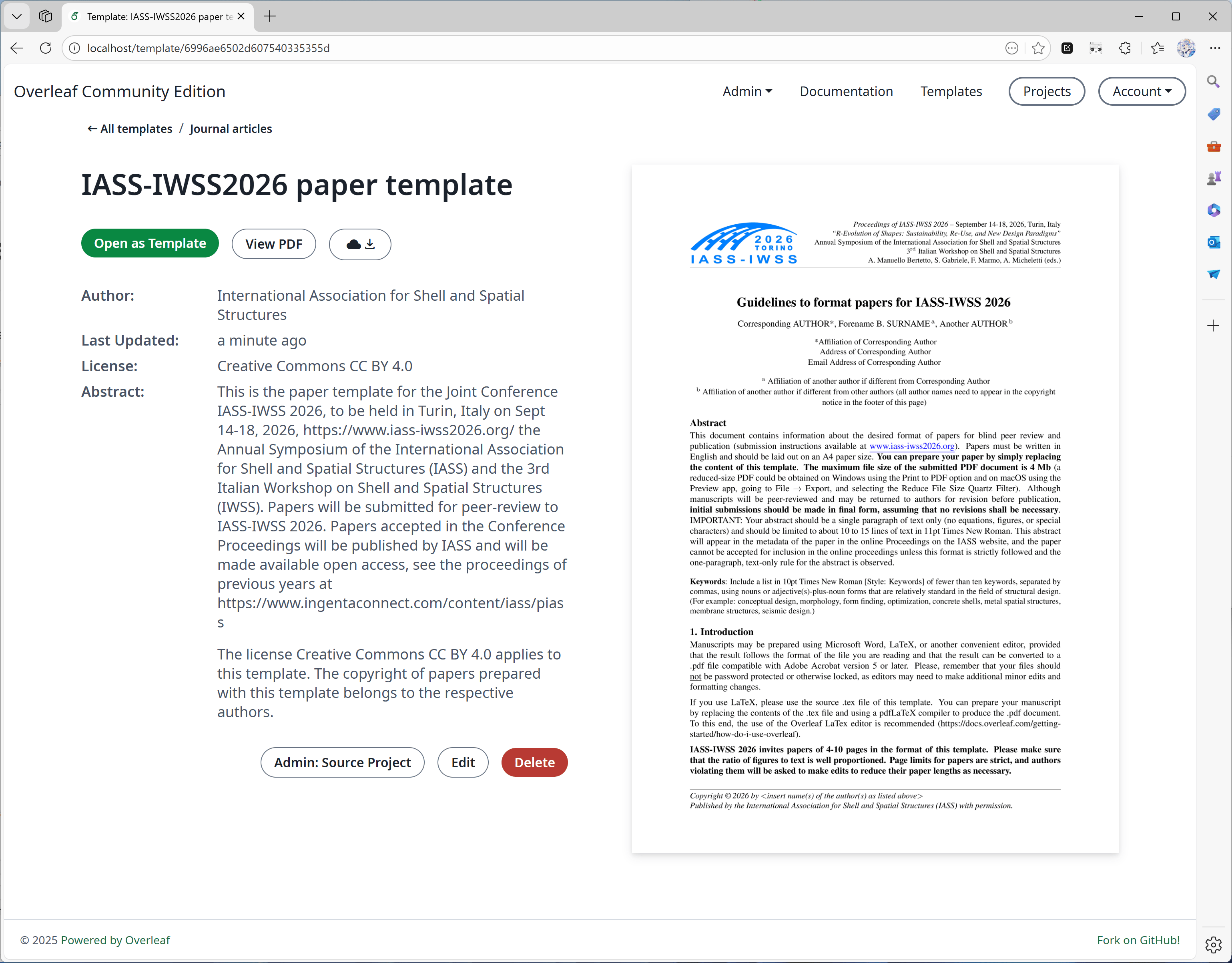
해당 프로젝트를 삭제하면 템플릿 세부 정보 페이지에서 "Admin: Source Project" 버튼이 표시되지 않습니다(아래 이미지 참고).
### 구성
6.3.0부터 갤러리는 페이지네이션, 검색, 정렬을 서버에서 수행합니다. 마이그레이션은 필요하지 않습니다. 대규모 갤러리의 경우 릴리스 노트의 [선택적 MongoDB 인덱스](/ko/on-premises/release-notes/release-notes-6.x.x#feature-04-template-pagination "mention")를 참고하세요.
템플릿 갤러리 기능은 다음 환경 변수로 제어합니다.
* `OVERLEAF_TEMPLATE_GALLERY`: 템플릿 갤러리를 활성화하려면 `true`로 설정합니다.
* `OVERLEAF_TEMPLATE_CATEGORIES`: 0개 이상의 템플릿 카테고리 키를 공백으로 구분한 선택적 목록입니다. 유효한 키는 다음과 같습니다.
* *`academic-journal`*
* *`book`*
* *`presentation`*
* *`poster`*
* *`cv`*
* *`homework`*
* *`bibliography`*
* *`calendar`*
* *`formal-letter`*
* *`report`*
* *`thesis`*
* *`newsletter`*
특수 키 \_`all`\_은 자동으로 추가됩니다. 이 키는 모든 템플릿을 포함하는 카테고리를 나타냅니다.
각 카테고리 키에 대해 다음 선택적 환경 변수를 설정할 수 있습니다.
* `TEMPLATE__NAME`: 템플릿 카테고리의 표시 이름입니다.
* `TEMPLATE__DESCRIPTION`: 카테고리에 대한 짧은 설명입니다.
카테고리 키에 하이픈(`-`)이 포함된 경우 환경 변수 이름에서는 밑줄(`_`)로 바꿉니다.
* `ENABLE_CONVERSIONS`: 템플릿의 썸네일과 미리보기 생성을 활성화하려면 반드시 `true`로 설정해야 합니다.
### 게시 권한
관리자는 템플릿을 게시할 수 있습니다. 또한 관리자가 아닌 사용자를 지정하여 `/templates`의 로컬 갤러리에 표시되는 선별된 템플릿을 관리하도록 할 수도 있습니다.
이렇게 하려면 `toolkit/config/variables.env`의 환경 변수 `OVERLEAF_TEMPLATES_USER_ID`를 인스턴스 내에서 템플릿 관리를 담당할 사용자의 `ID`로 설정해야 합니다. 예를 들면 다음과 같습니다.
```dotenv theme={null}
OVERLEAF_TEMPLATES_USER_ID=56a8865231faeb5f07d69959
```
### 템플릿 게시
업로드하려는 각 템플릿에 대해 다음을 수행합니다.
1. 템플릿의 소스 코드가 포함된 프로젝트를 만들고 컴파일되는지 확인합니다.
2. 편집기에서 **파일** > **템플릿 관리**를 선택합니다.
3. 표시되는 양식에 템플릿 세부 정보를 입력합니다.
* \_제목\_은 고유해야 합니다.
* *설명* 필드는 Markdown 서식을 지원합니다.
* *작성자* 필드는 Markdown 형식의 링크를 허용합니다.
제출한 후에는 템플릿 갤러리 페이지에서 템플릿 세부 정보를 편집하거나 템플릿을 삭제할 수 있습니다. 관리자와 템플릿 사용자(`OVERLEAF_TEMPLATES_USER_ID`)는 모든 템플릿을 관리할 수 있습니다.
다음은 예시입니다.
```dotenv wrap expandable theme={null}
#################
# TEMPLATES #
#################
ENABLE_CONVERSIONS=true
OVERLEAF_TEMPLATE_GALLERY=true
OVERLEAF_TEMPLATE_CATEGORIES=academic-journal book presentation poster cv homework bibliography calendar formal-letter report thesis newsletter
TEMPLATE_ACADEMIC_JOURNAL_NAME=Journal articles
TEMPLATE_ACADEMIC_JOURNAL_DESCRIPTION=Templates for academic journal submissions, including formats for major publishers and preprint servers.
TEMPLATE_BIBLIOGRAPHY_NAME=Bibliographies
TEMPLATE_BIBLIOGRAPHY_DESCRIPTION=Styles for creating and managing bibliographies with BibTeX or BibLaTeX. Suitable for use in academic papers, theses, and reports.
TEMPLATE_BOOK_NAME=Books
TEMPLATE_BOOK_DESCRIPTION=Templates for writing books or long-form documents, including chapter structuring, front matter, and indexing.
TEMPLATE_CALENDAR_NAME=Calendars
TEMPLATE_CALENDAR_DESCRIPTION=Templates to create yearly, monthly, or weekly calendars. Useful for personal planners or event scheduling.
TEMPLATE_CV_NAME=CVs and résumés
TEMPLATE_CV_DESCRIPTION=Templates for CVs and résumés with various formats for academic, industry, and creative positions.
TEMPLATE_FORMAL_LETTER_NAME=Formal letters
TEMPLATE_FORMAL_LETTER_DESCRIPTION=Templates for professional letters, such as cover letters, recommendation letters, and official correspondence.
TEMPLATE_HOMEWORK_NAME=Assignments
TEMPLATE_HOMEWORK_DESCRIPTION=Templates for homework, coursework, and problem sets. Designed to be clean and well-structured for students and educators.
TEMPLATE_NEWSLETTER_NAME=Newsletters
TEMPLATE_NEWSLETTER_DESCRIPTION=Templates for creating newsletters with formats for academic, corporate, or community communications.
TEMPLATE_POSTER_NAME=Posters
TEMPLATE_POSTER_DESCRIPTION=Templates for scientific and academic posters, typically used in conferences and research presentations.
TEMPLATE_PRESENTATION_NAME=Presentations
TEMPLATE_PRESENTATION_DESCRIPTION=Templates for Beamer and other presentation formats, tailored for academic talks and lectures.
TEMPLATE_REPORT_NAME=Reports
TEMPLATE_REPORT_DESCRIPTION=Templates for technical, lab, or project reports. Includes sections for figures, tables, and references.
TEMPLATE_THESIS_NAME=Theses
TEMPLATE_THESIS_DESCRIPTION=Templates for writing theses and dissertations, following institutional formatting and citation guidelines.
TEMPLATE_ALL_NAME=All templates
TEMPLATE_ALL_DESCRIPTION=Browse a collection of all available LaTeX templates, categorized by document type, style, and purpose.
```
### overleaf.com에서 템플릿 가져오기
Overleaf Pro는 오프라인에서 동작하도록 설계되었기 때문에 [overleaf.com](https://www.overleaf.com/) 갤러리 템플릿을 온프레미스 설치에 자동으로 통합하는 방법은 없지만, 템플릿별로 수동으로 가져올 수는 있습니다.
기본적으로 Overleaf Pro는 컴파일에 TeXLive의 basic scheme 버전을 사용하도록 구성되어 있습니다. 이 basic 버전은 가벼우며 매우 제한된 LaTeX 패키지만 포함하고 있어, 사용자가 로컬 온프레미스 인스턴스에서 [overleaf.com](https://www.overleaf.com/)의 템플릿을 사용하려고 할 때 패키지 누락 오류가 발생할 가능성이 높습니다.
안타깝게도 누락된 패키지를 자동으로 설치하는 방법은 없지만, Server Pro에는 사용자가 더 많은 패키지에 접근하면서 더 안전한 방식으로 프로젝트를 컴파일할 수 있도록 하는 구성 설정이 있습니다. 이 기능을 [샌드박스 컴파일](https://docs.overleaf.com/on-premises/configuration/overleaf-toolkit/server-pro-only-configuration/sandboxed-compiles)(형제 컨테이너라고도 함)이라고 합니다.
다운로드한 템플릿이 온프레미스 Server Pro 인스턴스와 호환되도록 하려면 [샌드박스 컴파일](https://docs.overleaf.com/on-premises/configuration/overleaf-toolkit/server-pro-only-configuration/sandboxed-compiles)을 활성화할 것을 강력히 권장합니다. 이 기능은 사용자에게 [overleaf.com](https://www.overleaf.com/)과 동일한 TeX Live 환경을 제공합니다. 이 이미지에는 가장 많이 사용되는 패키지와 글꼴이 포함되어 있으며 갤러리 템플릿으로 이미 테스트되었습니다.
사용자가 프로젝트에서 선택할 수 있는 TeX Live 버전을 구성하는 방법과 새 프로젝트의 기본 TeX Live 이미지 버전을 설정하는 방법에 대한 추가 정보는 문서의 [TeX Live 이미지 변경](https://docs.overleaf.com/on-premises/configuration/overleaf-toolkit/server-pro-only-configuration/sandboxed-compiles#changing-the-tex-live-image) 섹션에서 확인할 수 있습니다.
1. [overleaf.com](https://www.overleaf.com/)의 [템플릿 갤러리](https://www.overleaf.com/latex/templates)로 이동하여 필요한 템플릿을 찾습니다. 예: [IEEE Photonics Journal Paper Template - Example Submission](https://www.overleaf.com/latex/examples/ieee-photonics-journal-paper-template-example-submission/bsfjjfkdsjds)
2. **템플릿으로 열기** 버튼을 클릭합니다
3. 프로젝트 메뉴를 클릭하고 **소스 다운로드**를 선택합니다
4. 다음으로 온프레미스 Server Pro 계정에 로그인합니다
5. 프로젝트 대시보드에서 **새 프로젝트** 버튼을 클릭하고 **프로젝트 업로드**를 선택합니다
6. **.zip 파일 선택** 버튼을 클릭하고 다운로드한 템플릿 zip 파일을 선택합니다
그러면 사용자는 새로 업로드한 이 템플릿을 자신의 계정에서 사용할 수 있으며, 템플릿 사용자인 경우 다른 사용자가 사용할 수 있도록 게시할 수도 있습니다.
### Q\&A
답변: 예, 하지만 권장하지 않습니다. 템플릿을 게시하면 프로젝트의 스냅샷을 만들어 게시 시점의 프로젝트를 zip 파일로 저장합니다. 따라서 템플릿에 해당하는 프로젝트를 삭제하더라도 템플릿은 영향을 받지 않습니다.
하지만 이 템플릿과 연결된 ProjectID도 기록해 두므로, 나중에 템플릿을 쉽게 업데이트할 수 있습니다.
해당 프로젝트를 삭제하면 템플릿 세부 정보 페이지에서 "Admin: Source Project" 버튼이 표시되지 않습니다(아래 이미지 참고).
 답변: 템플릿을 게시하면 프로젝트를 zip 파일과 pdf 파일로 저장하는데, 이 작업은 보통 빠르게 끝납니다. 하지만 템플릿 세부 정보에 표시할 수 있도록 PDF의 썸네일도 생성해야 합니다.
썸네일 생성 시간은 보통 PDF 첫 페이지의 내용에 따라 달라집니다. 표시 품질과 변환 시간 사이의 균형을 맞추기 위해 중간 정도의 너비를 선택합니다.
하지만 PDF의 첫 페이지에 텍스트가 많으면 썸네일 변환에 40초 이상 걸릴 수 있으니 잠시 기다려 주세요. 다음은 대형 포스터의 예로, 더 오랜 시간이 걸립니다.
답변: 템플릿을 게시하면 프로젝트를 zip 파일과 pdf 파일로 저장하는데, 이 작업은 보통 빠르게 끝납니다. 하지만 템플릿 세부 정보에 표시할 수 있도록 PDF의 썸네일도 생성해야 합니다.
썸네일 생성 시간은 보통 PDF 첫 페이지의 내용에 따라 달라집니다. 표시 품질과 변환 시간 사이의 균형을 맞추기 위해 중간 정도의 너비를 선택합니다.
하지만 PDF의 첫 페이지에 텍스트가 많으면 썸네일 변환에 40초 이상 걸릴 수 있으니 잠시 기다려 주세요. 다음은 대형 포스터의 예로, 더 오랜 시간이 걸립니다.
 This documentation is built and hosted on [Mintlify](https://mintlify.com), a developer documentation platform.