> ## Documentation Index
> Fetch the complete documentation index at: https://ayakaleaf-pro.mintlify.site/llms.txt
> Use this file to discover all available pages before exploring further.
# 開発ツールのセットアップ
## 推奨開発ツール
これらのオプションサービスは Overleaf の実行には必須ではありませんが、ローカル開発時の開発・デバッグ・調査に強く推奨されます。
* **Hoppscotch** は Postman に似た軽量の API テストツールで、ブラウザベースのため開発に非常に便利です。
* フロントエンド: [http://localhost:3000](http://localhost:3000/)
* プロキシ(CORS 回避用): [http://localhost:9159](http://localhost:9159/)
* **RedisInsight** は Redis のデータを確認するためのビジュアルインターフェースを提供します。UI のアドレス: [http://localhost:5540](http://localhost:5540/)
* **Mongo Express** は MongoDB 用の Web ベース UI です。[http://localhost:8081](http://localhost:8081/) にアクセスし、**認証情報** `admin:pass` でログインできます。
`docker-compose.yml` に以下を追加してください。
```yml title="develop/docker-compose.yml" theme={null}
# services:
# Overleaf Dev Containers
# ...
# Add those for your development
# API debug
hoppscotch-frontend:
image: hoppscotch/hoppscotch-frontend:latest
ports:
- "3000:3000"
hoppscotch-proxy:
image: hoppscotch/proxyscotch:latest
environment:
- PORT=9159
ports:
- "9159:9159"
# Redis-insight
redis-insight:
image: redislabs/redisinsight:latest
ports:
- "5540:5540"
depends_on:
- redis
volumes:
- ./data/redis-insight:/data
# mongo-express
# basicAuth credentials are "admin:pass"
mongo-express:
image: mongo-express
ports:
- "8081:8081"
environment:
ME_CONFIG_MONGODB_SERVER: mongo
```
### Hoppscotch のセットアップ
#### API リクエストのプロキシ
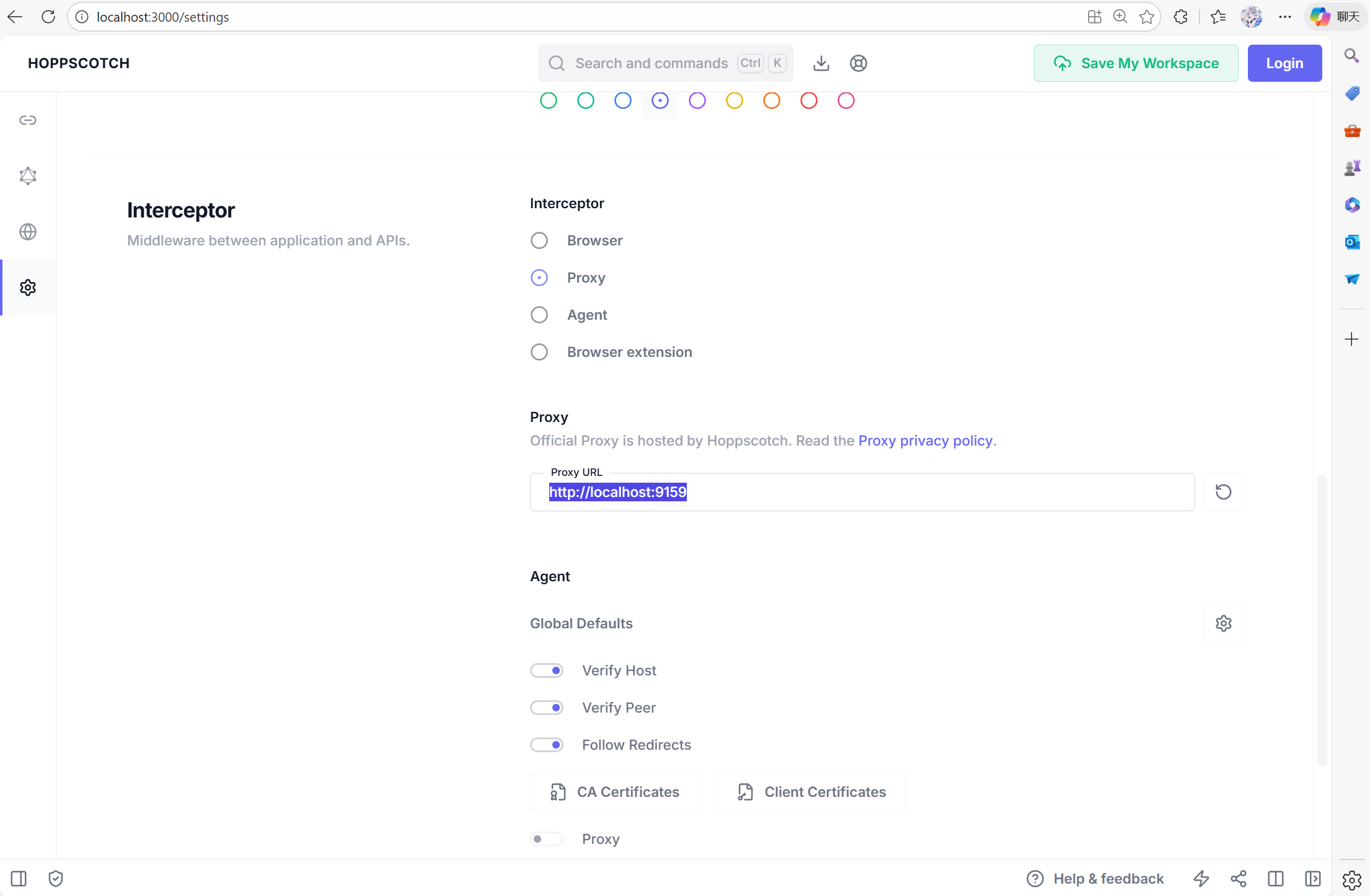
Hoppscotch をセットアップするには、[http://localhost:3000](http://localhost:3000/) にアクセスし、設定タブを開きます。デバッグツールがコンテナ内部のネットワークとやり取りできるように、`Proxy` を [http://localhost:9159](http://localhost:9159/) に設定する必要があります。
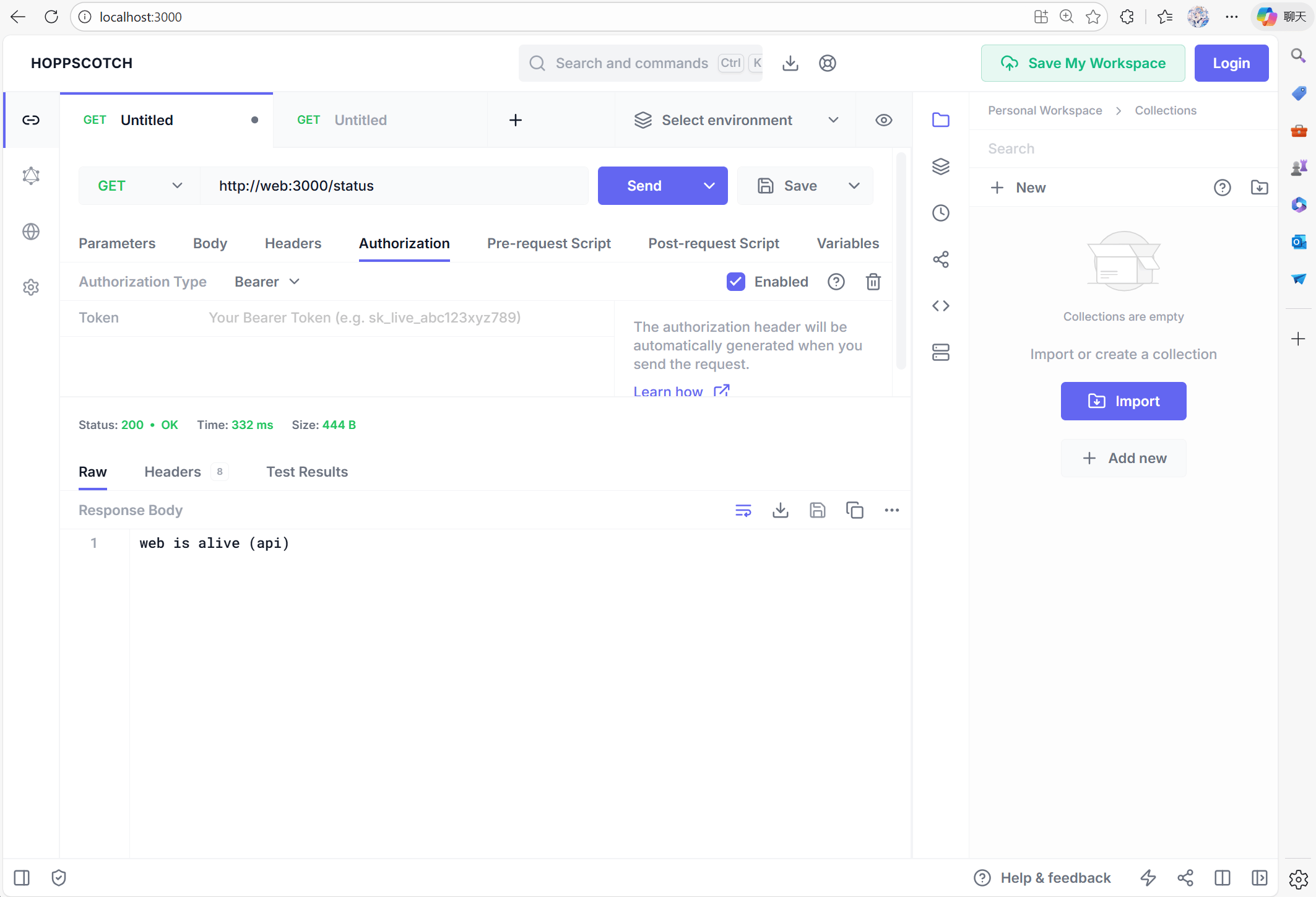
 これで [http://web:3000/status](http://web:3000/status) にリクエストを送り、web が稼働しているかを確認できます。
 #### CSRF の問題
Postman などのデバッグツールで **POST** リクエストを送信すると、ログインが **forbidden** になり、401 エラーが返されることがあります。これは Overleaf が **CSRF** 検証によって保護されているためです。
#### CSRF の問題
Postman などのデバッグツールで **POST** リクエストを送信すると、ログインが **forbidden** になり、401 エラーが返されることがあります。これは Overleaf が **CSRF** 検証によって保護されているためです。
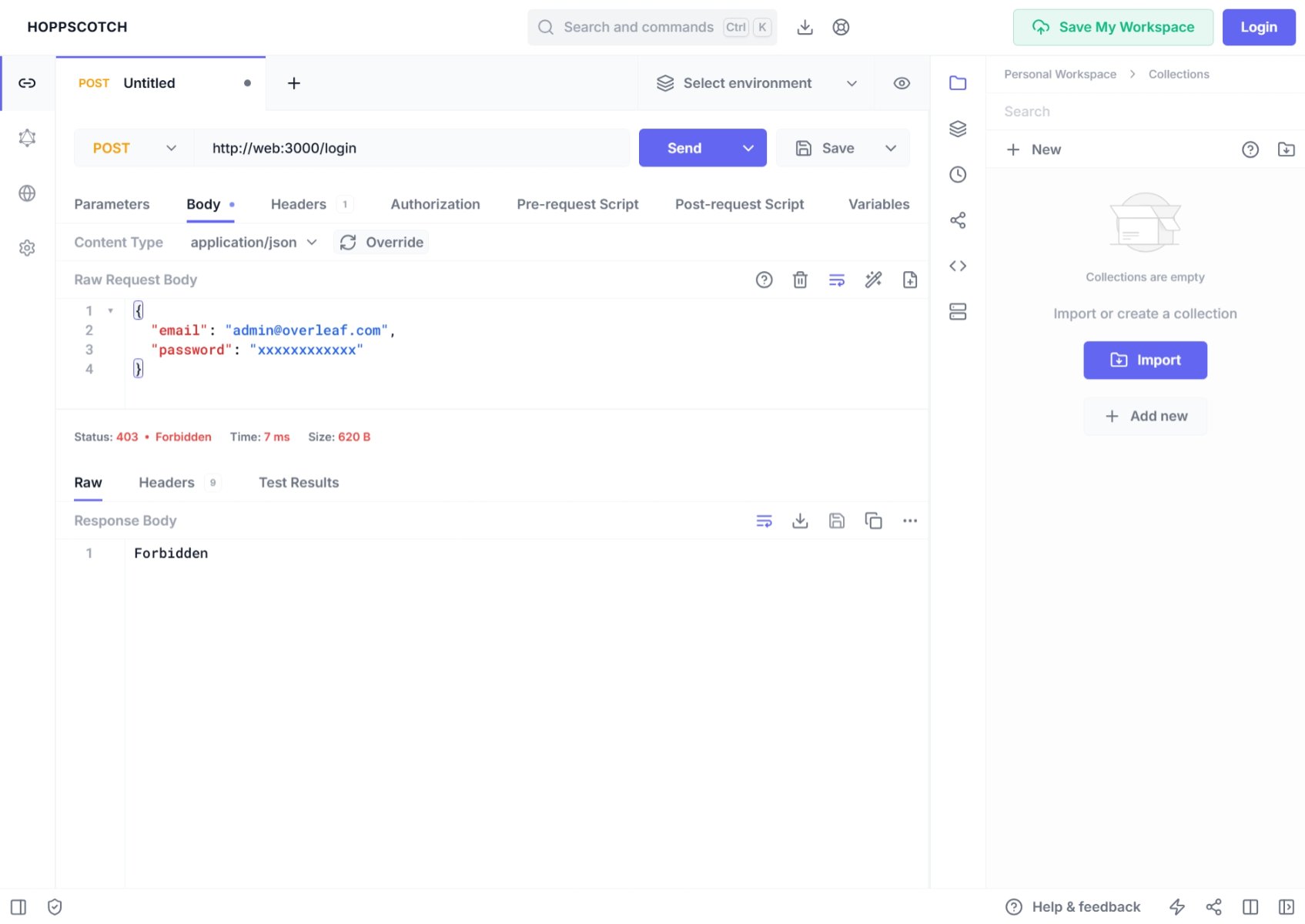 コンソールには次のように表示される場合があります。
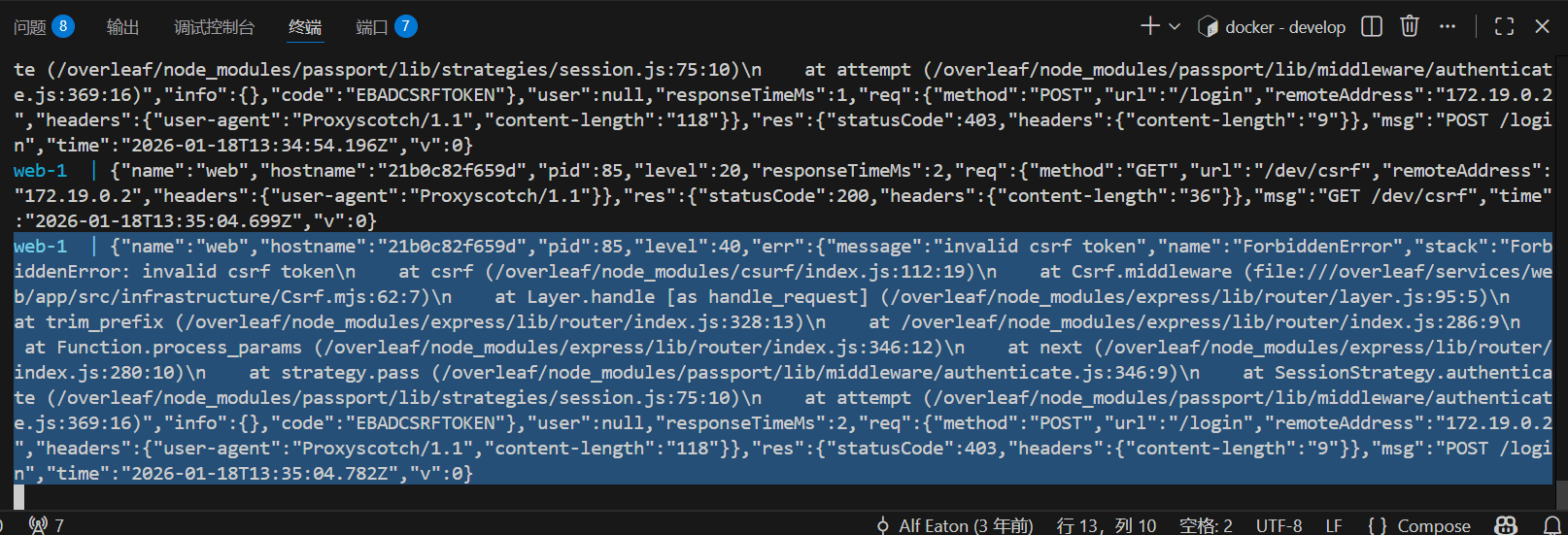 Overleaf の開発でこれに対処するには、CSRF トークンを設定する必要があります。以下に詳しい手順を示します。
Pre-Request に次のコードを追加します。
Overleaf の開発でこれに対処するには、CSRF トークンを設定する必要があります。以下に詳しい手順を示します。
Pre-Request に次のコードを追加します。
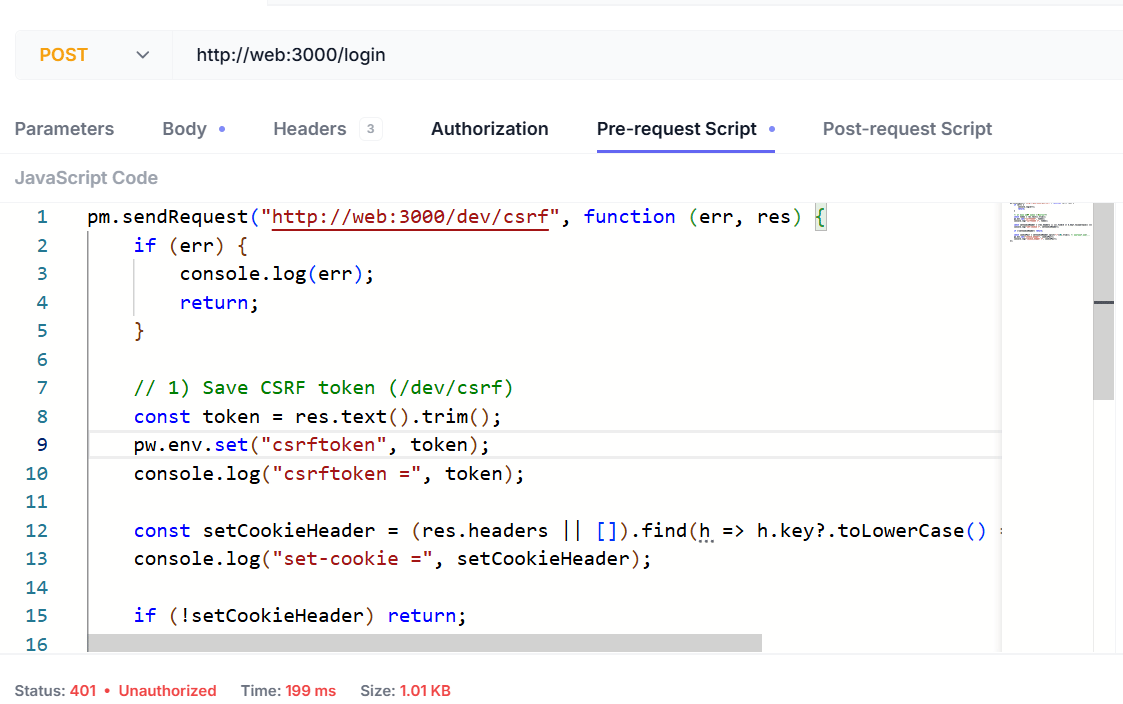 スクリプトは以下のとおりです。
```js wrap theme={null}
pm.sendRequest("http://web:3000/dev/csrf", function (err, res) {
if (err) {
console.log(err);
return;
}
// 1) Save CSRF token (/dev/csrf)
const token = res.text().trim();
pw.env.set("csrftoken", token);
console.log("csrftoken =", token);
const setCookieHeader = (res.headers || []).find(h => h.key?.toLowerCase() === "set-cookie")?.value;
console.log("set-cookie =", setCookieHeader);
if (!setCookieHeader) return;
const cookiePair = setCookieHeader.split(";")[0].trim(); // overleaf.sid=...
pw.env.set("cookie_header", cookiePair);
console.log("cookie_header =", cookiePair);
});
```
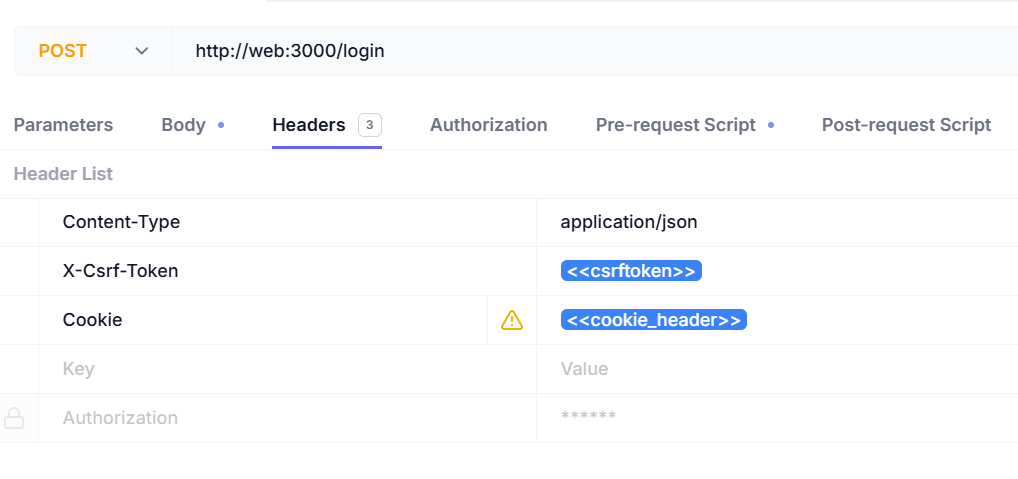
以下のヘッダーを追加する必要があります。
| ヘッダー名 | ヘッダー値 |
| - | - |
| Content-Type | `application/json` |
| X-Csrf-Token | `<>` |
| Cookie | `<>` |
スクリプトは以下のとおりです。
```js wrap theme={null}
pm.sendRequest("http://web:3000/dev/csrf", function (err, res) {
if (err) {
console.log(err);
return;
}
// 1) Save CSRF token (/dev/csrf)
const token = res.text().trim();
pw.env.set("csrftoken", token);
console.log("csrftoken =", token);
const setCookieHeader = (res.headers || []).find(h => h.key?.toLowerCase() === "set-cookie")?.value;
console.log("set-cookie =", setCookieHeader);
if (!setCookieHeader) return;
const cookiePair = setCookieHeader.split(";")[0].trim(); // overleaf.sid=...
pw.env.set("cookie_header", cookiePair);
console.log("cookie_header =", cookiePair);
});
```
以下のヘッダーを追加する必要があります。
| ヘッダー名 | ヘッダー値 |
| - | - |
| Content-Type | `application/json` |
| X-Csrf-Token | `<>` |
| Cookie | `<>` |
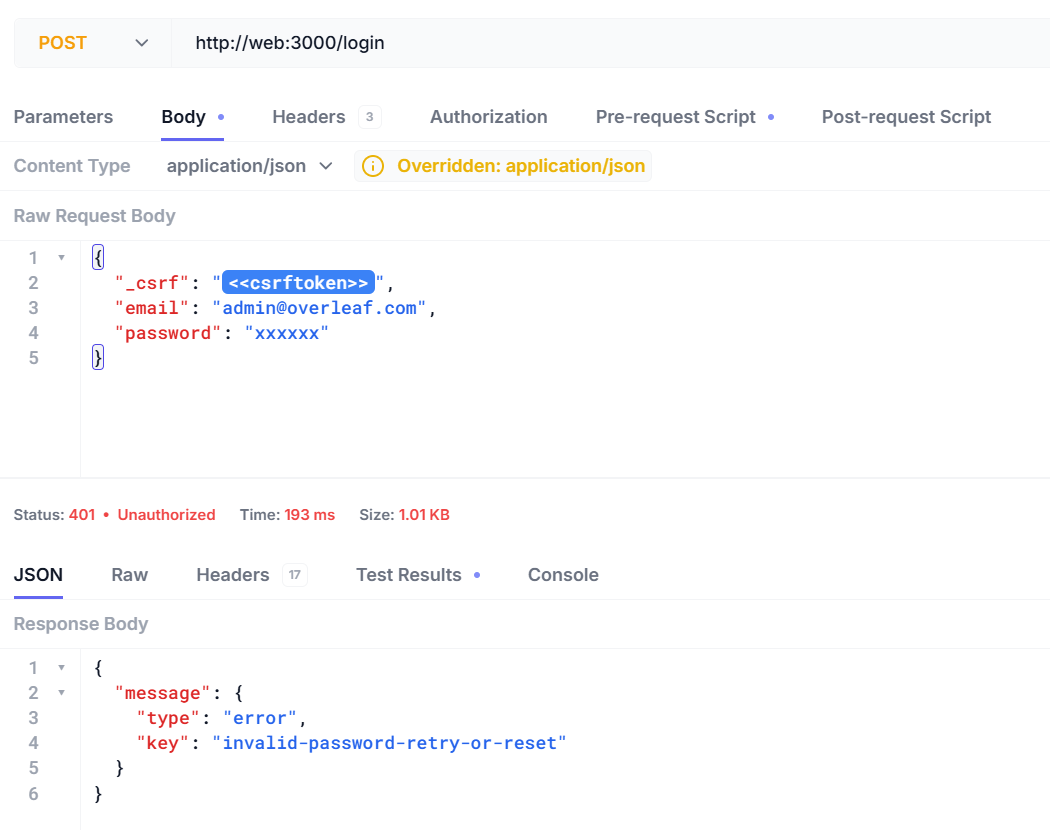
 これでユーザー名とパスワードでログインできます。
```json5 theme={null}
{
"_csrf": "<>",
"email": "admin@overleaf.com",
"password": "xxxxxx"
}
```
以下は、誤ったユーザー名またはパスワードを入力した場合のレスポンスです。
これでユーザー名とパスワードでログインできます。
```json5 theme={null}
{
"_csrf": "<>",
"email": "admin@overleaf.com",
"password": "xxxxxx"
}
```
以下は、誤ったユーザー名またはパスワードを入力した場合のレスポンスです。
 This documentation is built and hosted on [Mintlify](https://mintlify.com), a developer documentation platform.